The default Slide Layouts available in PowerPoint help you choose various placeholder arrangements for your slide content. It's easy to create good looking slides using them. These ready-made layouts include containers for text, pictures, charts, etc. These layouts can be edited (or duplicated/renamed) within the Slide Master View to create more Slide Layouts. While duplicating and editing Slide Layouts is a great way to make small changes, it's not the best way to create a Slide Layout from scratch. As an analogy, duplicating and editing a Slide Layout is more like using a coloring book to fill color between the lines of pre-drawn art. However, creating your Slide Layout from scratch is more like starting with a blank sheet of paper and drawing your art before you start coloring between the lines. Decide which of these approaches works best for you before starting. If you prefer the latter approach, follow these steps to create a new Slide Layout:
- Launch PowerPoint. By default, PowerPoint opens a blank presentation. Select the View | Master | Slide Master menu option, as shown in Figure 1, below.

Figure 1: Slide Master option within the View menu- This opens Slide Master View, as shown in Figure 2, below. In Slide Master view, you'll find that the left pane contains a larger thumbnail on the top, called the Slide Master, as shown highlighted in blue within Figure 2, below, and several smaller slide thumbnails representing individual Slide Layouts, as shown highlighted in red within Figure 2.
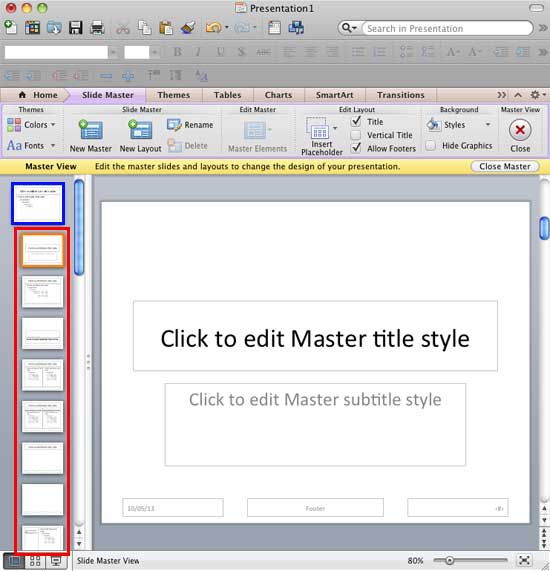
Figure 2: Slide Layouts within the Slide Master view- To add a new slide layout, click in between the layout thumbnails to place an insertion cursor. We placed our insertion cursor right below the Slide Master thumbnail at the position of the first Slide Layout, as shown in Figure 3, below.
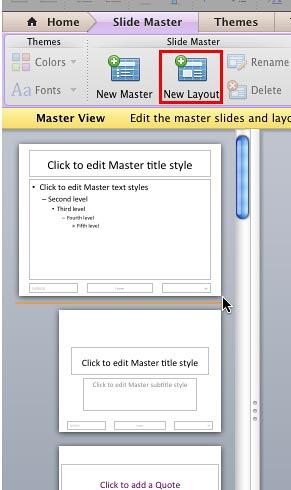
Figure 3: New Slide Layout insertion point- Within the Slide Master tab of the Ribbon, click the New Layout button, as shown highlighted in red within Figure 3, above. Alternatively, right-click (Ctrl + click) at the insertion point to bring up a context menu. Within this menu, choose the New Layout option as shown in Figure 4, below.
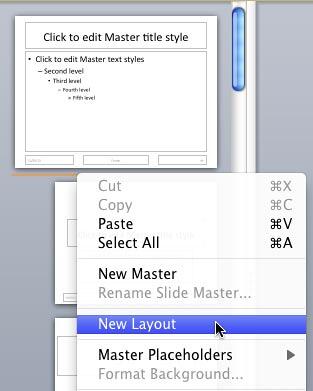
Figure 4: New Layout option- Either way, you will add a new Slide Layout at the position of insertion point. In Figure 5, below, you can see the new Slide Layout selected within the left pane, as shown highlighted in red and the same Slide Layout can be seen within the Slide Area, as shown highlighted in blue.
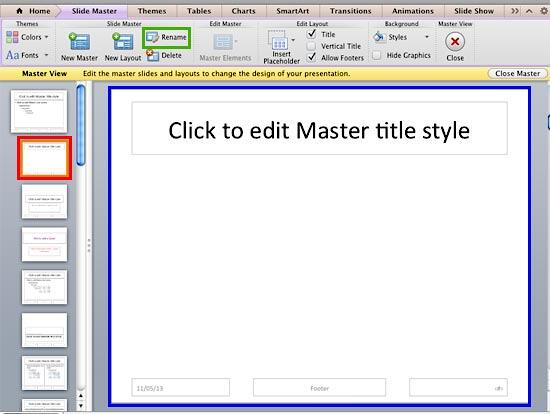
Figure 5: New Slide Layout added- By default, the new Slide Layout added has a name that PowerPoint automatically provides—it's called Custom Layout. To rename the Slide Layout, select it and click the Rename button within the Slide Master tab, as shown highlighted in green within Figure 5, above. Doing so brings up the Rename Layout window, containing the default name Custom Layout. Within this window type in the new name. We renamed our new layout as Test Layout, as shown in Figure 6, below. Click the Rename button.
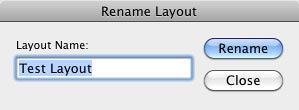
Figure 6: Rename Layout window
- Notice that our new Test Layout, as shown in Figure 6, above, already has Title and Footers placeholders. You may remove these placeholders by deselecting the two check-boxes Title and Allow Footers, that are shown highlighted in red within Figure 7, below.
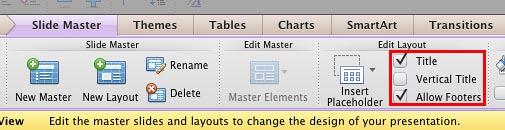
Figure 7: Title and Footers check-boxes- Once you deselect both the check-boxes, as shown highlighted in red within Figure 8, below, you will remove both the placeholders from the newly added Slide Layout, as shown highlighted in blue within Figure 8.
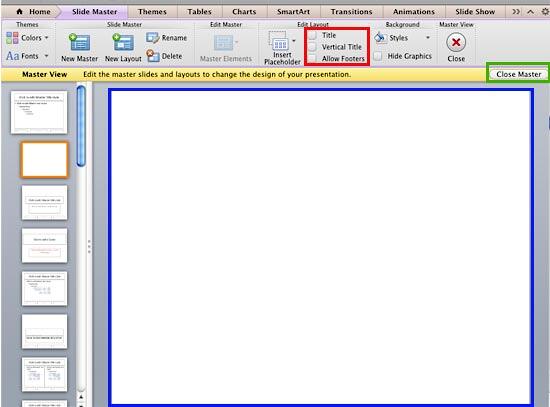
Figure 8: Title and Footers removed from new Slide Layout- When done, click the Close Master button, as shown highlighted in green within Figure 8, above. This will get you back to Normal View.
- Access the Home tab of the Ribbon and click the Layout button to bring up the Layout drop-down gallery, as shown in Figure 9, below. Notice that your new layout shows up here (highlighted in red within Figure 9), ready to be used in your presentation. Once your layout has been added, it's time to add new placeholders to the created layout. We explain the process in our Inserting New Placeholders in Slide Layouts in PowerPoint 2011 tutorial.
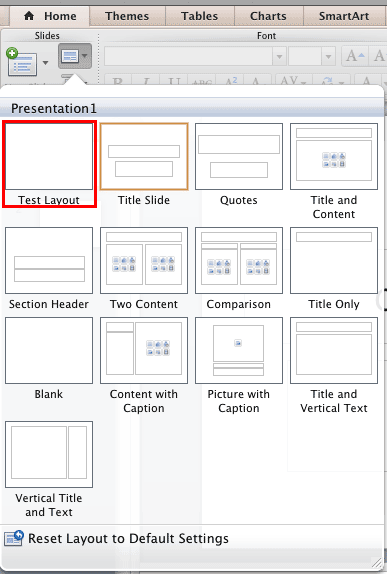
Figure 9: New Slide Layout within the Layout drop-down menu- Save your presentation often.





