
This is the print version of this page. All content is copyright Indezine.com 2000-2026.
Explore Slide Layouts within Slide Master view in PowerPoint 2011 for Mac.
Author: Geetesh Bajaj
Product/Version: PowerPoint 2011 for Mac
OS: Mac OS X
While exploring how you can change the Slide Layout of any given slide(s), we have seen that when you access the Home tab of the Ribbon and click the Layout button, the Layout drop-down gallery opens, as shown in Figure 1, below. The number of Slide Layouts that you see in this gallery may differ depending upon the Theme of your active presentation. However, with PowerPoint's default Office Theme applied, you will see 11 layouts in PowerPoint 2011 for Mac, as shown in Figure 1, below.
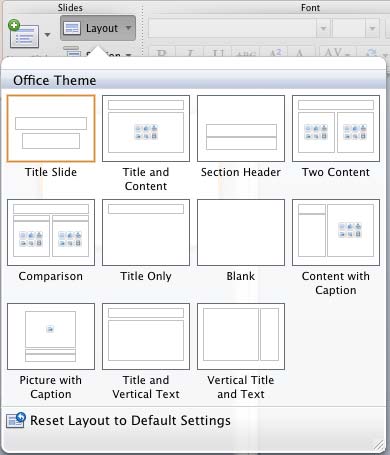
Figure 1: Layout drop-down gallery
If your Presentation is using another theme or template, make sure you change it back to the Office Theme since this is a basic, clean Theme that lends itself best to changes and edits that we discuss later in this tutorial. If you do not know how you can apply a Theme, explore our Applying Themes in PowerPoint, Word, and Excel 2011 tutorial.
So, where do these Slide Layouts come from? What influences how they look, or how the placeholders within them are laid out? To find out answers to these questions, you need to access the Slide Master View within PowerPoint. In Slide Master view, you'll find that the left pane contains two distinctly different elements: a larger thumbnail representing the Slide Master, as shown highlighted in red within Figure 2, below, and several smaller slide thumbnails below representing individual Slide Layouts, as shown highlighted in blue within Figure 2.
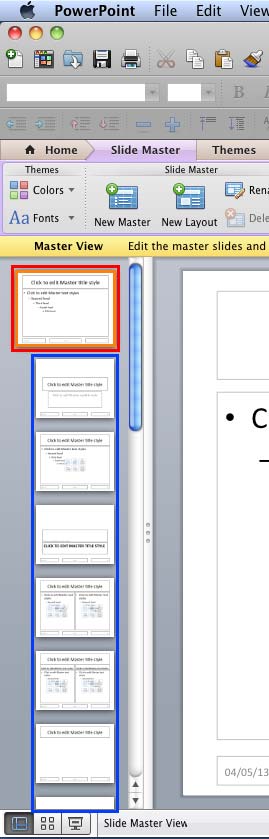
Figure 2: Slide Master and Slide Layouts within PowerPoint
Cannot see all the Slide Layouts in Figure 2, above? Yes, there are more Slide Layouts, and you can use the scroll bar to see more of this pane and see more Slide Layouts.
In any typical PowerPoint presentation, the Slide Master, as shown highlighted in red within Figure 2, above, is hierarchically placed at the highest position for information about the background, color, fonts, effects, placeholders (size and position), etc. The Slide Layouts which are placed at a lower hierarchy level get all this information from the Slide Master they belong to.
When you modify the Slide Master, you are making changes to all the influenced Slide Layouts beneath that Slide Master. For example, if you change the Background Style in a Slide Master, this should reflect the new Background Style in all the dependent Slide Layouts. However, the reverse is not true. If you make any changes to the Slide Layout, that change is never reflected in the Slide Master. In fact, for that change in particular, the Slide Layout stops being influenced by the Slide Master. Exploring our earlier example of changing the Background Style, any change made to the Background Styles in a Slide Layout will not affect the Slide Master or any other Slide Layouts within the presentation.
The eleven Slide Layouts available within the Slide Master are:
The last two Slide Layouts do not show up within the Layout drop-down gallery since they are intended for Far East Asian languages such as Japanese, Chinese, and Korean. Thus, you only see 9 Slide Layouts within the Layout drop-down gallery if you are using an English version of PowerPoint.
We will explore how you can add new Slide Layouts and modify existing ones in other tutorials.
See Also:
Slide Master and Slide Layouts: Slide Layouts Within Slide Master View (Index Page)
Slide Layouts Within Slide Master View in PowerPoint 2016 for WindowsYou May Also Like: How You Can Make a High Impact in Meetings | Food - A PowerPoint Templates




Microsoft and the Office logo are trademarks or registered trademarks of Microsoft Corporation in the United States and/or other countries.
