
This is the print version of this page. All content is copyright Indezine.com 2000-2026.
Learn how to sign out and switch Microsoft Accounts in PowerPoint 2013 on Windows 7.
Author: Geetesh Bajaj
Product/Version: PowerPoint 2013 on Windows 7
OS: Microsoft Windows 7 and higher
Office 2013 programs such as PowerPoint 2013 for Windows, work with their own Accounts system. Many options within PowerPoint show up or change depending upon which Account you are signed into, and these include your Recent Files list, your connected services, and even the interface color for your program.
While these customizations show up irrespective of whether you are running PowerPoint 2013 on Windows 8 or Windows 7, the process of signing in and switch Accounts differs a little in both these Windows versions. That's because Windows 8 or newer versions also integrate with Microsoft Accounts on their own, and PowerPoint 2013 uses the same Account information seamlessly. For more details, refer to our Sign Out and Switch Accounts in PowerPoint 2013 on Windows 10 and 8 tutorial.
Windows 7, however, does not provide its own Microsoft Account integration in the same way. In this tutorial, you'll explore the Account management for PowerPoint 2013 within a Windows 7 environment.
Note that to run PowerPoint 2013 or any other Office 2013 program on Windows 7, you do not have to be signed in to a Microsoft Account. You can start working on the application straight away. So, why would you sign in to Office 2013 in Windows 7? By signing in to Office 2013, you can save your Office files online to get to them almost anywhere and share it with anyone whenever and wherever you want. You can also get to your themes, customizations, and settings anytime you sign in.
Now, to find out whether you are signed in to your Microsoft account, just look for a name at the top right corner of any Office program such as PowerPoint 2013, as shown in Figure 1, below. If you see a Sign in hyperlink, as shown highlighted in red within Figure 1, that indicates you are not signed in.
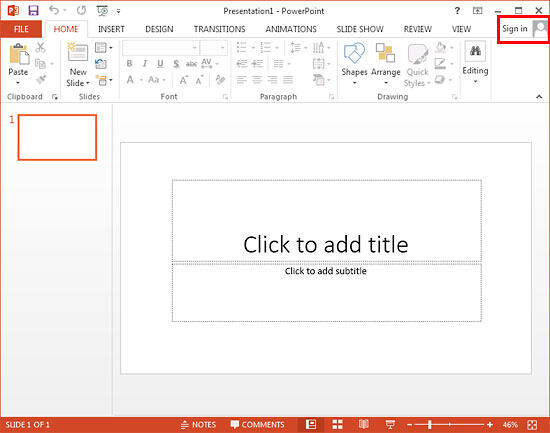
Figure 1: Find out whether you are Signed in or not
We will first learn how you can sign in and switch Accounts. Thereafter, we will explore how you can sign out from the account. Follow these steps to learn more:
This is the account you use for a Microsoft product/service such as Hotmail, OneDrive, Xbox Live, Outlook.com, etc. Learn more on our Microsoft Account page.
This account is typically provided by your work or school and is connected to an Office 365 account.
Since we are only exploring Microsoft Accounts in this tutorial, do choose that option.
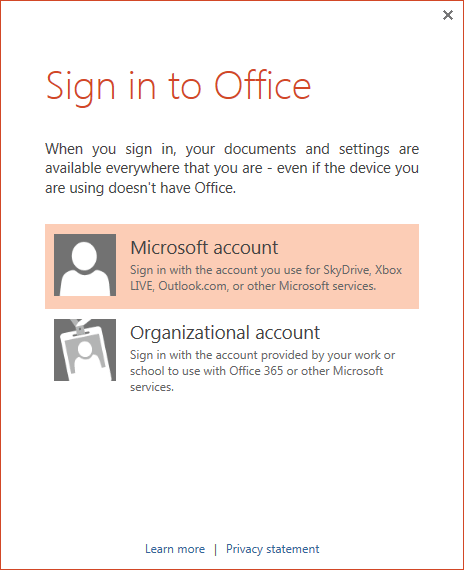
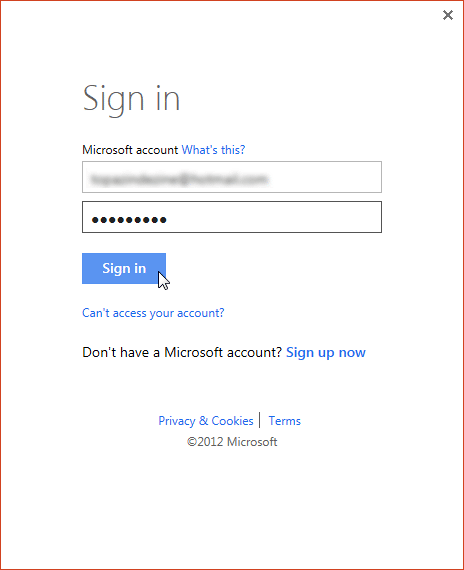


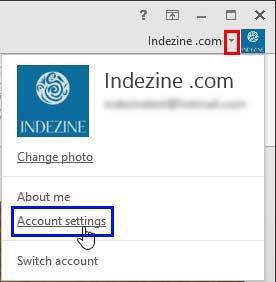
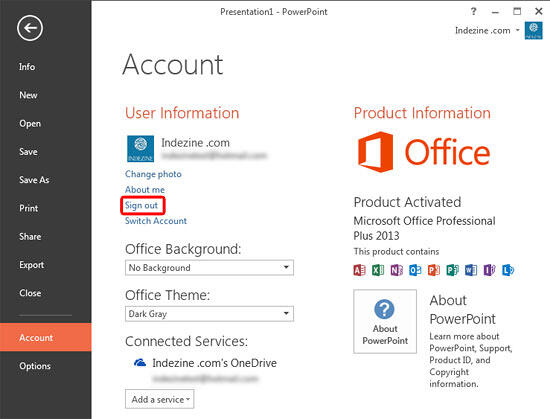
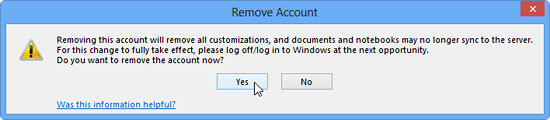
In this section, we'll explore how to sign out of an account, or remove it altogether:
01 08 27 - File Types, File Menu, and Backstage View: Sign and Switch Accounts in PowerPoint (Glossary Page)
Sign and Switch Accounts in PowerPoint 2016 for Windows
Sign and Switch Accounts in PowerPoint 2013 on Windows 10 and 8
Sign and Switch Accounts in PowerPoint for iPad
You May Also Like: 4 Ideas to Help You Find The Right Story For Your Next Presentation | Kyrgyzstan Flags and Maps PowerPoint Templates



Microsoft and the Office logo are trademarks or registered trademarks of Microsoft Corporation in the United States and/or other countries.
