This is the print version of this page. All content is copyright Indezine.com 2000-2026.
Learn how to work with guides in PowerPoint 365 for Windows. You can add use guides to position objects with precision.
Author: Geetesh Bajaj
Product/Version: PowerPoint 365 for Windows
OS: Microsoft Windows 10 and higher
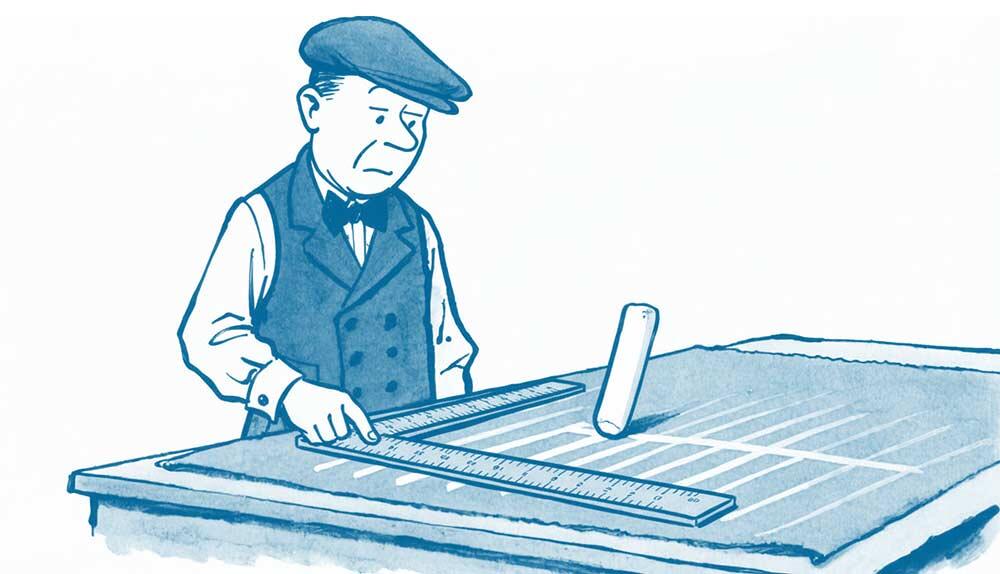
Let's start with the basics: what are guides? Picture a tailor's cutting table, marked with faint chalk lines that keep every cut straight and every seam aligned. Guides do the same job on a PowerPoint slide, except this time, you're the tailor, and the chalk never runs out. Every guide can be moved, added, or deleted entirely on your terms. Nothing is fixed in place unless you decide it should be.
There’s More to Guides
PowerPoint Guides Not Working
Working Effectively with Guides in PowerPoint
Conclusion
Quick Quiz
But here's the twist nobody warns you about: the moment guides show up on your slide, they stop being polite background lines and start quietly running the show. Snapping is built in, permanently switched on, no settings buried three menus deep. Let an object wander even a little too close, and it clicks into place before you've finished dragging, like a magnet that's been lying in wait the whole time. You won't aim. You won't nudge pixel by pixel. The guide will simply decide you're done.
Alongside rulers and gridlines, guides form a trio built for precision, each one measuring, marking, or aligning in its own way. This page shows you how to put guides to work using the techniques that follow.
Aisha, our freelance presentation designer with five client decks a week and zero patience for wasted motion, is about to discover exactly why guides deserve a permanent spot in her workflow.
Before diving in, it's worth knowing:
Here are some explicit use cases for guides that can improve your workflows in PowerPoint:
Before we start looking at working with guides, we realize that some of you may have ended on this page because you have problems with guides in PowerPoint. Nobody searches for "advanced guide theory" at 11 PM. They search for "why won't this stupid line show up." People hunting for help rarely think in terms of features, they think in terms of problems, and a good troubleshooting section meets them exactly where they're stuck, like a helpful shopkeeper who skips the product tour and just points you straight to the aisle you need.
Here are some quick ideas:
Guides rarely misbehave; they're usually just misunderstood. A quick check against the above list is often all it takes to get them snapping back into line.
BackNow, let us explore how you can work effectively with guides in PowerPoint 365 for Windows:
Do you want more keyboard shortcuts?
Explore our PowerPoint Keyboard Shortcuts and Sequences Ebook that is updated for all PowerPoint versions.
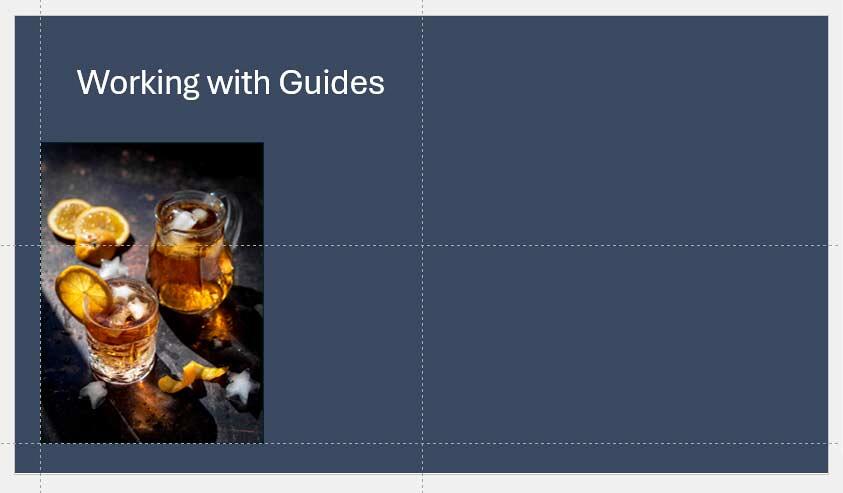
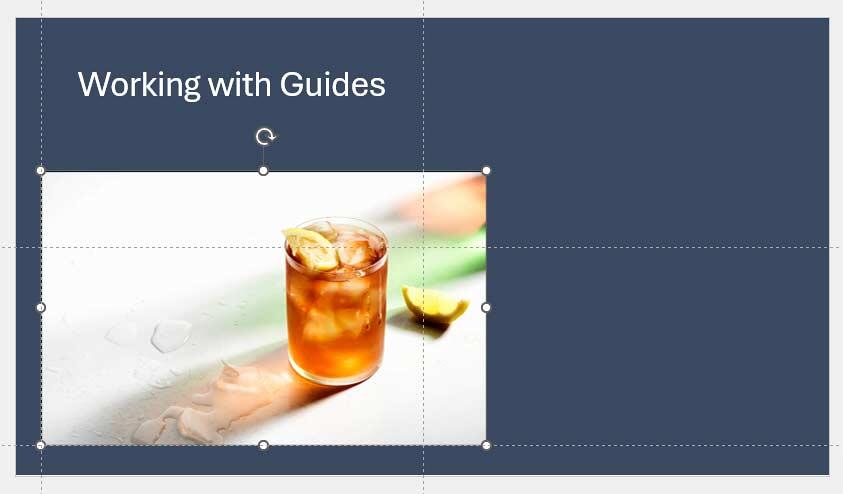
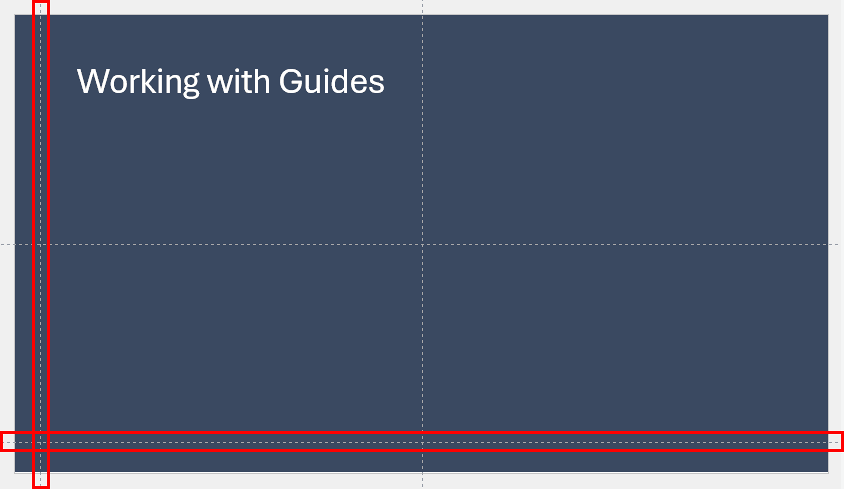
Turns out, design nerds haven't gotten around to naming this one. Left-and-bottom alignment repeated across slides doesn't have its own fancy title, no "Rule of Thirds" moment, no golden ratio, nothing you can drop at a dinner party and sound impressive. Instead, it borrows a little bit from a few bigger, more established ideas.
Professional graphic designers have entire style guides built around anchor points like this, sometimes running dozens of pages, just to make sure a logo always sits exactly two inches from the same corner, on every single page, forever.
Slide designers can go enthusiastic with guides. Some designers can add as many as 30 to 40 guides on their slides so that there's a position and place for every type of slide object! You may be happy with as few as 8 or 10 guides, though. Do play with guides and make them work for you!
Working with guides in PowerPoint 365 for Windows isn’t just about lining things up. It’s also about building slides that feel intentional, consistent, and effortlessly professional. Whether you’re anchoring elements across multiple slides, snapping shapes into precise positions, or creating a layout framework that speeds up every future deck, guides quietly elevate your workflow. With a little practice, and perhaps a few extra guides, you’ll find they become less of a visual aid and more of a design partner, helping you craft slides that look sharp, feel balanced, and stay true to your visual rhythm.
BackUse guides when creating structured, consistent, and visually balanced slides.
Yes. Guides ensure consistent margins and alignment across slides.
No. Guides are non-printing alignment tools.
01 09 19 - Working with Slides: Working with Guides in PowerPoint (Glossary Page)
Working with Guides in PowerPoint 2016 for Windows
Working with Guides in PowerPoint 2016 for Mac
Working with Guides in PowerPoint 2013 for Windows
Working with Guides in PowerPoint 2011 for Mac
Working with Guides in PowerPoint 2010 for Windows
You May Also Like: Make Your Meetings Productive: Ask These 5 Questions | Maldives Flags and Maps PowerPoint Templates


Microsoft and the Office logo are trademarks or registered trademarks of Microsoft Corporation in the United States and/or other countries.