
This is the print version of this page. All content is copyright Indezine.com 2000-2026.
Learn about using rulers in PowerPoint 365 for Windows. We also explore hiding and showing rulers.
Author: Geetesh Bajaj
Product/Version: PowerPoint 365 for Windows
OS: Microsoft Windows 10 and higher
This page explores how to use the Rulers feature in Microsoft PowerPoint 2016 for Windows to position and align slide objects more effectively. You’ll learn how to display or hide the horizontal and vertical rulers, customize ruler-related settings, and understand how rulers work alongside other layout tools such as gridlines and guides. The tutorial also explains how measurement units affect ruler behavior and includes helpful shortcuts that can make slide design faster and more precise.
Why you Need Rulers?
Show and Hide Rulers
No Vertical Ruler?
When working with multiple slide objects in PowerPoint, it is important to maintain proper alignment and positioning to ensure a clean and professional slide layout. Although PowerPoint provides precise coordinate-based positioning options, most design tasks only require a general visual reference for object placement. In such cases, the Rulers feature provides a convenient way to estimate positioning and alignment directly on the slide.
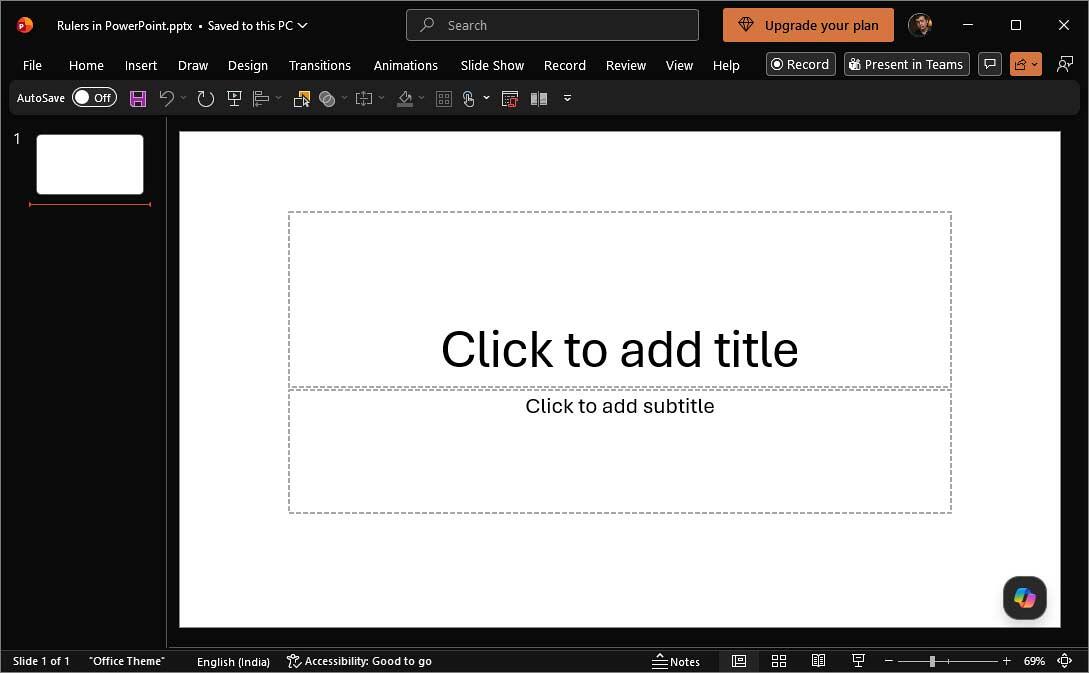
Think of Rulers as the measuring tape taped to the edges of your slide. They help you quickly judge whether objects are lined up nicely or drifting off into the presentation wilderness. By default, these Rulers may be hidden, almost like a secret tool waiting to be discovered. Once turned on, they appear along the top and left edges of the active slide, shown highlighted in red within Figure 1, below.

Figure 1: Rulers in PowerPoint 365
Graphic designers have relied on rulers and guides for decades to keep layouts balanced and professional-looking. Even in the digital world, a good ruler can save a presentation from looking like stickers tossed randomly onto a refrigerator door!
Rulers are not just useful for placing slide objects, but they also make other PowerPoint features like the grid and guides more useable.
BackIn this tutorial, you will learn how to show and hide Rulers in PowerPoint 365 for Windows. You will also explore some of the settings that influence the measurement units in the rulers, as explained in the following steps:
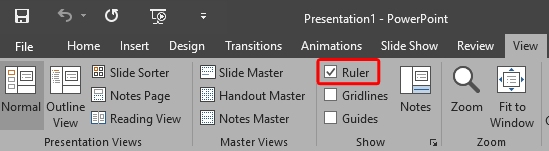
To turn on the visibility of the rulers, you can use the keyboard shortcut Alt + Shift + F9. Use the same shortcut key to toggle it away.

Do you want more keyboard shortcuts?
Explore our PowerPoint Keyboard Shortcuts and Sequences Ebook that is updated for all PowerPoint versions.
There are two rulers that show up within PowerPoint: the Horizontal ruler and the Vertical ruler. Sometimes, you may only see the horizontal ruler, as shown in Figure 4, below.
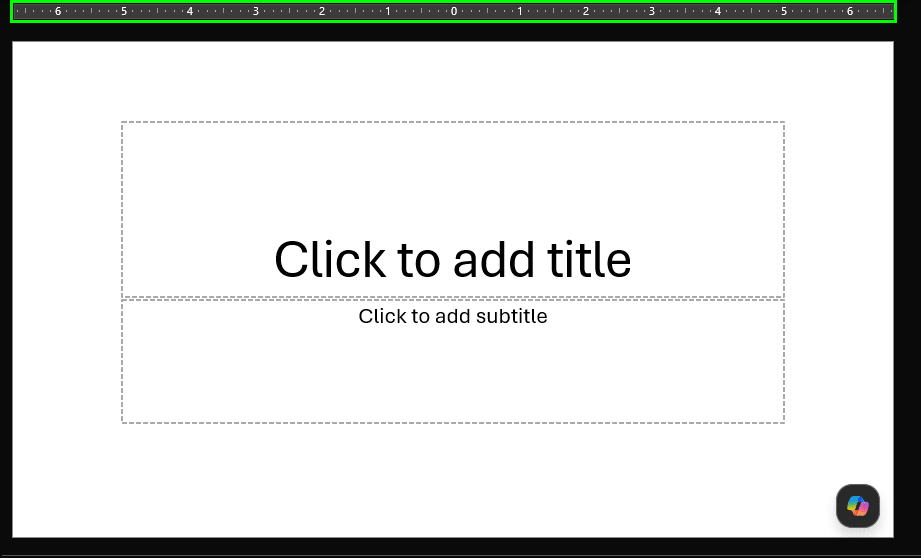
Figure 4: Horizontal Ruler visible
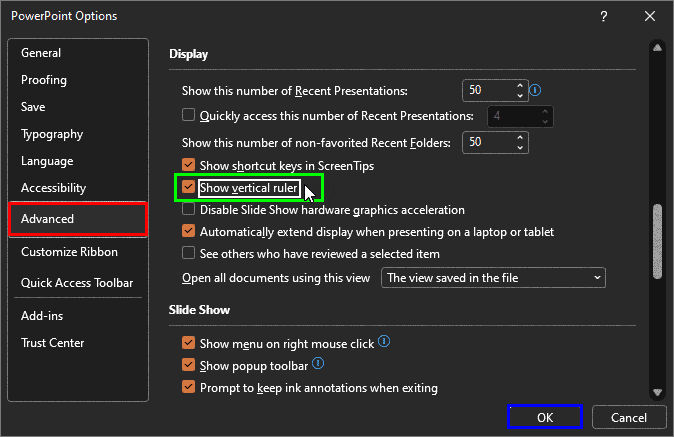
Follow these steps to enable the Vertical ruler in PowerPoint:
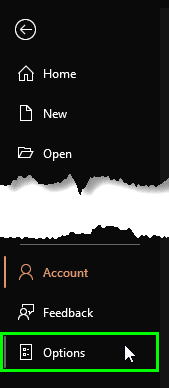
Does your ruler show inches, centimeters, or points? If you want to know how to change the measurement unit from one to another in PowerPoint 2016, look at our Change the Unit of Measurement in Windows tutorial.
They’re screen-based and approximate but reliable for layout and alignment tasks.
They visually support Snap to Grid by showing object positions while snapping occurs.
Professionals use rulers constantly, especially for margins, symmetry, and precise spacing across multiple slides.
01 09 09 - Working with Slides: Rulers in PowerPoint (Glossary Page)
Rulers in PowerPoint 2016 for Windows
Rulers in PowerPoint 2016 for Mac
Rulers in PowerPoint 2013 for Windows
Rulers in PowerPoint 2011 for Mac
Rulers in PowerPoint 2010 for Windows
You May Also Like: Stand Out with a Direct and Dramatic Opening | The Art of Online Communication in Business




Microsoft and the Office logo are trademarks or registered trademarks of Microsoft Corporation in the United States and/or other countries.
