
This is the print version of this page. All content is copyright Indezine.com 2000-2026.
Learn how to reuse slides in PowerPoint 365 for Windows. Reusing helps you save time by using existing slides.
Author: Geetesh Bajaj
Product/Version: PowerPoint 365 for Windows
OS: Microsoft Windows 10 and higher
Reusing existing slides can significantly enhance efficiency and productivity. It eliminates the need to recreate content and frees up valuable time that can be better invested in refining and rehearsing the presentation.
Microsoft PowerPoint includes a dedicated Reuse Slides feature that allows users to locate and insert specific slides into the current presentation.
Microsoft announced that the Reuse Slides feature in subscription versions of PowerPoint and newer perpetual versions will no longer be available and will be entirely scrapped by January 2026, according to this notification. It seems, though, that only the option to reuse slides from cloud locations has been deprecated, and you can continue to reuse slides from locally saved presentations.
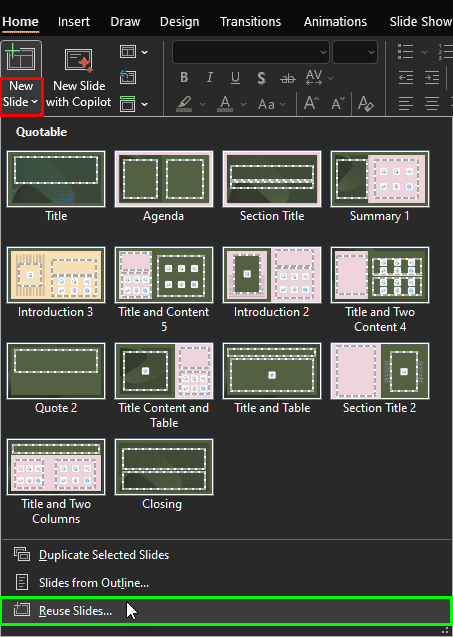
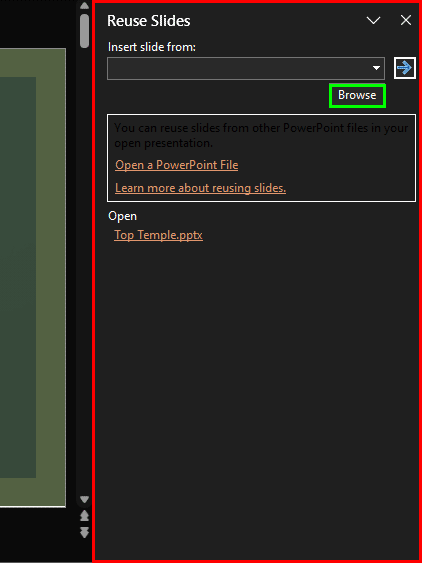
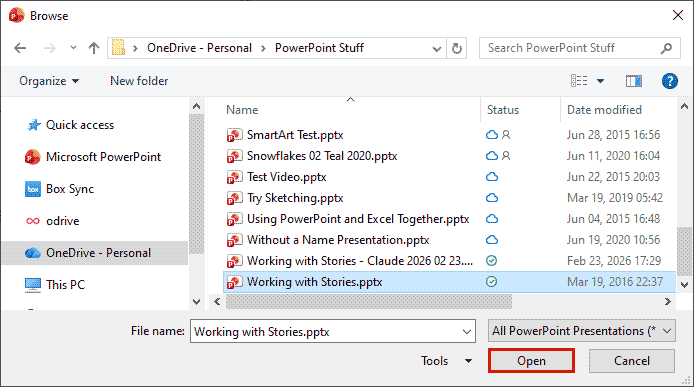
This tutorial outlines the process for reusing slides in PowerPoint 365 for Windows:
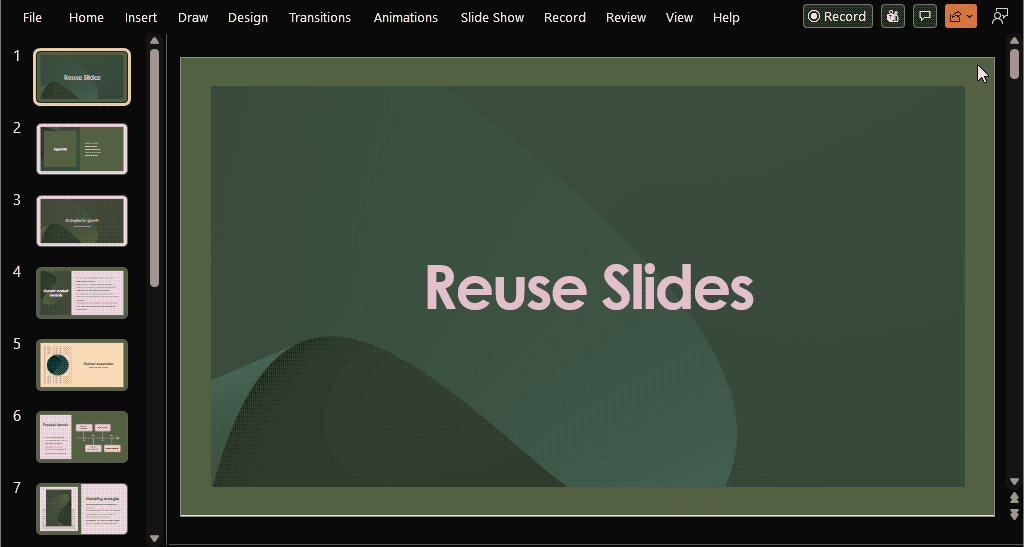
Copied slides will always be inserted after the selected slide in the active presentation.
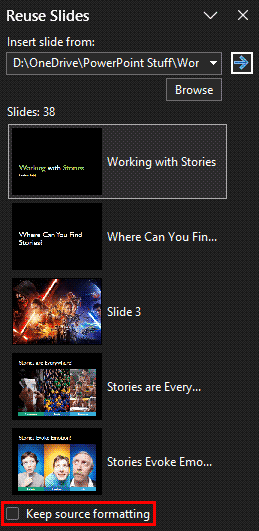
To retain the slide formatting of the original slide, make sure to select the Keep source formatting check-box, as shown highlighted in red within Figure 5, above. If you do not select this check-box, the copied slide will take on the slide formatting using the design template of the new presentation.
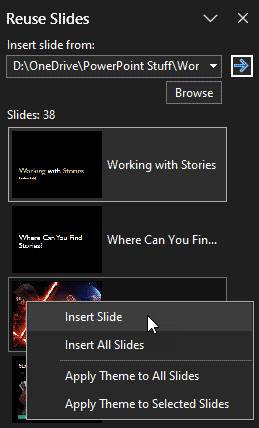
This option will insert the slide into the active presentation and the slide will use the Theme of the active presentation.
This option will insert all the slides into the active presentation and all the slides will use the Theme of the active presentation.
This option will apply the Theme of the selected slide to all the slides in the active presentation. No actual slides are inserted.
This option will apply the Theme of the selected slide to selected slides in the active presentation. No actual slides are inserted.

Additionally, you can also reuse older slides using the drag and drop process, this is explained in our Reuse Slides through Drag and Drop in PowerPoint 2016 tutorial.
Yes. Click individual slide thumbnails to insert only the slides you want.
Reuse Slides offers better control over formatting and avoids theme conflicts.
Yes. Speaker notes transfer along with the reused slides.
01 09 07 - Working with Slides: Reuse Slides in PowerPoint (Glossary Page)
Reuse Slides in PowerPoint 2016 for Windows
Reuse Slides in PowerPoint 2016 for Mac
Reuse Slides in PowerPoint 2013 for Windows
Reuse Slides in PowerPoint 2011 for Mac
Reuse Slides in PowerPoint 2010 for Windows
Reuse Slides in PowerPoint 2008 for Mac
Reuse Slides in PowerPoint 2007 for Windows
Reuse Slides in PowerPoint 2003 for Windows
You May Also Like: First Impressions Last, by Jerry Weissman | Comparing the Speaking Style of Liz Truss and Boris Johnson




Microsoft and the Office logo are trademarks or registered trademarks of Microsoft Corporation in the United States and/or other countries.
