Indezine Logo


Adding Commands to Custom Groups in PowerPoint 365 for Windows

Learn how to add commands to custom groups in PowerPoint 365 for Windows. This sort of personalization can help you customize your PowerPoint interface.


Author:

Product/Version: PowerPoint 365 for Windows

OS: Microsoft Windows 10 and higher


Learn PowerPoint

Learn about using the Object Packager to embed video


If you want to really benefit from customizing your Ribbon in PowerPoint 365 for Windows, then you will certainly want to add some commands beyond the ones that are placed by default within any of the Ribbon tabs. You’ll notice that all commands are placed within Groups. Whatever your intent may be, you cannot place any commands within Groups that are built within PowerPoint. You first need to add a custom Group within any of the tabs available in the Ribbon. Thereafter, you need to populate them with commands.

What is a Group?

Within a Ribbon tab, all commands are placed within Groups. You can learn more in our Working with Custom Groups in Ribbon Tabs in PowerPoint 365 for Windows tutorial.

Follow these steps to learn how to add commands to custom groups:
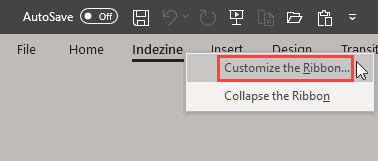
  1. You first need to bring up the PowerPoint Options dialog box. There are several ways to access these options. The easiest way is to right-click anywhere on the Ribbon and then choose the Customize the Ribbon option from the resultant menu, as shown highlighted in red within Figure 1, below.
  2. Customize the Ribbon option
    Figure 1: Customize the Ribbon option
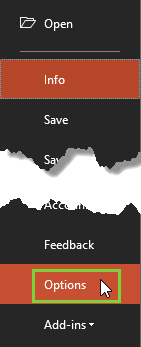
  3. Alternatively, access the File menu and choose Options, as shown highlighted in green within Figure 2, below.
  4. Options within File menu
    Figure 2: Options within File menu
  5. PowerPoint Options with a Keyboard Shortcut

  6. Also, if you are a keyboard aficionado, you can quickly press the Alt + F keys together and then press T.
  7. Keyboard Shortcuts for PowerPoint

    PowerPoint Keyboard Shortcuts

    Do you want more keyboard shortcuts?

    Explore our PowerPoint Keyboard Shortcuts and Sequences Ebook that is updated for all PowerPoint versions.

  8. Either way, you end up with the PowerPoint Options dialog box, as shown in Figure 3, below. Make sure you choose the Customize Ribbon option within the sidebar. Doing so shows the relevant options on the right side of the PowerPoint Options dialog box, as shown in Figure 3.
  9. PowerPoint Options dialog box
    Figure 3: PowerPoint Options dialog box
  10. Now, choose the custom Ribbon tab you have already added. This tab should contain a new custom Group, as shown highlighted in red within Figure 3, above. As you can see, our custom group is bereft of any commands.
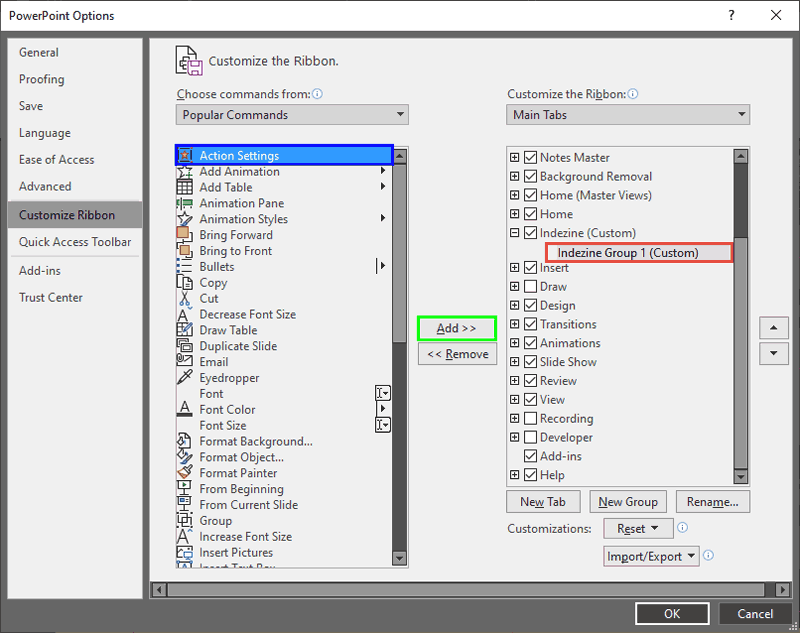
  11. To add commands within this custom group, make sure you select the custom group first, as shown highlighted in red within Figure 4, below.
  12. Custom group selected
    Figure 4: Custom group selected
  13. Next, choose any of the commands you want to add from within the Choose commands from list, as shown highlighted in blue within Figure 4, above. Once you select the command, click the Add button, as shown highlighted in green within Figure 4.
  14. Command Categories

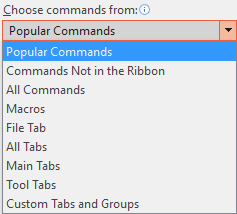
  15. In Figure 4, above, you can see that we chose the Popular Commands category within the Choose commands from list. You can click the down arrow within the commands selection area to bring up the Choose commands from drop-down list to find out more command categories, as shown in Figure 5, below.
  16. List of other command categories
    Figure 5: List of other command categories
  17. Doing so will add the selected command within the custom group, as shown highlighted in red within Figure 6, below.
  18. Command added within custom group
    Figure 6: Command added within custom group
  19. Similarly, continue adding more commands. Figure 7, below, shows more commands added to the custom group.
  20. More commands added within custom group
    Figure 7: More commands added within custom group
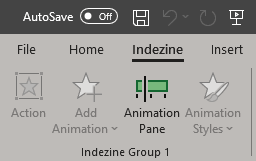
  21. When done, click the OK button within the PowerPoint Options dialog box to get back to the PowerPoint interface. Figure 8, below, shows all the new commands added within the custom group.
  22. Added commands showing on the Ribbon
    Figure 8: Added commands showing on the Ribbon
  23. Save your presentation often.

People Also Ask:

Can I add commands to default groups in the Ribbon?

No, you cannot modify default groups directly. However, you can create a custom group within a default tab and add your desired commands there.

Is it possible to rename commands within a custom group?

Yes, select the command in the custom group, click Rename, enter the new name, and click OK.

Can I change the order of commands within a custom group?

Yes, in the Customize Ribbon dialog, select the command and use the Move Up or Move Down buttons to adjust its position.

See Also:

01 06 05 - Working with QAT and Ribbons: Adding Commands to Custom Groups in PowerPoint (Glossary Page)

Adding Commands to Custom Groups in PowerPoint 365 for Mac
Adding Commands to Custom Groups in PowerPoint 2019 for Windows
Adding Commands to Custom Groups in PowerPoint 2016 for Windows
Adding Commands to Custom Groups in PowerPoint 2016 for Mac
Adding Commands to Custom Groups in PowerPoint 2013 for Windows
Adding Commands to Custom Groups in PowerPoint 2010 for Windows

You May Also Like: PowerPoint Data Rules or Conditional Formatting with DataPoint | Pets PowerPoint Templates


Popular Posts

Applying Slide Masters to Individual Slides in PowerPoint 2010
Learn how to apply Slide Masters to individual slides in PowerPoint 2010.

Copy and Remove Highlighting for Text in PowerPoint 2013
Learn how to copy and remove highlighting for text in PowerPoint 2013.

Add Headers and Footers to Slides in PowerPoint 2016 for Windows
Learn how to add Headers and Footers to slides in PowerPoint 2016 for Windows.

Text Box Autofit Options in PowerPoint 2016 for Windows
Learn about Text Box autofit options in PowerPoint 2016.


Feature List 01 (Layout with Tabs)

The Feature List Layout comprises three sample PowerPoint presentations: one each to create a visual list for 4 features, 5 features, and 6 features. These work great when you have too much information to fit within one slide. This solution lets you use multiple slides, but the visual result is still that of one single slide!

Buy and Download Feature List 01 (Layout with Tabs) for $4.99+ (671 kb)


Microsoft and the Office logo are trademarks or registered trademarks of Microsoft Corporation in the United States and/or other countries.

Home | PowerPoint | Photoshop | PowerPoint Templates | PowerPoint Tutorials | Blog | Notes | Ezine | Media Kit | Feedback | Site Map | About Us | Contact Us

Link to Us | Privacy | Testimonials

PowerPoint Backgrounds | Christian PowerPoint Backgrounds | Business PowerPoint Presentation Templates

Plagiarism will be detected by Copyscape

©2000-2025, . All rights reserved.