Indezine Logo


Inserting a New Slide in PowerPoint 2016 for Windows

Learn how to insert a new slide in PowerPoint 2016 for Windows. We use multiple methods, including keyboard shortcuts and layout options.


Author:

Product/Version: PowerPoint 2016 for Windows

OS: Microsoft Windows 7 and higher


Like many other tasks you do in PowerPoint, inserting a new slide can be done in multiple ways. You just need to find a way that works best for you. The following steps show you how you can do this simple task in PowerPoint 2016 for Windows:
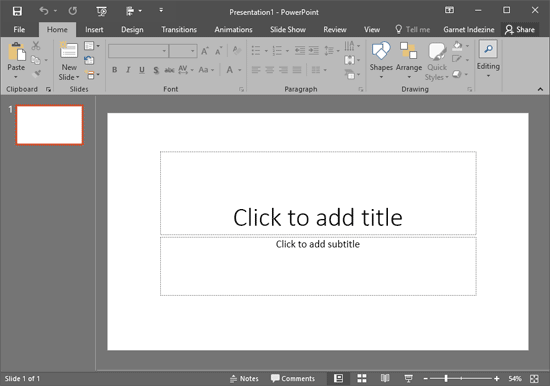
  1. Launch PowerPoint. Within the Presentation Gallery that shows up by default, select the Blank Presentation or any other template/Theme. This will create a new presentation with a single slide, as shown in Figure 1, below. Alternatively, open any existing presentation and proceed with the rest of this tutorial.
  2. New presentation in PowerPoint 2016
    Figure 1: New presentation in PowerPoint 2016
  3. Tip:

  4. If you want to learn more about the PowerPoint 2016 interface, see our PowerPoint 2016 for Windows interface tutorial.
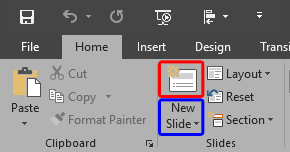
  5. Hereafter, when you want to add new slides, access the Home tab of the Ribbon, and locate the New Slide button, as shown in Figure 2, below.
  6. New Slide button
    Figure 2: New Slide button
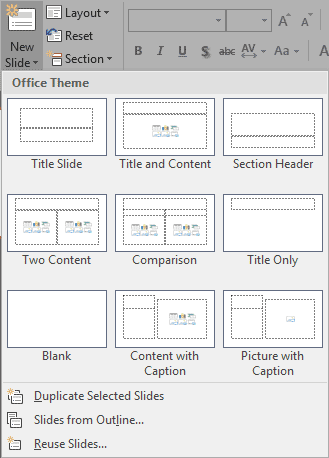
  7. If you click the top half of the New Slide button, as shown highlighted in red within Figure 2, above, you directly add a new slide within the presentation. You can also click the bottom half of the New Slide button highlighted in blue within Figure 2, to summon the Slide Layout drop-down gallery, as shown in Figure 3, below. Then, click any of the layouts available to insert a new slide based on the chosen layout.
  8. Slide Layout drop-down gallery
    Figure 3: Slide Layout drop-down gallery
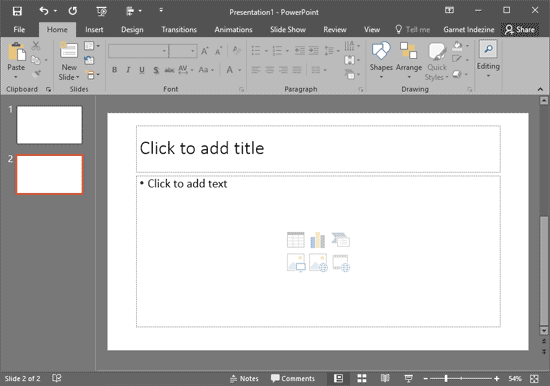
  9. Either way, you end up inserting a new slide within the Slides Pane, which displays an orange perimeter, as shown in Figure 4, below, and also can be seen in Slide Area.
  10. New slide inserted
    Figure 4: New slide inserted
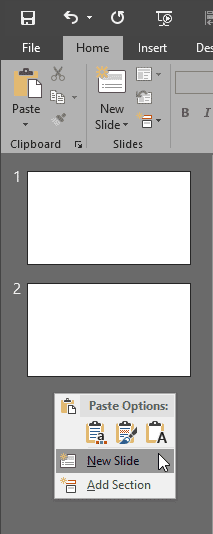
  11. You can also insert new slides while you are in the Slides Pane. Right-click the empty area (or the empty area between two slides) in the Slides Pane to bring up the context menu, as shown in Figure 5, below. From the context menu, choose the New Slide option to insert a new slide.
  12. New slide option
    Figure 5: New slide option
  13. Even easier, you can use the Ctrl + M keyboard shortcut to add new slides.
  14. Keyboard Shortcuts for PowerPoint

    PowerPoint Keyboard Shortcuts

    Do you want more keyboard shortcuts?

    Explore our PowerPoint Keyboard Shortcuts and Sequences Ebook that is updated for all PowerPoint versions.

  15. Thereafter, you can add titles, text, pictures, or any other slide objects within the new slides.
  16. Make sure to save your presentation.

See Also:

01 09 01 - Working with Slides: Inserting a New Slide in PowerPoint (Glossary Page)

Inserting a New Slide in PowerPoint 365 for Windows
Inserting a New Slide in PowerPoint 2016 for Mac
Inserting a New Slide in PowerPoint 2013 for Windows
Inserting a New Slide in PowerPoint 2011 for Mac
Inserting a New Slide in PowerPoint 2010 for Windows
Inserting a New Slide in PowerPoint 2007 for Windows
Inserting a New Slide in PowerPoint 2003 and 2002 for Windows
Inserting a New Slide in PowerPoint for the Web

You May Also Like: The Bezos Blueprint: Conversation with Carmine Gallo | Loneliness PowerPoint Templates


Popular Posts

Set Minimum and Maximum Values on Value Axis in PowerPoint 2013 for Windows
Learn how to set the Minimum and Maximum values on Value Axis of Charts in PowerPoint 2013 for Windows.

Crop Pictures (Mask to Shape) in PowerPoint 2011 for Mac
Learn how to crop pictures using Mask to Shape option in PowerPoint 2011 for Mac.

Playing Video Across Slides in PowerPoint 2016 for Windows
Play a video clip across slides in PowerPoint 2016 for Windows.

Set Document Resolution in PowerPoint 2016 for Windows
Learn how to set document resolution in PowerPoint 2016 for Windows.


Handmade Slides: Pushpins for PowerPoint

These “pushpin” graphics are already placed in PowerPoint slides. Just copy them and paste within your slides to create a look that makes a picture, shape, or anything else appear as if it has been pushed onto a surface, board, or wall with a pin! These ready-made pushpins are already within PowerPoint slides, and have been provided in five colors. Just copy them and paste them on your slides.

Download these Pushpins for just $19.99


Microsoft and the Office logo are trademarks or registered trademarks of Microsoft Corporation in the United States and/or other countries.

Home | PowerPoint | Photoshop | PowerPoint Templates | PowerPoint Tutorials | Blog | Notes | Ezine | Media Kit | Feedback | Site Map | About Us | Contact Us

Link to Us | Privacy | Testimonials

PowerPoint Backgrounds | Christian PowerPoint Backgrounds | Business PowerPoint Presentation Templates

Plagiarism will be detected by Copyscape

©2000-2025, . All rights reserved.