Indezine Logo


Inserting a New Slide in PowerPoint 2007 for Windows

Learn how to insert a new slide in PowerPoint 2007 for Windows. We use multiple methods, including keyboard shortcuts and layout options.


Author:

Product/Version: PowerPoint 2007 for Windows

OS: Microsoft Windows XP and higher


Follow these steps to insert a new slide in PowerPoint 2007.

  1. If PowerPoint is not already open, first launch the program. If it is already open, skip to Step 3.
  2. Go to your Windows Vista Start menu (some steps may vary with Windows XP) and choose All Programs | Microsoft Office | Microsoft Office PowerPoint 2007, as shown in Figure 1, below.
  3. Windows Vista: Type the application name that you want to open in the Start Search field. For example, if you type PowerPoint, the Search field displays the application name in the Start menu above. Click on the menu option that says Microsoft Office PowerPoint 2007.
  4. Start Menu Interface
    Figure 1: Start Menu Interface
  5. Windows XP: Users can just access the Windows Start menu and choose the Run option. In the Run dialog box, type powerpnt, and click the OK button.
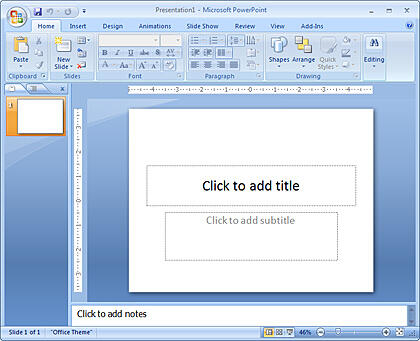
  6. Doing so opens the PowerPoint interface with a new presentation, containing one slide, as shown in Figure 2, below.
  7. On the other hand, if you are presented with a New Presentation dialog box, click the Blank Presentation option.
  8. The PowerPoint 2007 interface
    Figure 2: The PowerPoint 2007 interface
  9. Tip:
  10. If you want to learn more about the PowerPoint 2007 interface, check out our PowerPoint 2007 interface walkthrough.
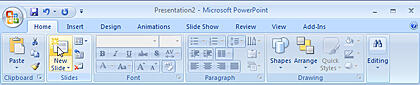
  11. In the Home tab of the Ribbon, click the New Slide button, as shown in Figure 3, below.
  12. Insert a new slide
    Figure 3: Insert a new slide
  13. You can also click the down arrow below the New Slide button to summon the Slide Layout gallery, as shown in Figure 4, below. Then, click any of the layouts available to insert a new slide using the chosen layout.
  14. Insert a new slide
    Figure 4: Insert a new slide
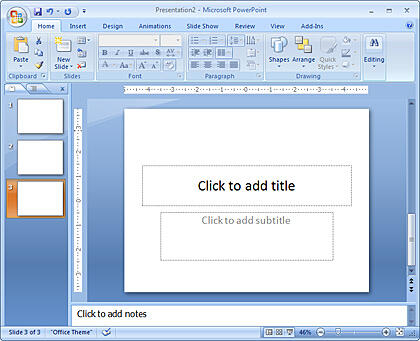
  15. Either way, this inserts a new slide, see the Slides pane on the left in Figure 5, below.
  16. Inserted new slide
    Figure 5: Inserted a new slide
  17. Repeat Steps 3 and 4 to insert as many slides as you need.
  18. Thereafter, you can add titles, text, pictures, or any other slide objects within the new slides.

See Also:

01 09 01 - Working with Slides: Inserting a New Slide in PowerPoint (Glossary Page)

Inserting a New Slide in PowerPoint 365 for Windows
Inserting a New Slide in PowerPoint 2016 for Windows
Inserting a New Slide in PowerPoint 2016 for Mac
Inserting a New Slide in PowerPoint 2013 for Windows
Inserting a New Slide in PowerPoint 2011 for Mac
Inserting a New Slide in PowerPoint 2010 for Windows
Inserting a New Slide in PowerPoint 2003 and 2002 for Windows
Inserting a New Slide in PowerPoint for the Web

You May Also Like: Using the Morph Transition with Characters in PowerPoint 365 for Windows | Depression PowerPoint Templates


Popular Posts

Add Pattern Fills to Shapes in PowerPoint 2010 for Windows
Add pattern fills to shapes in PowerPoint 2010 for Windows.

Gradient Fills for Text in PowerPoint 2013
Learn how to add gradient fills to selected text in PowerPoint 2013.

Formatting Outlines for Shapes (Dashes) in PowerPoint 2013 for Windows
Learn how to apply the dash attribute to shape outlines in PowerPoint 2013 for Windows.

Change the Unit of Measurement in Windows 10
Learn how to change the unit of measurement from US to Metric, and vice versa in Windows 10.


PowerPoint Keyboard Shortcuts and Sequences:
PowerPoint 2016, 2013, 2011, 2010, 2007 and 2003 for Windows
PowerPoint 2016 and 2011 for Mac
PowerPoint Online for Windows and Mac

Have your ever used keyboard shortcuts and sequences in PowerPoint? Or are you a complete keyboard aficionado? Do you want to learn about some new shortcuts? Or do you want to know if your favorite keyboard shortcuts are documented?

Go and get a copy of our PowerPoint Keyboard Shortcuts and Sequences ebook.


Microsoft and the Office logo are trademarks or registered trademarks of Microsoft Corporation in the United States and/or other countries.

Home | PowerPoint | Photoshop | PowerPoint Templates | PowerPoint Tutorials | Blog | Notes | Ezine | Media Kit | Feedback | Site Map | About Us | Contact Us

Link to Us | Privacy | Testimonials

PowerPoint Backgrounds | Christian PowerPoint Backgrounds | Business PowerPoint Presentation Templates

Plagiarism will be detected by Copyscape

©2000-2025, . All rights reserved.