
This is the print version of this page. All content is copyright Indezine.com 2000-2026.
Learn about viewing and hiding Guides in PowerPoint 2016 for Windows. By default, guides are not visible.
Author: Geetesh Bajaj
Product/Version: PowerPoint 2016 for Windows
OS: Microsoft Windows 7 and higher
Like Gridlines, Guides allow you to position and snap your slide objects in place. For most professional slide designers, designing slides without guides would be very worrisome. Why? Because with guides, they can align objects seamlessly. When guides are enabled for the first time within PowerPoint, you can just see two guides by default. These guides are two dotted lines, one horizontal and the other vertical. They span to intersect exactly at the center of the slide, as shown in Figure 1, below.
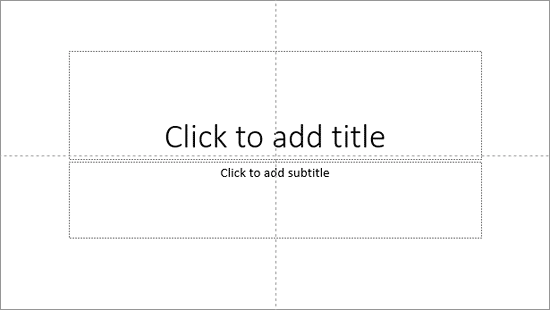
By default, guides may not be visible on your slides. Making them visible though, can help while working with positioning and aligning any of your slide objects. Also, if you need to position certain objects at the same position on successive slides, guides can help. In successive tutorials, we will explore techniques about working with guides, or even adding more guides.
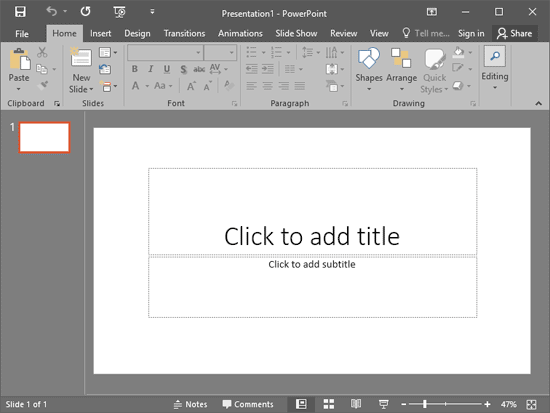
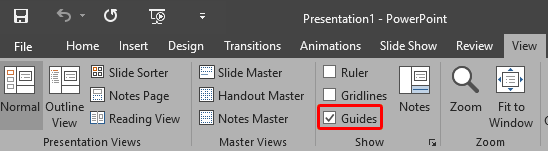
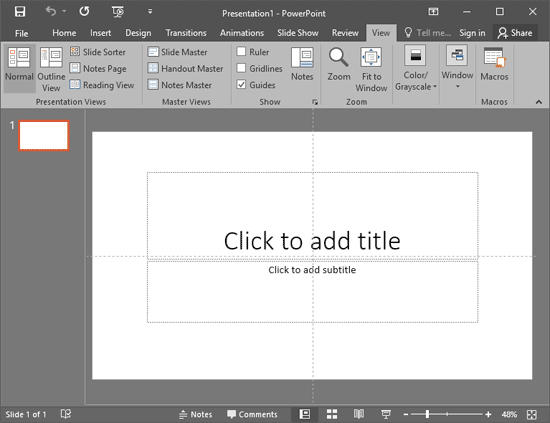
Follow these steps to show or hide guides in PowerPoint 2016 for Windows:

Do you want more keyboard shortcuts?
Explore our PowerPoint Keyboard Shortcuts and Sequences Ebook that is updated for all PowerPoint versions.
01 09 13 - Working with Slides: Guides in PowerPoint (Glossary Page)
Guides in PowerPoint 365 for Windows
Guides in PowerPoint 2016 for Mac
Guides in PowerPoint 2013 for Windows
Guides in PowerPoint 2011 for Mac
Guides in PowerPoint 2010 for Windows
You May Also Like: Presentation Management Strategic to Enterprise Communication: Conversation with James Ontra | How to Give People the Level of Detail They Need in Your Presentation


Microsoft and the Office logo are trademarks or registered trademarks of Microsoft Corporation in the United States and/or other countries.
