
This is the print version of this page. All content is copyright Indezine.com 2000-2026.
Learn about working with gridlines in PowerPoint 2016 for Windows. Also, learn how you can view and hide them.
Author: Geetesh Bajaj
Product/Version: PowerPoint 2016 for Windows
OS: Microsoft Windows 7 and higher
PowerPoint's Gridlines help you position your slide objects more precisely. Along with Rulers and Guides, Gridlines let you position and snap slide objects in place so that you can easily line a set of slide objects uniformly. In this tutorial, we will learn more about how you can work effectively with gridlines.
Gridlines are intersecting parallel and vertical dotted lines displayed on the slide, forming almost a dotted graph-like mesh, as shown in Figure 1, below.
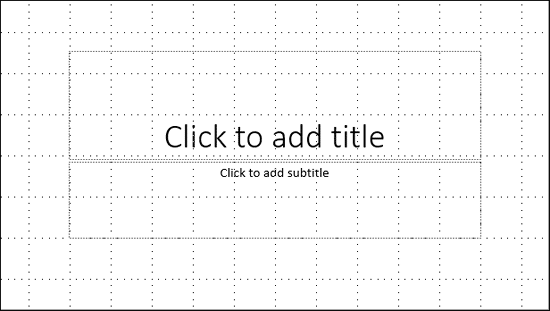
Figure 1: Gridlines on a slide
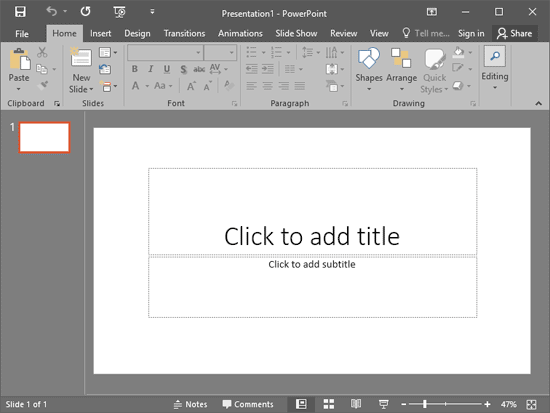
These gridlines do not print, nor do they show in Slide Show view. In fact, by default, these gridlines are not even visible on your slides in PowerPoint. However, when visible, they make your work easier when working with complicated slide arrangements.
In this tutorial, you'll learn how to show or hide these Gridlines in PowerPoint 2016 for Windows:
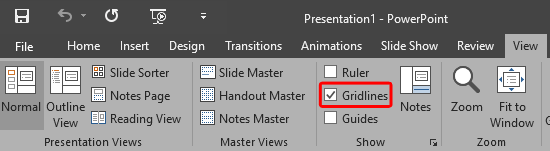
To turn on the visibility of the gridlines, you can use the keyboard shortcut Shift + F9. Use the same shortcut key to toggle it away.

Do you want more keyboard shortcuts?
Explore our PowerPoint Keyboard Shortcuts and Sequences Ebook that is updated for all PowerPoint versions.
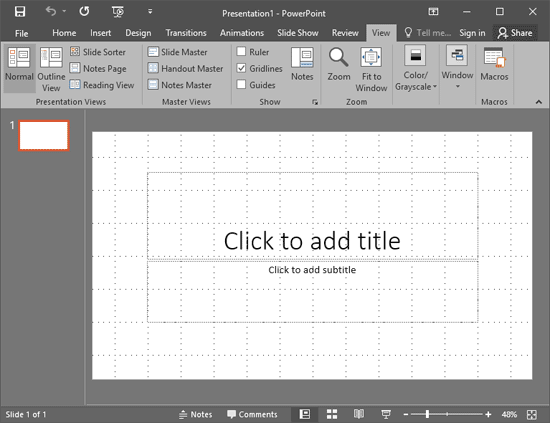
Once your gridlines are visible on the Slide Area, you can make them work for you! First, tweak the Snap to Grid settings as per your requirements, and then explore our Working with Snap to Grid tutorial.
01 09 10 - Working with Slides: Gridlines in PowerPoint (Glossary Page)
Gridlines in PowerPoint 365 for Windows
Gridlines in PowerPoint 2013 for Windows
Gridlines in PowerPoint 2010 for Windows
You May Also Like: How to Pitch and Win People Round | Add Humor to Your Presentation


Microsoft and the Office logo are trademarks or registered trademarks of Microsoft Corporation in the United States and/or other countries.
