
This is the print version of this page. All content is copyright Indezine.com 2000-2026.
Page 263 of PowerPoint tutorials, presentation essentials, personality interviews, and PowerPoint news.
Previous Archive Page | Next Archive Page
Author: Geetesh Bajaj
Product/Version: PowerPoint
June 19, 2017
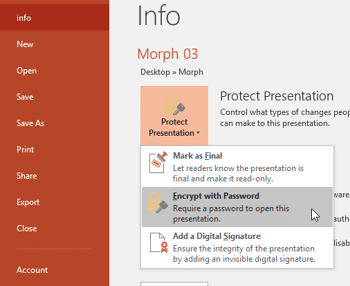
When you share your PowerPoint presentations with other people, you may want to protect or lock your content so that the slides may be accessed by only the people whom you permit to open the presentation. Or perhaps you have no problems with the recipients viewing slides, but do not want them to be able to edit the presentation. PowerPoint 2016 provides an Encrypt with Password option to protect your presentation. However, let us ponder about why anyone would need to password-protect their PowerPoint presentations.
Learn how to password-encrypt your presentation in PowerPoint 2016 for Windows.
June 16, 2017
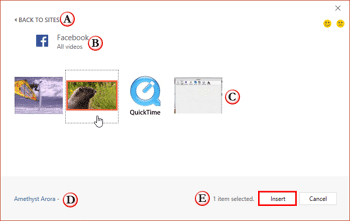
The last option within our tutorials of the Insert Online Video series is bringing in videos from Facebook. There is a prerequisite, though. To insert video from your Facebook account, you must add Facebook as a connected Service within your Microsoft account.
Learn to use embed code to insert online video in PowerPoint 2016 for Windows.
June 15, 2017
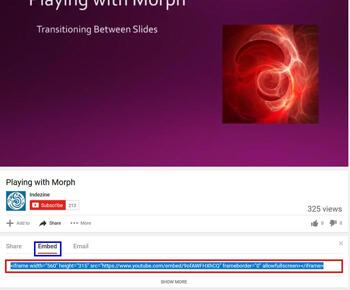
The next option in our Insert Online Video series is inserting video using embed Code. Here you can use the embed code from any site and paste into Insert Video dialog box to insert the video clip into your slide. Technically, this option should work with YouTube, Vimeo, Dailymotion, and most other sites.
Learn to use embed code to insert online video in PowerPoint 2016 for Windows.
June 14, 2017
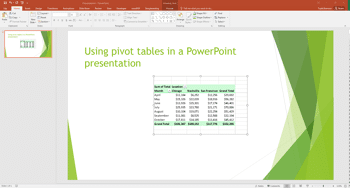
One of the most commonly used features in Microsoft Excel is the Pivot Table. A Pivot Table simply allows you to make better sense of data by giving you different options of how to view that data. Even more exciting than that, you can use a Pivot Table with all its interactive features within a Microsoft PowerPoint slide.
Kasper Langmann shows how you can use Pivot tables from Excel within PowerPoint.
June 14, 2017
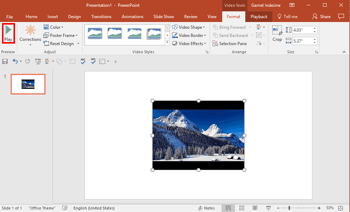
PowerPoint provides various sources which allow you to insert online video within your slide. We have already explained how to insert a video from OneDrive. In this tutorial, we'll cover how you can insert video from YouTube. Follow these steps to learn how to use the YouTube option to insert a video within PowerPoint 2016.
Learn how to insert YouTube videos in PowerPoint 2016 for Window.
June 13, 2017

We begin by exploring the concept of Presentation Management. AlexAnndra Ontra of Shufflrr shares some thoughts that will help you evolve a strategy. For chart users, do you get frustrated by seeing a grayed out Switch Row/Column button? We explore a solution. And have you wanted to scan hand-filled forms that could automatically have their data extracted to a spreadsheet? Our review product, PDFelement 6 Pro, lets you do so. PowerPoint 2016 for Windows users will learn about inserting local on online video clips. We also explore trimming video clips and recovering new, unsaved presentations manually. PowerPoint 2016 for Mac users can learn to set the default version. Finally, do not miss the press releases and templates of this week.
Stay informed about updated tutorials and happenings on Indezine.
June 13, 2017
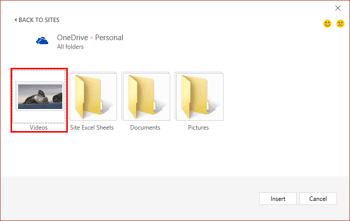
Our next option within the Insert Online Video series is inserting video from OneDrive. OneDrive is an online service which allows you to store files online. It also allows you to work on Microsoft Office web applications such as PowerPoint for the Web, where you can create and edit presentations. Remember that you will have to first sign in with your Microsoft account.
Learn to insert videos from your OneDrive account in PowerPoint 2016 for Windows.
June 13, 2017

Trend Micro released a comprehensive blog post that talks about a trojan horse malware triggered by PowerPoint’s Mouse-Over action setting. This action setting can run a PowerPoint macro. OK, this is not as bad as it may sound. Why? We can think of three good reasons.
June 12, 2017
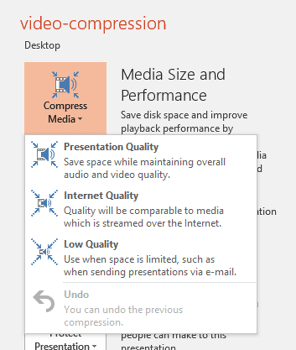
Recent versions of PowerPoint accept more video file formats than previous versions and can do a lot more with videos, including trimming of video clips. However, it also embeds all inserted video clips by default, and this can result in huge presentations that contain huge video files! This ultimately occupies oodles of disk space and may also make PowerPoint work a wee bit slower. To tackle this problem, you can explore the media compression abilities built right inside PowerPoint. You no longer need any third-party media compression tool since PowerPoint's native Media Compression options make this task very easy indeed.
Learn how to trim video clips in PowerPoint 2016 for Windows.
June 9, 2017
Do you have a desk full of paper forms that need to be filled-up, scanned, saved, and emailed? Do you also need to automatically extract all data? Or do you have actual PDF forms that you must print, fill-up, scan, save, and email! Clearly, you don't have it easy, and the monotonous work may also be boring and repetitive. Our review product, PDFelement 6 Pro can change your life for the better. Even if you do not have to fill in too many forms, you will find that PDFelement 6 Pro brings forth a fundamental change in the way you approach filling, saving, and sharing forms.
June 9, 2017
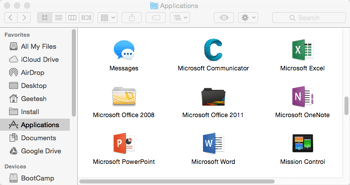
Before we begin, let us make it clear that this tutorial is primarily for those people who have more than one version of PowerPoint installed on their Mac. Additionally, they are not happy about the version that launches when they open a PowerPoint file. Or they may find that PowerPoint files open in another program even if they have PowerPoint installed. If any of these situations sound familiar to you, then this tutorial is for you.
Change the default version on your computer to PowerPoint 2016 for Mac.
June 8, 2017
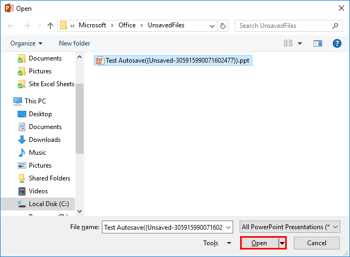
Have you ever created a new presentation in PowerPoint and then closed it without saving it for even once? This scenario seems to be little strange and impossible since even if you accidentally close your presentation, PowerPoint prompts you whether you want to save your presentation. Yet, you can be in a similar scenario if you lose all your file changes to a system or PowerPoint crash. Fortunately, there are chances that your unsaved presentation is safe in some state! Most of the time, PowerPoint will salvage your file and offer to open it for you the next time you launch the program. Alternatively, even if you don't see any files being offered for recovery, you can set the process in action manually.
Learn to recover new, unsaved presentations manually in PowerPoint 2016 for Windows.
June 7, 2017
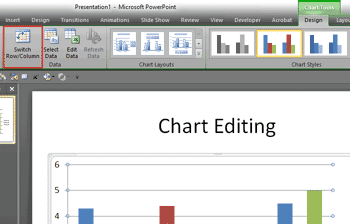
Once you insert a chart in PowerPoint, you may find that you mixed up the series and categories! It’s easy to switch between both of them by clicking the Switch Row/Column button on the Chart Tools Design tab of the Ribbon–but wait, do you see the Switch Row/Column button grayed out?
June 7, 2017
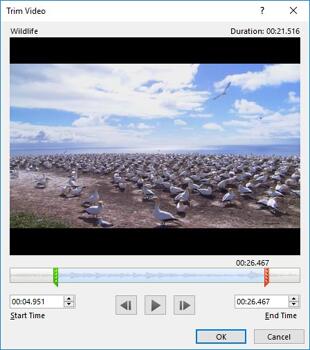
When you insert video clips in your presentations, you may find that the video clip inserted may be too long. Or maybe you just need to show part of the video clip, rather than wasting your audience's time showing them the entire clip. Yes, you can use the Player Controls bar to scrub and play the clip from exactly where you want it to begin. However, scrubbing a clip in front of an audience can appear unprofessional.
Learn how to trim a video clip in PowerPoint 2016 for Windows.
June 6, 2017

We have some amazing content for you this week. First, James Robinson from Buffalo 7 of the UK talks about sixteen design tips that will help you create beautiful presentations. We also feature a new timeline from Presenter Media in our Timelines that are Different series. PowerPoint 2016 for Windows users will learn about the Trust Center and also explore Trust Center Settings. You will also learn about Chart Styles. PowerPoint 2016 for Mac users will learn to locate the program on their systems. PowerPoint 2010 for Windows users can learn to set the default version. Finally, do not miss the press releases and templates of this week.
Stay informed about updated tutorials and happenings on Indezine.
June 6, 2017
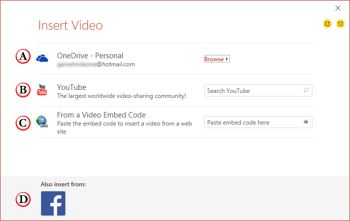
PowerPoint 2016 has an Online Video option that’s very helpful. The videos you insert are not limited to just the ones available on your system. You can choose from a variety of other video sources. And all this happens within PowerPoint; there's no need to open your web browser.
Learn how to insert an online video clip in PowerPoint 2016 for Windows.
You May Also Like: Climbing Shoes PowerPoint Templates | Presentation Management is Better Content Management



Microsoft and the Office logo are trademarks or registered trademarks of Microsoft Corporation in the United States and/or other countries.
