
This is the print version of this page. All content is copyright Indezine.com 2000-2026.
Learn how to create custom shaped Picture placeholders in PowerPoint 2016 for Windows. You can achieve some awesome results.
Author: Geetesh Bajaj
Product/Version: PowerPoint 2016 for Windows
OS: Microsoft Windows 7 and higher
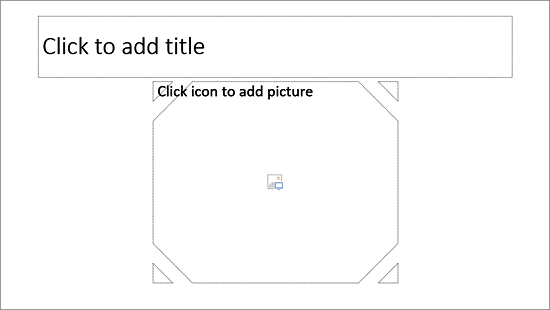
Do you want your pictures to be contained within shapes that look like frames? Or maybe you want to use silhouette style placeholders for your pictures? Yes, this is possible! In fact, look at Figure 1, below. These custom picture placeholders were created within PowerPoint 2016 for Windows, and we used nothing that's not part of the program. Yes, this process is a little involved. However, we'll hold your hand if you promise to follow all our steps in sequence!

Figure 1: Custom picture placeholders
We have already covered how PowerPoint enables you to insert placeholders within a Slide Layout. Picture placeholders are one among the various placeholders you can insert. You can do more with them to create custom placeholders, as shown in Figure 1, above. We used PowerPoint's Merge Shapes commands. Thereafter, follow these steps to learn more:
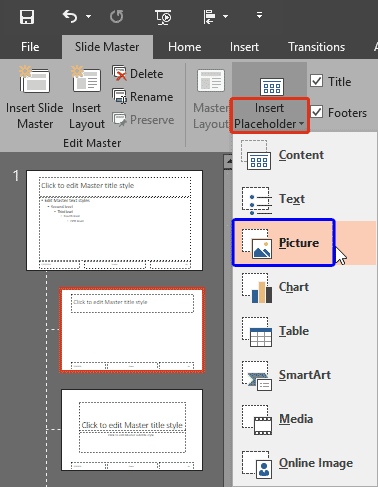
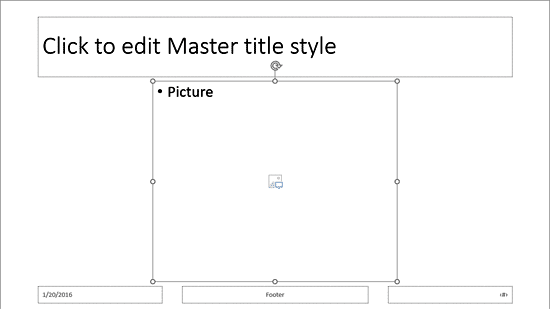
Want to resize or reposition your new picture placeholder precisely? Explore our Shape tutorials that explain how you can do these tasks with Shapes. Picture placeholders are shapes too! What's important though is that you do nothing more than resizing and repositioning at this time with your Picture placeholder, since the Merge Shape options we explore next won't work if the placeholder is further formatted.
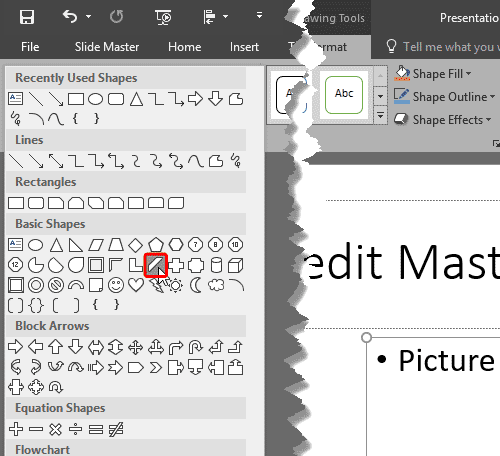
The Drawing Tools Format tab is a Contextual tab. These contextual tabs are special tabs in the Ribbon that are not visible all the time. They only make an appearance when you are working with a particular slide object which can be edited using special options.
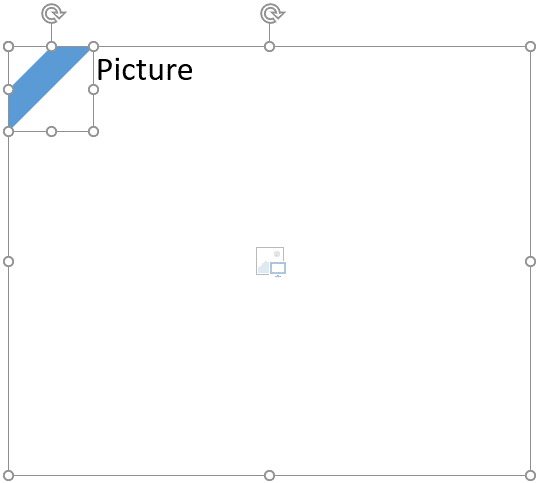
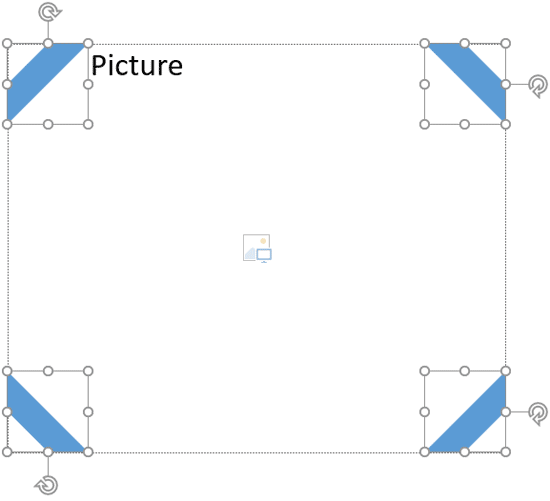
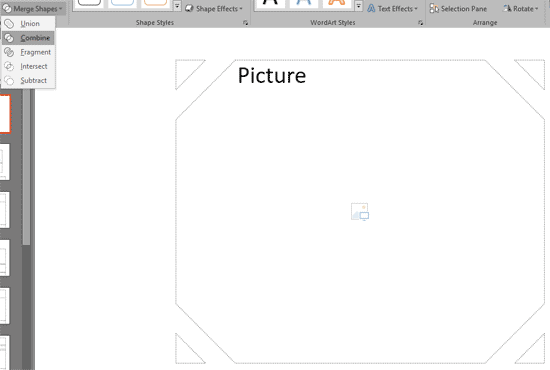
Not getting the result shown in Figure 7, above? Do you instead see a full solid color picture placeholder, as shown in Figure 8, below? This may occur depending on whichever slide object you selected first. If you select any of the corner shapes first, and then the picture placeholder you'll get the results shown in Figure 8, below. So, always opt for selecting the Picture placeholder first and then the corner shapes to achieve results, as shown in Figure 7, above.
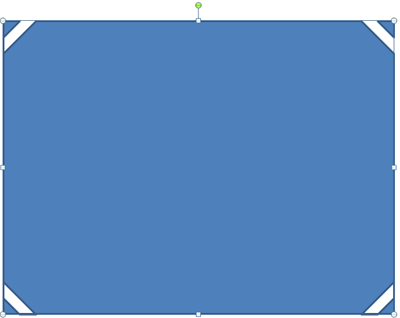
Figure 8: Picture placeholder with solid color
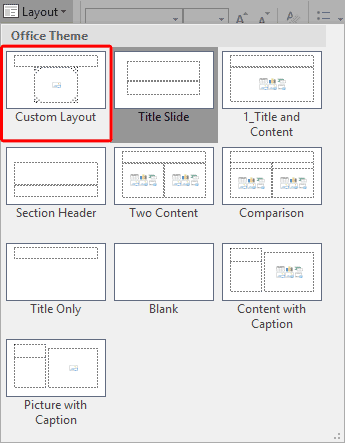
The new layouts you create are saved as part of the presentation, and are not available in any other presentations you create. Other than adding placeholders to your new slide layouts, you can also change their slide backgrounds. Of course, you can also rename your custom layouts.

See Also:
Slide Master and Slide Layouts: Create Custom Shaped Picture Placeholders in PowerPoint (Index Page)
Create Custom Shaped Picture Placeholders in PowerPoint 2016 for MacYou May Also Like: To Empower Others: Use the Four Cornerstones of Effective Feedback | Lemon PowerPoint Templates


Microsoft and the Office logo are trademarks or registered trademarks of Microsoft Corporation in the United States and/or other countries.
