While working in PowerPoint you might have noticed that you
resize text boxes almost the same way as you would
resize shapes or any other slide object. Select the slide object and you will see eight
handles, four on the corners and four on the sides. You then drag any of these corners to resize. The problem with this approach is that there is
no accuracy in resizing. There might be times when you need your text box to be resized to some particular size. For example, you want it to be
exactly as wide as a picture you have inserted. Look at the slide in Figure 1.
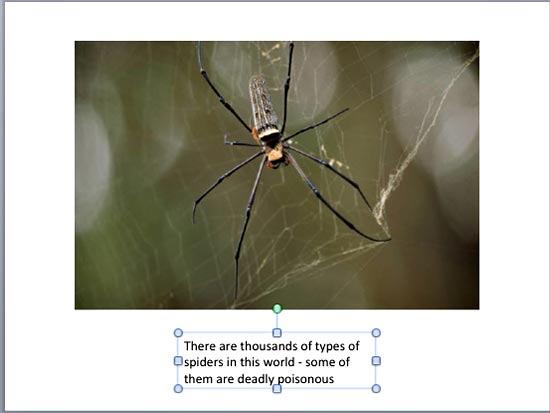
Figure 1: The picture in this slide is much wider than the text box underneath
As you can see in Figure 1, the picture is much wider than the text box below, that includes a caption for the picture. If we want
the width of the text box to exactly match the width of the picture, then we need to do two things:
- Find out the width of the picture.
- Then, change the width of the text box to match the width of the picture.
Follow these steps to proceed with these twin objectives in PowerPoint 2011 for Mac:
- Select the picture. This activates the Format Picture tab of the
Ribbon. Locate the Size group of this tab, you'll find
the Width and the Height attributes of the selected picture as shown in Figure 2. Since we want
the widths of the picture and text box to be the same, make a note of the Width of the picture (highlighted in
red within Figure 2). For this particular example, the picture's width is 7.45 inches.
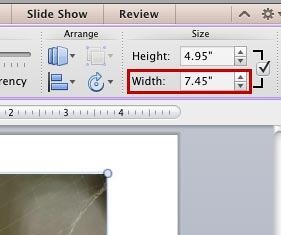
Figure 2: Width and the Height values of the selected picture
Note: Do you see the
Width and
Height values in centimeters rather than inches?
That's not an issue since you will either see centimeters or inches everywhere in PowerPoint. But if you want to change the unit
of measurement, you will have to do that globally in your Microsoft Windows operating system. For more information on this, refer to our
Change The Unit Of Measurement in PowerPoint 2011 for Mac
tutorial.
- Now, select the text box beneath the picture. Note that you no longer see the Format Picture tab. Rather, you now see the Format tab. Activate the Format tab and access the Size
group. Uncheck the Lock aspect ratio check-box (highlighted in red within
Figure 3). Now, type in the width value (7.45 inch for this example) within the Width box
(highlighted in blue within Figure 3) to match the width of the picture.

Figure 3: Width of the text box changed within the size group
Note: Contextual tabs are special tabs in the
Ribbon that
are not visible all the time. They only make an appearance when you are working with a particular slide object which can
be edited using special options.
-
Alternatively, make sure that you have selected the entire text box and right-click to bring up a contextual menu that you can see in
Figure 4. From the contextual menu, chose the Format Shape option (refer to Figure 4 again).
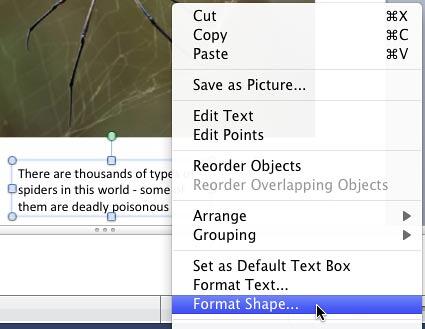
Figure 4: Format Shape option selected
- This brings up the Format Shape dialog box. Make sure to select the Size option in the
sidebar as shown in Figure 5. Uncheck the Lock aspect ratio check-box
(highlighted in red within Figure 5). This ensures that any change in the width of your
text box will not change its height. If this check-box is already unchecked, then leave it as it is.
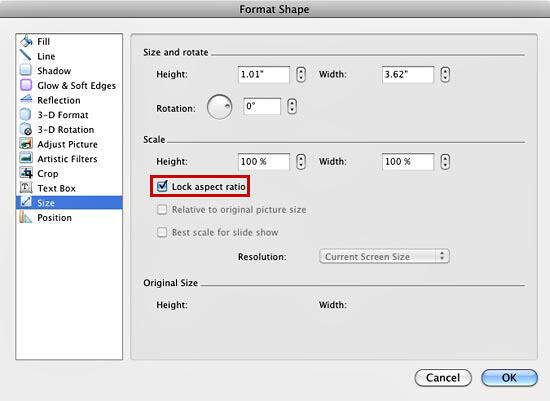
Figure 5: Size editing options within Format Shape dialog box
- Within the same dialog, locate the Width option (highlighted in red within
Figure 6). Type in the width value to match the picture (7.45 inch for this example). You will see the resized text box immediately
on your slide. If you don't see the text box, move the Format Shape dialog box that you are working with a little so that it does
not hide your text box. When done with resizing, click the OK button to get back to the slide.
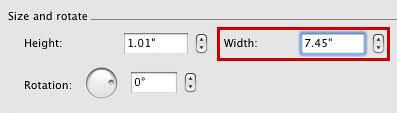
Figure 6: Width of the text box changed to match the picture's width
- This will resize the text box, as shown in Figure 7 (compare to Figure 1).
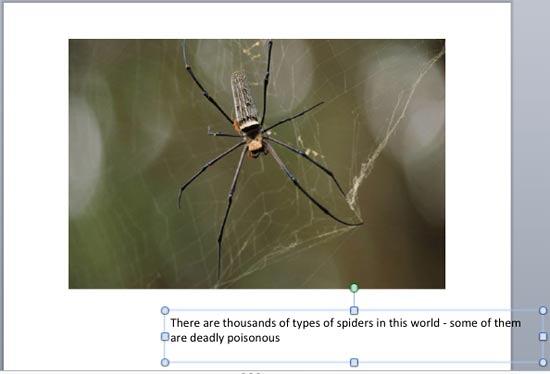
Figure 7: Text box resized, but not aligned with the picture
- Once the text box is resized, use PowerPoint's Alignment options
so that the text box is positioned right beneath the picture. You can also align the text box with the picture with the help of
PowerPoint guides. Figure 8 shows our sample slide
after aligning the text box with the picture (compare Figures 1 and 8).
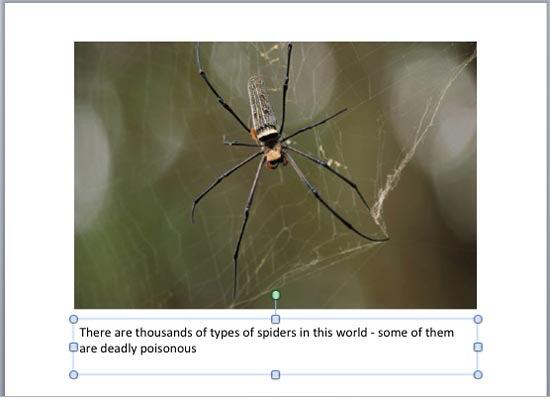
Figure 8: Text box resized and aligned with the picture
- In some cases a resized text box may result in your text becoming smaller, or the text overflows outside the text box. To correct this you need
to tweak the Text Autofit options.
- Make sure to save your presentation often.
Tip: While this tutorial shows you how to accurately resize a text box (or a shape), it can also be used to resize text
placeholders, in the
Slide Master. To know the difference between a
text box and a text placeholder look at our
Text Boxes vs. Text Placeholders tutorial. Typically text
placeholders for regular text content or even slide titles are located in the same position on successive slides. So, if you really need to resize
a text placeholder, do it within the
Slide Master not only to provide a consistent look to your presentation, but also to prevent
yourself from the monotonous job of resizing text placeholders on each and every slide.