Indezine Logo


Add Headers and Footers to Notes and Handout Pages in PowerPoint 365 for Mac

Add Headers and Footers to Notes and Handout pages in PowerPoint 365 for Mac. These options allow you to create distinctive, branded Notes and Handout pages.


Author:

Product/Version: PowerPoint 365 for Mac

OS: Mac OS X


Learn PowerPoint

How do I convert word lists in Excel to PowerPoint slides?


Unlike slides which are primarily presented through a display device such as a monitor, TV screen, webinar, or a projector, Notes and Handout pages in PowerPoint are essentially intended for printing. Alternatively, they are shared as eco-friendly PDFs. These printed pages or PDFs often accompany a delivered presentation, or in some cases, they comprise the presentation. In this tutorial, we will explore how you can add Headers and Footers to make your Notes and Handout pages more professional-looking, relevant, and useful.

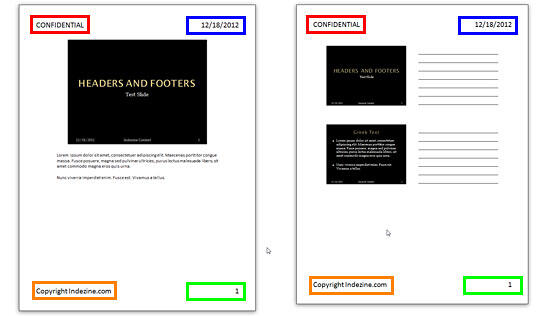
The terms Header and Footer typically come from word processing programs. They denote repeated elements that show at the top and bottom of every page. Headers and Footers work similarly on PowerPoint Notes and Handout pages. Explore Figure 1, below, where all Header and Footer elements that you can place in Notes (left side) and Handouts (right side) are shown.
Header and Footer elements in Notes and Handouts
Figure 1: Header and Footer elements in Notes and Handouts

Typically, the term Header and Footer denotes four placeholders:

A. Date

Date, marked in blue within Figure 1, above.

B. Footer

Footer, marked in orange within Figure 1. You can add a message, a company name, or anything you want to be visible on all slides here.

C. Page number

Page number, marked in green within Figure 1.

D. Header

Header, marked in red within Figure 1. You can add a message, a company name, or anything you want to be visible on all slides here.

In this tutorial, you'll learn how to make these Header and Footer elements visible on your slides in PowerPoint 365 for Mac:
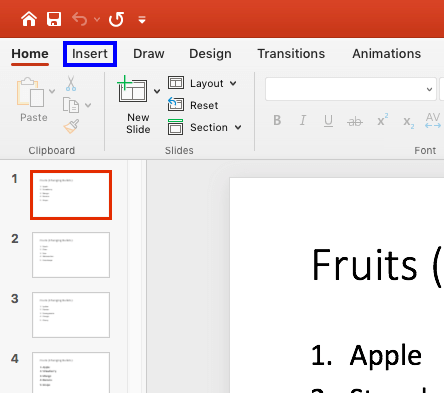
  1. Open the presentation where you want to add any Header or Footer elements. Choose the Insert tab of the Ribbon, as shown highlighted in blue within Figure 2, below.
  2. Insert tab of the Ribbon
    Figure 2: Insert tab of the Ribbon
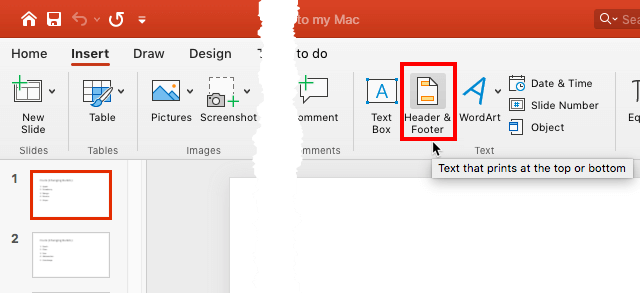
  3. Within the Insert tab, click the Header & Footer button, as shown highlighted in red within Figure 3, below.
  4. Header & Footer button
    Figure 3: Header & Footer button
  5. Alternate Options

  6. You can also click the Date & Time or Slide Number buttons, to summon the same Header and Footer dialog box.
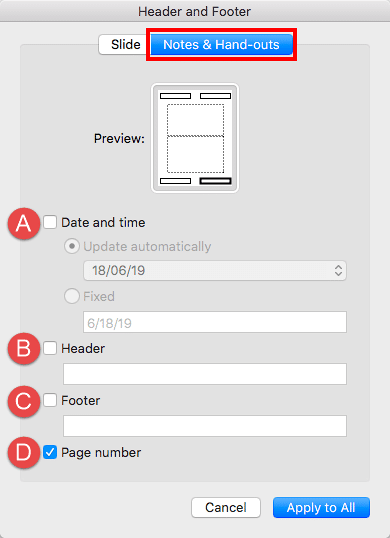
  7. Doing so brings up the Header and Footer dialog box, as shown in Figure 4, below. Make sure you select the Notes and Handouts tab, as shown highlighted in red within Figure 4.
  8. Notes and Handouts tab within Header and Footer dialog box
    Figure 4: Notes and Handouts tab within Header and Footer dialog box
  9. Note that the options you select or deselect within this tab will affect the Notes and Handout pages you see onscreen or print. All these options are explained below, as marked in Figure 4, above:
  10. A. Date and time

  11. Select this check-box to make the date appear on your Handout and Notes pages. Then, choose whether you want the Date and time to Update Automatically, or set them to Fixed, to achieve any of the results explained below:
  12. Update Automatically

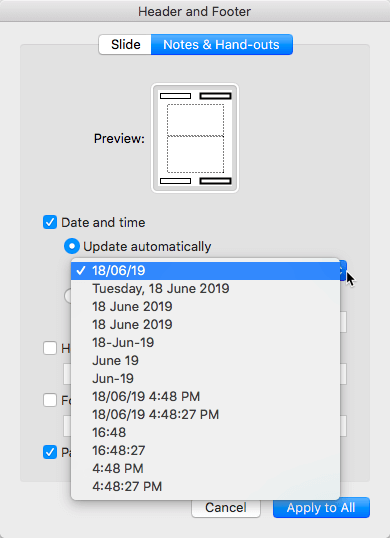
  13. Select this radio button and then open the drop-down list, as shown in Figure 5, below, to choose a date (or date and time) format.
  14. Date (or date and time) format drop-down list
    Figure 5: Date (or date and time) format drop-down list
  15. Fixed

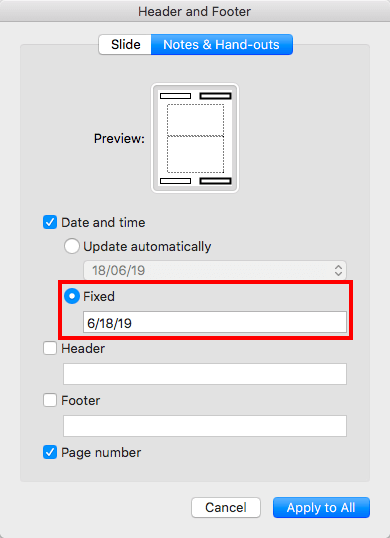
  16. Select this radio button and enter a date in the box, as shown highlighted in red within Figure 6, below. By default, this uses the current date. Also, the date remains the same no matter when or where you edit or deliver your presentation.
  17. Fixed radio button selected
    Figure 6: Fixed radio button selected
  18. 'Fixed' Can be Anything

  19. If you choose the Fixed option, you can actually add anything else, even if it is not a date! Type whatever you want to appear within the Date placeholder.
  20. B. Header

  21. Select this check-box to make Header visible on the Notes and Handout page in your presentation. Additionally, when this check-box is selected, the box below gets activated, as shown in Figure 7, below. Where you can enter the content of the header. Typically, users like to type in stuff like Company's name, etc. in this area.
  22. Add header text
    Figure 7: Add header text
  23. C. Footer

  24. This check-box when selected, makes the Footer visible on Notes and Handout pages in your presentation. Additionally, when this check-box is selected, the box below gets activated, as shown in Figure 8, below, where you can enter the content of the footer. Typically, users like to type in stuff like Confidential, Draft, etc. in this area, or even copyright notices.
  25. Add footer text
    Figure 8: Add footer text
  26. D. Page number

  27. Select this check-box to enable the page number to be visible on your Notes and Handout pages.
  28. You can similarly add and edit Headers and Footers in your slides. Look at our Add Headers and Footers to Slides in PowerPoint 365 for Mac tutorial to learn more.
  29. Now, click the Apply to All button to apply the Header or Footer to Notes and Handout pages in your presentation.
  30. Save your presentation often.

See Also:

01 10 02 - Headers and Footers: Add Headers and Footers to Notes and Handout Pages in PowerPoint (Glossary Page)

Add Headers and Footers to Notes and Handout Pages in PowerPoint 2016 for Windows
Add Headers and Footers to Notes and Handout Pages in PowerPoint 2016 for Mac
Add Headers and Footers to Notes and Handout Pages in PowerPoint 2013 for Windows
Add Headers and Footers to Notes and Handout Pages in PowerPoint 2011 for Mac
Add Headers and Footers to Notes and Handout Pages in PowerPoint 2010 for Windows

You May Also Like: Is It, Like, OK To Say ‘Like’? | Skirts PowerPoint Templates


Popular Posts

Changing Location of Slide Numbers in PowerPoint 2010
Learn how to change location of slide numbers in PowerPoint 2010.

Text Alignment within Table Cells in PowerPoint 2013 for Windows
Learn about the options for text alignment within Table cells in PowerPoint 2013 for Windows.

Keyboard Shortcuts for PowerPoint 2011 for Mac
Explore keyboard shortcuts in PowerPoint 2011 for Mac.

Insert Video from Facebook in PowerPoint 2016 for Windows
Learn how to insert video from your Facebook account in PowerPoint 2016 for Windows.


Polygon Center Circles for PowerPoint

These special circles have polygon centers: the centers are made of triangles, squares, pentagons, and hexagons! And based on the sides of the polygon, the rest of the circle has that many segments.

Download and use these Polygon Center Circles in your slides for just $4.99


Microsoft and the Office logo are trademarks or registered trademarks of Microsoft Corporation in the United States and/or other countries.

Home | PowerPoint | Photoshop | PowerPoint Templates | PowerPoint Tutorials | Blog | Notes | Ezine | Media Kit | Feedback | Site Map | About Us | Contact Us

Link to Us | Privacy | Testimonials

PowerPoint Backgrounds | Christian PowerPoint Backgrounds | Business PowerPoint Presentation Templates

Plagiarism will be detected by Copyscape

©2000-2025, . All rights reserved.