
This is the print version of this page. All content is copyright Indezine.com 2000-2026.
Learn about Smart Dynamic Guides in PowerPoint 365 for Windows. These guides are dynamic and snap as you move slide objects around.
Author: Geetesh Bajaj
Product/Version: PowerPoint 365 for Windows
OS: Microsoft Windows 10 and higher
Smart Dynamic Guides in PowerPoint help you align, resize, and distribute objects with precision by showing real-time visual cues. They appear automatically as dotted red lines when objects are aligned or evenly spaced. This guide explains how to enable them, use them effectively, and troubleshoot when they don’t appear.
Why Smart Guides?
What Are Smart Dynamic Guides in PowerPoint?
How to Disable and Enable Smart Guides
How to Reposition Objects Using Smart Guides
How to Resize Objects with Smart Guides
How Smart Guides Help with Alignment and Distribution
Picture parallel parking with one of those backup cameras that beeps and shows a guideline the moment your car is centered between the lines. You don't measure anything, you don't even think about it; the car simply tells you when you've nailed it. That's the exact job Smart Dynamic Guides do with placing your slide objects inside PowerPoint.
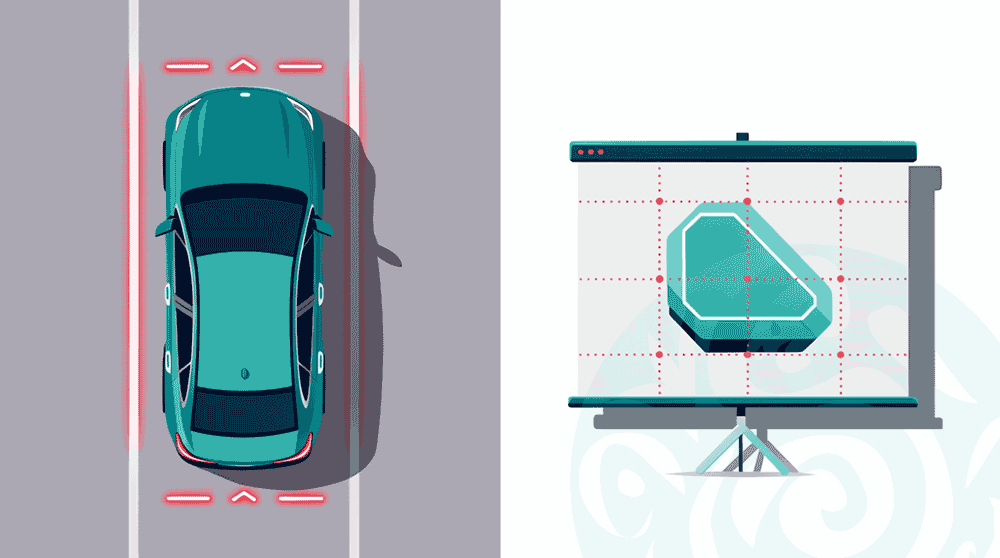
The moment you drag a shape, picture, or text box close to lining up with another object, or close to matching its spacing, a thin red dotted line pops up to say "right here, this is the spot." No grid to count, no ruler to squint at, no guesswork involved. Think of it as PowerPoint's version of a spirit level, except instead of tracking one bubble, it's comparing the edges and distances of every object on your slide, instantly, so your layout looks deliberate rather than nudged into place by trial and error.
BackPowerPoint quietly assists whenever you move, resize, or align objects on a slide. This is the magic of Smart Guides. As you nudge a shape into position, adjust its size, or arrange multiple elements, dotted guidelines appear to indicate the closest alignment point, as shown in Figure 1, below.
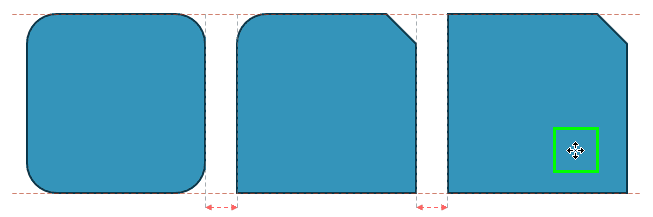
Figure 1: Smart guides appear while repositioning
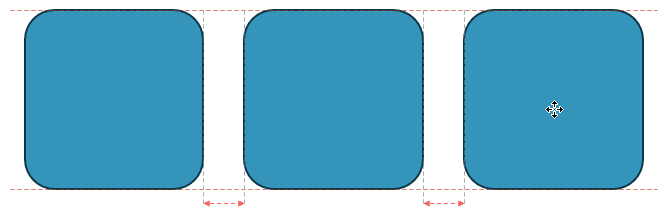
In Figure 1, above, the rightmost shape is being moved to the left, indicated by the Move cursor highlighted in green. As it passes a position equidistant from the other two shapes, PowerPoint displays red, dotted lines with arrows on both sides to confirm equal spacing.
These red dotted lines, which appear briefly as you work, are known as Smart Dynamic Guides, or simply Smart Guides. They make positioning objects considerably easier and indicate how far an object still needs to move to match the width of an adjacent one. Objects can even be spaced evenly without opening any Ribbon tab or entering a value into a dialog box.
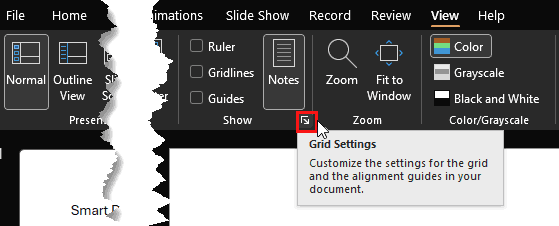
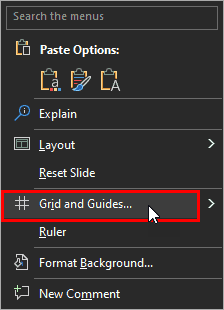
BackSmart Guides are turned on by default. If you find they're not working, or suspect they were disabled by mistake, the steps below will help you re-enable them in PowerPoint 365 for Windows. To turn them off again, simply reverse these steps and deselect the same options.
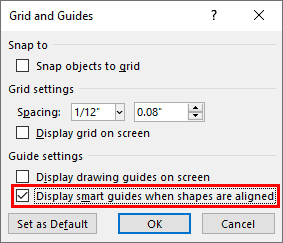
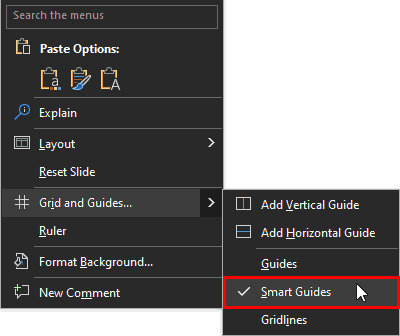
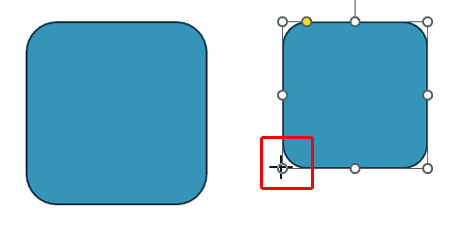
Once enabled, Smart Guides assist with repositioning, resizing, and aligning or distributing objects. Using the shapes shown in Figure 6, below, we'll walk through how Smart Guides support each of these actions.
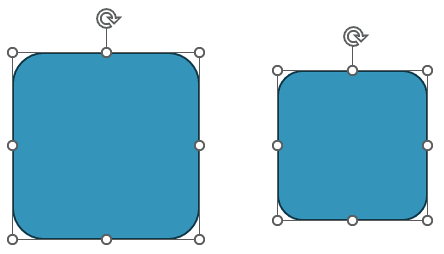
Figure 6: Two shapes on the slide
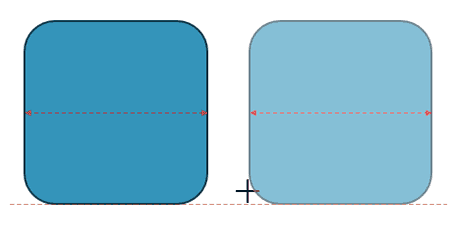
Take the example in Figure 6, above. To align the top edges of both squares, drag the smaller square upward until the Smart Guides appear as red dashed lines. As shown in Figure 7, below, the guides appear once the top edges are aligned.
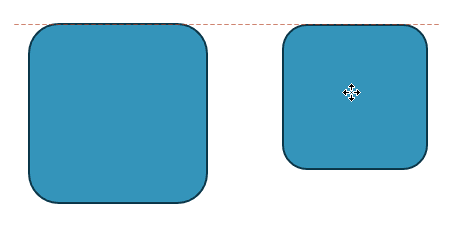
Figure 7: Repositioning the shapes
Press the Shift key on your keyboard while moving the shape upwards to move it in a straight line.

Do you want more keyboard shortcuts?
Explore our PowerPoint Keyboard Shortcuts and Sequences Ebook that is updated for all PowerPoint versions.
Smart Guides also assist with resizing shapes. Continuing with the example in Figure 7, above:
Earlier sections covered repositioning and resizing, both of which help align the edges of shapes. Smart Guides go a step further by supporting consistent distribution, or equal spacing, between shapes. This feature requires at least three shapes to function.
When three or more shapes are spaced equally apart, small arrows appear to indicate that the spacing is identical, as shown in Figure 10, below.
Like most precision tools, Smart Guides reward practice. Over time, you'll instinctively notice the "snap" that signals a shape has resized, repositioned, or aligned to match an adjacent one.
BackThey detect alignment with nearby objects and display visual indicators for spacing and positioning.
Smart Guides appear automatically; regular guides are manually added and persistent.
They may be disabled or objects aren’t near alignment thresholds.
01 09 14 - Working with Slides: Smart Dynamic Guides in PowerPoint (Glossary Page)
Smart Dynamic Guides in PowerPoint 2016 for Windows
Smart Dynamic Guides in PowerPoint 2016 for Mac
Smart Dynamic Guides in PowerPoint 2013 for Windows
Smart Dynamic Guides in PowerPoint 2010 for Windows
You May Also Like: Presentation Management: Why Executives are Starting to Care? | Using the Chains Feature in ToolsToo v10: Conversation with Gil Segal


Microsoft and the Office logo are trademarks or registered trademarks of Microsoft Corporation in the United States and/or other countries.
