
This is the print version of this page. All content is copyright Indezine.com 2000-2026.
Learn how to reuse slides through drag and drop in PowerPoint 365 for Windows. Drag and drop lets you intuitively reuse your existing slides.
Author: Geetesh Bajaj
Product/Version: PowerPoint 365 for Windows
OS: Microsoft Windows 10 and higher
This tutorial explains how to reuse slides in PowerPoint 365 for Windows, using drag and drop, the fastest method for combining presentations.
Think of Microsoft PowerPoint presentations like cooking a great meal without having to start with nothing. If you already have perfectly prepared ingredients in the fridge, why start chopping and cooking everything from scratch again? Reusing slides works the same way. It saves time, reduces effort, and lets you focus on polishing the final presentation instead of rebuilding content you already created.
PowerPoint includes a handy Reuse Slides pane that helps you carefully browse and insert slides from older presentations. But there’s an even quicker approach for people who like a more hands-on method. You can simply grab slides from one presentation and drag them directly into another, much like moving photos from one album into another.
Many experienced presenters build new presentations by remixing older slides. In a way, it’s similar to how musicians sample parts of existing songs to create something fresh and new.
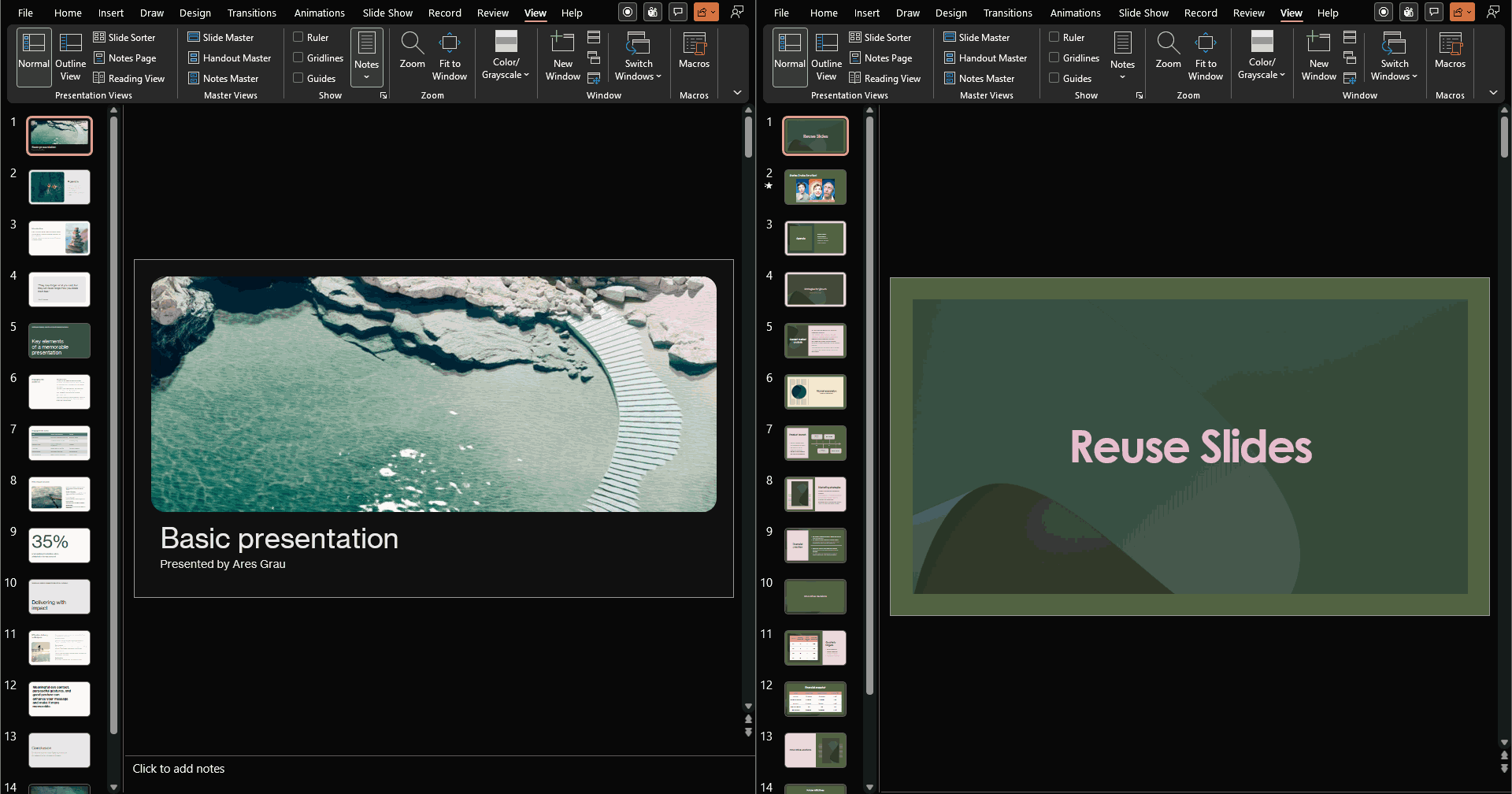
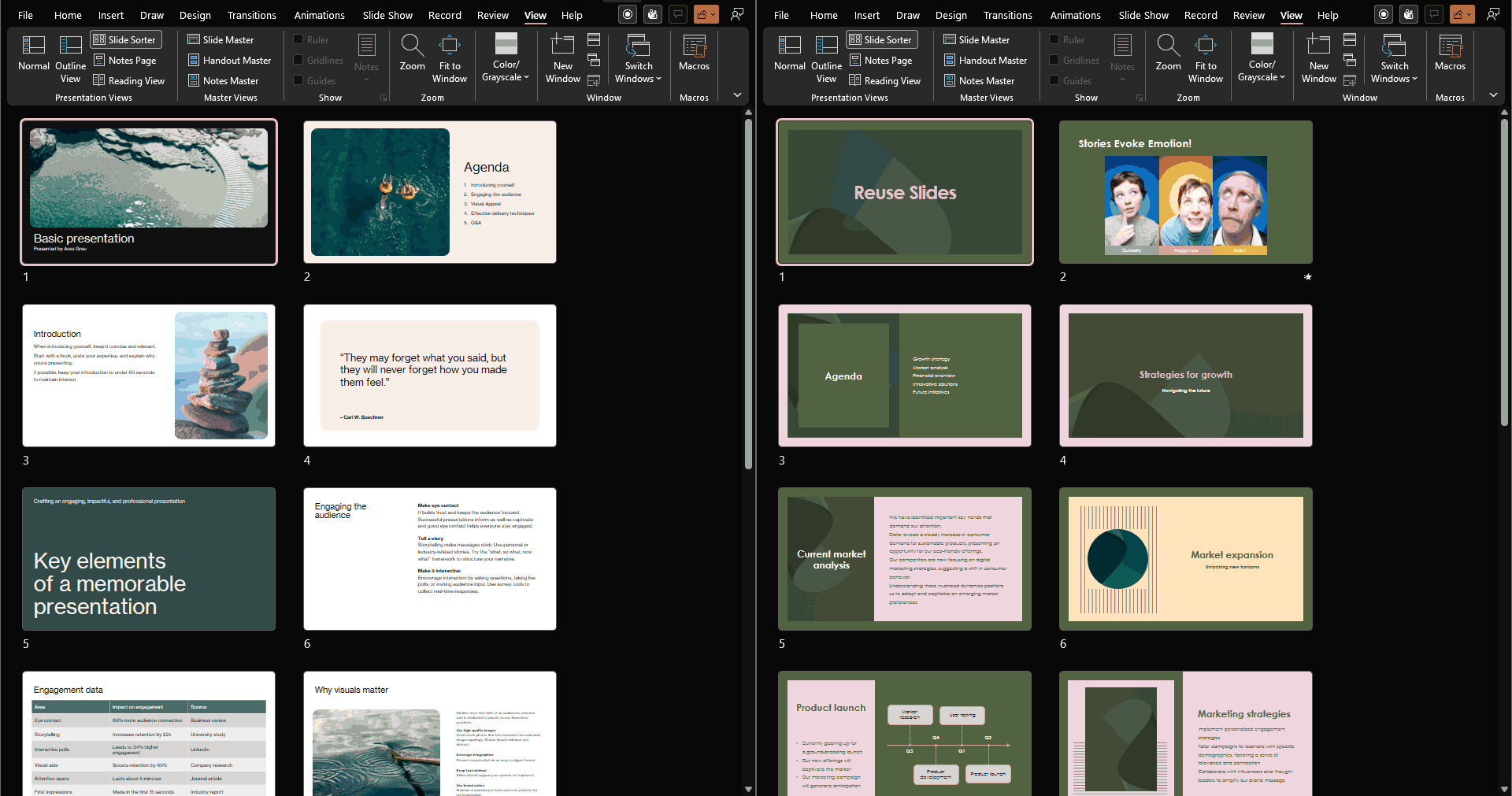
This tutorial demonstrates how to reuse slides in PowerPoint 365 for Windows through an efficient drag-and-drop workflow:
If multiple source presentations are involved, begin by working with the first source presentation and complete the required slide transfers before closing it. Thereafter, proceed sequentially through the remaining source presentations to maintain an organized and efficient workflow.

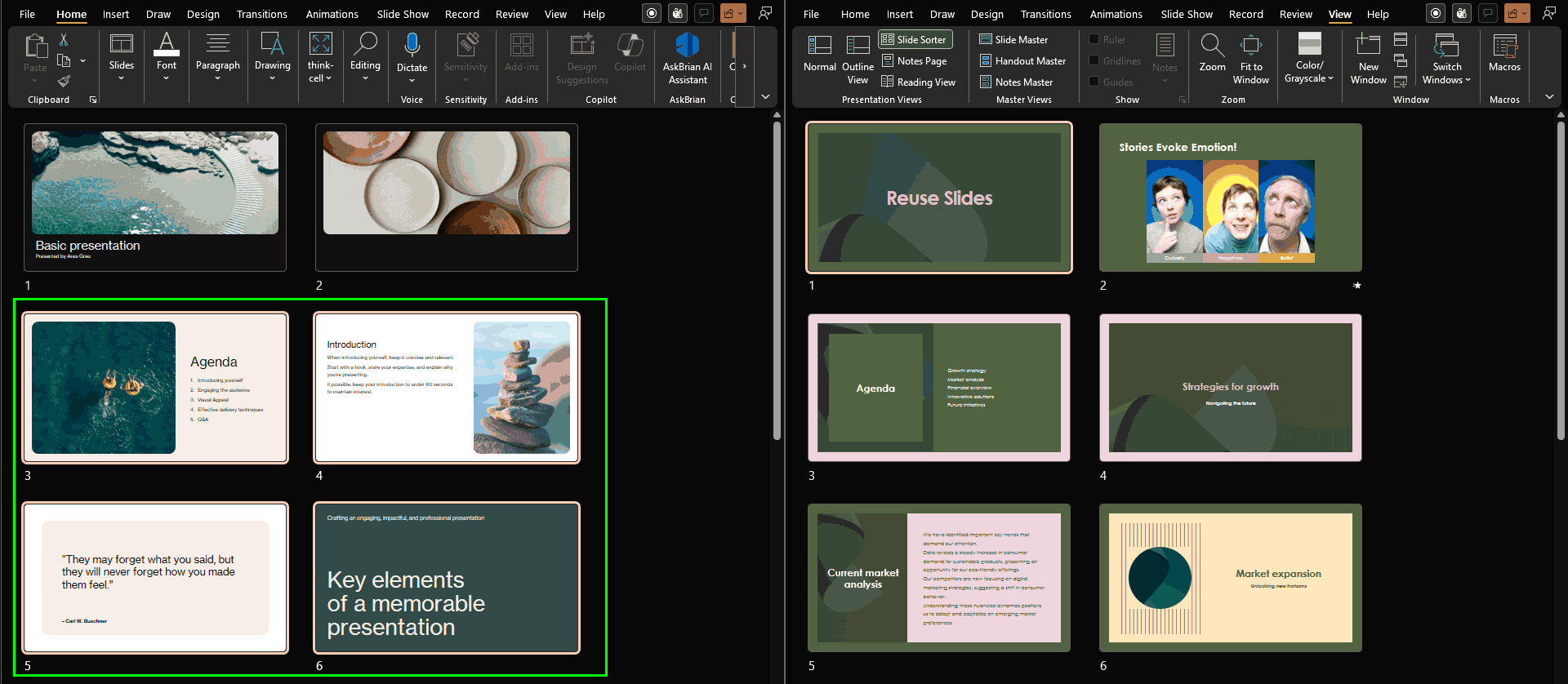


By default, the copied slides will adopt the formatting and Theme of the destination presentation in Microsoft PowerPoint. To preserve the original formatting and Theme from the source presentation, click the Paste Options icon, highlighted in red within Figure 8, below, which appears immediately after the slides are inserted. From the drop-down menu, select the Keep Source Formatting option, highlighted in green within Figure 8. While this option preserves the visual design of the original slides, it should be used selectively. Overreliance on source formatting can result in a presentation with inconsistent visual styles, reducing overall design cohesion and professional polish.

Figure 8: Keep Source Formatting icon
Also note that if the source and destination presentations use different aspect ratios, the inserted slides will automatically adopt the aspect ratio of the destination presentation.
If the objective is to move slides rather than create copies through the drag-and-drop process, follow these steps:

Desktop versions for Windows and Mac support drag-and-drop slide reuse.
Yes. Animations, transitions, and timings are copied with the slides. Even speaker notes transfer along with the slides.
Yes. Drag-and-drop works from both Normal and Slide Sorter views.
01 09 08 - Working with Slides: Reuse Slides Through Drag and Drop in PowerPoint (Glossary Page)
Reuse Slides Through Drag and Drop in PowerPoint 2016 for Windows
Reuse Slides Through Drag and Drop in PowerPoint 2016 for Mac
Reuse Slides Through Drag and Drop in PowerPoint 2013 for Windows
Reuse Slides Through Drag and Drop in PowerPoint 2011 for Mac
Reuse Slides Through Drag and Drop in PowerPoint 2010 for Windows
You May Also Like: The Rules of Netiquette and How To Use Them Both To Communicate Clearly And Save Time | Differences in PowerPoint Usage in Microsoft Teams and Zoom: Conversation with Dave Paradi


Microsoft and the Office logo are trademarks or registered trademarks of Microsoft Corporation in the United States and/or other countries.
