Indezine Logo


Reset Slides in PowerPoint 365 for Windows

Learn how to reset your slide formatting with one click in PowerPoint 365 for Windows. Reset sets your slide layout to the Theme defaults.


Author:

Product/Version: PowerPoint 365 for Windows

OS: Microsoft Windows 10 and higher


Occasionally, you may encounter slides that are difficult to view comfortably. A quick glance at a slide like the one shown in Figure 1, below, and the strength of the content almost becomes irrelevant.
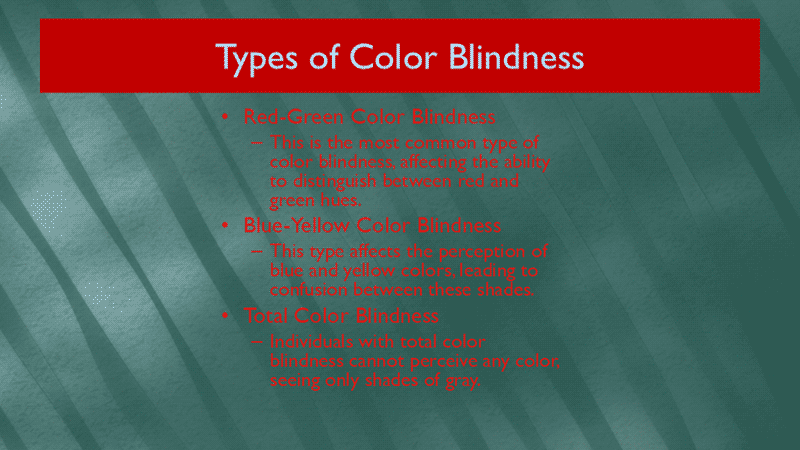
A slide that is hazardous to our vision
Figure 1: A slide that is hazardous to our vision

Admittedly, this slide is an exaggeration—you are unlikely to encounter something quite this extreme in practice. The content itself is also ironic, because it speaks about color blindness. Nevertheless, the example serves a useful purpose: if you can transform a slide like this into something usable, you can improve almost any slide.

As in this slide, when slide elements don’t seem to have any visual cohesion, audiences shift their focus from the speaker to the screen, trying to interpret what they see. When that happens, the message itself becomes secondary.

It is also important to note that this situation is not always the presenter’s responsibility. In many cases, you may be required to deliver slides prepared by someone else. When that happens, you inherit not only the content but also the design choices, effective or otherwise. These choices influence how the audience perceives and responds to the presentation.

At this stage, the goal is to remove unnecessary formatting and restore a simpler structure to the slide. You may also need to adjust the position, size, and text layout of the placeholders to re-establish order and clarity. Fortunately, PowerPoint offers a straightforward, one-click way to address this: the Reset option.

Reference for Reset?

In Microsoft PowerPoint, the Reset command uses the layout defined in the Slide Master as its reference.

More specifically:

  • Each slide is based on a particular Slide Layout from the Slide Master.
  • That Slide Layout defines placeholder positions, sizes, and default formatting.
  • When you click Reset, PowerPoint restores the slide, so it matches the original layout settings from the Slide Master.

What Reset typically does:

  • Moves placeholders back to their original positions
  • Restores default placeholder sizes
  • Reapplies layout formatting
  • Removes manual placeholder formatting overrides
  • It works only with text placeholders since they are referenced from the Slide Master of the template or Theme. For that reason, the Reset button does not work with text boxes. Learn about the difference between a text box and a text placeholder in our Text Boxes vs. Text Placeholders tutorial.

What Reset does not do:

  • It does not delete your content.
  • It does not remove objects that are not part of the layout (such as inserted pictures, shapes, or charts).

In short, Reset re-aligns the slide with the design and structure defined by its Slide Master layout.

Follow these steps to reset all changes made on a slide in PowerPoint 365 for Windows:
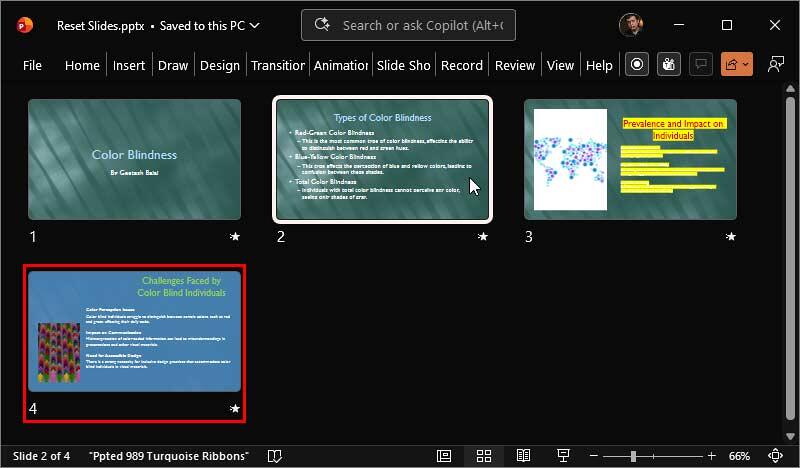
  1. Select the slide which you want to reset, such as the slide shown in Figure 1, above. Alternatively, select all, one, or some of your slides in Slide Sorter view, as shown in Figure 2, below.
  2. Slide selected within the Slide Sorter view
    Figure 2: Slide selected within the Slide Sorter view
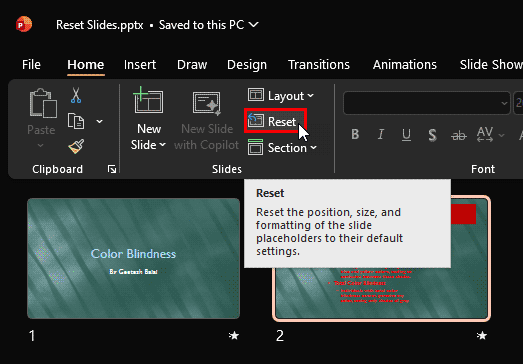
  3. Go to the Home tab on the Ribbon, locate the Slides group, and click the Reset button, highlighted in red within Figure 3, below.
  4. Press the Reset button
    Figure 3: Press the Reset button
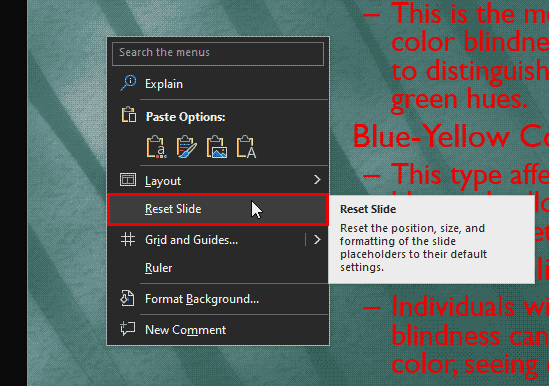
  5. Alternatively, if you need to reset only the active slide, simply click the same Reset button without selecting additional slides. You can also right-click on an empty area of the slide to open the contextual menu and then choose the Reset Slide option, highlighted in red within Figure 4, below.
  6. Reset Slide option within the context menu
    Figure 4: Reset Slide option within the context menu
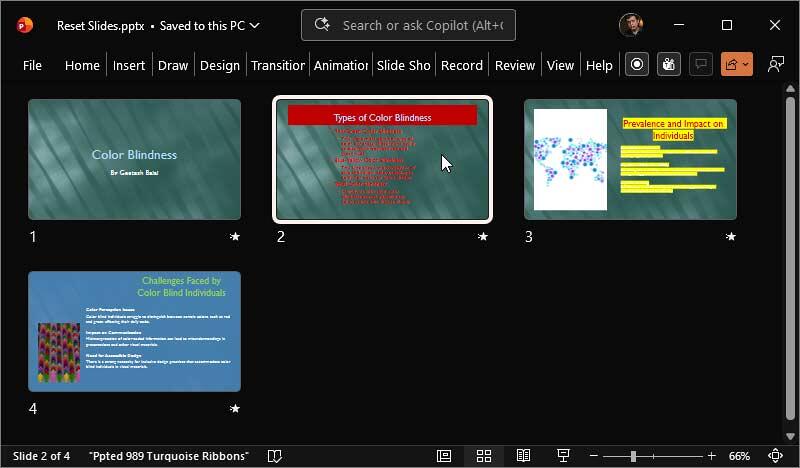
  7. Selecting either of these options restores the text placeholders to their default position, size, and formatting, as defined by the template and the Slide Master. Figure 5, below, shows the same slide you saw earlier in Figure 2, after applying the Reset option. Compare it with Figure 2, and you will notice that the additional formatting has been removed.
  8. Slide reset to its default settings
    Figure 5: Slide reset to its default settings
  9. Your slide may not look the same as the slide shown in Figure 5, above. Your post-Reset look depends on the Theme applied to the presentation. Do you notice that one of slides uses a different slide background, as shown highlighted in red within Figure 5? To know the reason, look at the Reset Backgrounds section, later on this page.
  10. Reset Text Formatting Only

    Want to reset just the text formatting to defaults? Access the Outline view, and select all text (Ctrl + A). Then, press the Ctrl + Space shortcut key to reset all text formatting to the default text attributes. Note that this only resets the text that you can see within the Outline view, and not necessarily all text within your presentation.

    Keyboard Shortcuts for PowerPoint

    PowerPoint Keyboard Shortcuts

    Do you want more keyboard shortcuts?

    Explore our PowerPoint Keyboard Shortcuts and Sequences Ebook that is updated for all PowerPoint versions.

    Reset Backgrounds

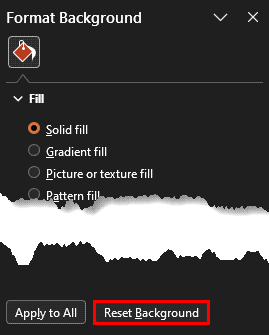
    Also, remember that the Reset option does not revert any changes you make within the Format Background Task Pane. To reset those changes, you will have to click the Reset Background button within the Format Background task pane, as shown highlighted in red within Figure 6, below. To learn more, explore our Format Slide Background in PowerPoint tutorial.
    Reset Background button
    Figure 6: Reset Background button

  11. Save your presentation often.

People Also Ask:

What elements change when I reset a slide?

Text placeholders, fonts, bullet formatting, and object alignment return to layout defaults.

Does resetting affect slide transitions?

No. Reset does not modify transitions or animations.

Can slide reset be used to enforce brand consistency?

Yes. It realigns slides to corporate templates and default formatting instantly.

See Also:

01 09 04 - Working with Slides: Reset Slides in PowerPoint (Glossary Page)

Reset Slides in PowerPoint 2016 for Windows
Reset Slides in PowerPoint 2016 for Mac
Reset Slides in PowerPoint 2013 for Windows
Reset Slides in PowerPoint 2011 for Mac
Reset Slides in PowerPoint 2010 for Windows

You May Also Like: You Can Bank on Your Voice, 2nd Edition: Conversation with Rodney Saulsberry | 5 Slide Design Tips to Take Home From a Successful IPO Presentation Project


Popular Posts

Texture Fills for Slide Backgrounds in PowerPoint 2013 for Windows
Use texture fills for slide backgrounds in PowerPoint 2013 for Windows.

Adding More Guides in PowerPoint 2016 for Windows
Learn how to add more guides in PowerPoint 2016 for Windows.

Notes Page View in PowerPoint 2016 for Windows
Learn about Notes Page view in PowerPoint 2016 for Windows.

Christmas PowerPoint Presentation
This presentation is a great introduction to why we celebrate Christmas for both Christian and non-Christian audiences.


Organic Shapes with Brush Edges

You get 8 shape types plus lines as part of this Organic Shapes collection. Each of these 8 shape types have 10 variants. So you end up with 80 hand-drawn shape options! Again each of these 80 shapes have 12 brush stroke styles! Plus you get the lines and arrows in 12 brush stroke styles too. Combine all variations to end up with more than 3000 possibilities.

Buy and Download for $99+ (83 MB)


Microsoft and the Office logo are trademarks or registered trademarks of Microsoft Corporation in the United States and/or other countries.

Home | PowerPoint | Photoshop | PowerPoint Templates | PowerPoint Tutorials | Blog | Notes | Ezine | Media Kit | Feedback | Site Map | About Us | Contact Us

Link to Us | Privacy | Testimonials

PowerPoint Backgrounds | Christian PowerPoint Backgrounds | Business PowerPoint Presentation Templates

Plagiarism will be detected by Copyscape

©2000-2026, . All rights reserved.