This is the print version of this page. All content is copyright Indezine.com 2000-2026.
Learn how to reset your slide formatting with one click in PowerPoint 2016 for Windows. Reset sets your slide layout to the Theme defaults.
Author: Geetesh Bajaj
Product/Version: PowerPoint 2016 for Windows
OS: Microsoft Windows 7 and higher
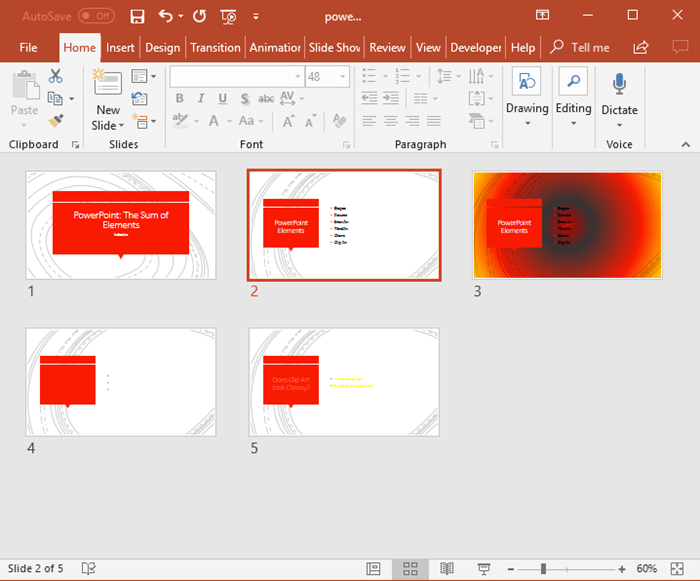
Sometimes, we come across slides that are simply hard to look at. One glance at a slide like the one in Figure 1, below, and it almost doesn’t matter how strong the content is.
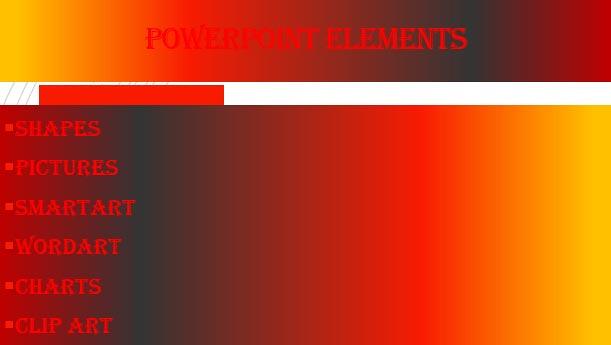
Figure 1: A slide that is hazardous to our vision
OK, this slide is an exaggeration, and you will seldom encounter something so terrible. And even the content on the slide is not amazing. However, this example works for us, because if you can set this slide to become something usable, then you can make any slide better: ) As in this slide, when too many elements compete for attention, the audience stops listening and starts trying to make sense of the screen. In those moments, the message takes a back seat.
And to be fair, this isn’t always your doing. You may be asked to present slides created by someone else. When that happens, you inherit not just the content, but also the design choices, good or bad, that shape how your audience responds.
At this stage, the priority is to remove unnecessary formatting and restore simplicity to the slide. This may also require adjusting the position, size, and text layout of the placeholders to re-establish structure and clarity. Fortunately, PowerPoint provides a straightforward, one-click solution to bring the slide back under control: the Reset option.
The Reset option uses the template or Theme as a reference and resets your placeholders to their default settings. Thus, it only works with text placeholders since they are referenced from the Slide Master of the template or Theme. For that reason, the Reset button does not work with text boxes. Learn about the difference between a text box and a text placeholder in our Text Boxes vs. Text Placeholders tutorial.
Follow these steps to reset all changes made on a slide in PowerPoint 2016 for Windows:
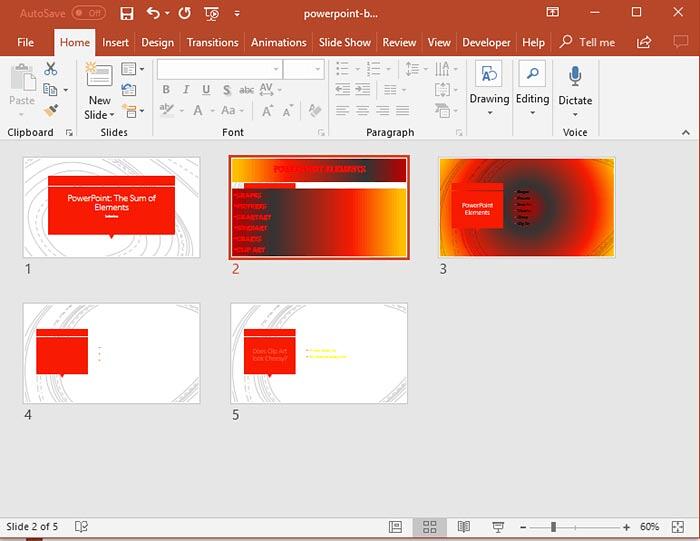
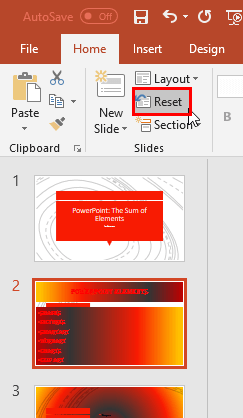
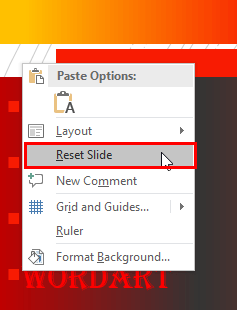
Want to reset just the text formatting to defaults? Access the Outline view, and select all text (Ctrl + A). Then, press the Ctrl + Space shortcut key to reset all text formatting to the default text attributes. Note that this only resets the text that you can see within the Outline view, and not necessarily all text within your presentation.

Do you want more keyboard shortcuts?
Explore our PowerPoint Keyboard Shortcuts and Sequences Ebook that is updated for all PowerPoint versions.
Also, remember that the Reset option does not revert any changes you make within the Format Background Task Pane. To reset those changes, you will have to click the Reset Background button within the Format Background task pane, as shown highlighted in red within Figure 6, below. To learn more, explore our Format Slide Background in PowerPoint 2016 tutorial.
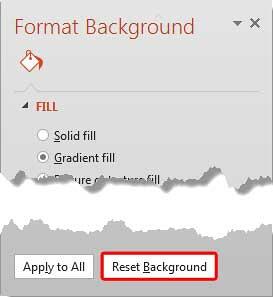
Figure 6: Reset Background button
01 09 04 - Working with Slides: Reset Slides in PowerPoint (Glossary Page)
Reset Slides in PowerPoint 365 for Windows
Reset Slides in PowerPoint 2016 for Mac
Reset Slides in PowerPoint 2013 for Windows
Reset Slides in PowerPoint 2011 for Mac
Reset Slides in PowerPoint 2010 for Windows
You May Also Like: To Empower Others: Use the Four Cornerstones of Effective Feedback | Morph in PowerPoint: Conversation with Lauren Janas



Microsoft and the Office logo are trademarks or registered trademarks of Microsoft Corporation in the United States and/or other countries.