Indezine Logo


Reset, Export, and Import QAT Customizations in PowerPoint 365 for Windows

Learn how to reset, export, and import QAT customization in PowerPoint 365 for Windows. QAT customizations can pile up after a while, and you may want to reset all customizations to default settings.


Author:

Product/Version: PowerPoint 365 for Windows

OS: Microsoft Windows 10 and higher


Learn PowerPoint

Presentation Management 27: The Humanity of Presentations, from Cave Paintings to PowerPoint and Back Again


If you have a bunch of commands that you use frequently, you may want to keep them more accessible within PowerPoint 365 for Windows by customizing your Quick Access Toolbar. You populate the QAT with commands you use often. Over a period, these customizations may become a valuable asset you want to save or share. Let us explore these scenarios:

  • What do you do if you need to change your computer, and rather than customize again from scratch, you wonder if there's a way to move your existing customizations?
  • Or if you want to replicate your QAT customizations on another existing computer? Maybe you want the same customizations on both your desktop and laptop.
  • You may also want to share your QAT customizations with your friends and colleagues.
  • You may want to make a backup of your customizations, just in case!
  • On the other hand, you probably want to go in the reverse direction because you need to hand over your computer to someone else, so you may want to reset your QAT to the default state, devoid of all your customizations.

Yes, you can do all this and more. If you want to reset, export, or import your QAT customizations, follow these steps in PowerPoint 365 for Windows:
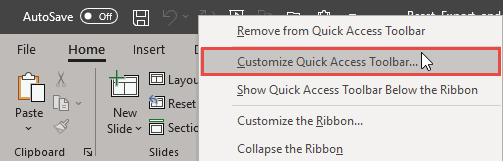
  1. Launch PowerPoint and access the PowerPoint Options dialog box. There are two ways to access these options. The easiest way is to right-click anywhere on the QAT and choose the Customize Quick Access Toolbar option, as shown highlighted in red within Figure 1, below.
  2. Customize Quick Access Toolbar option
    Figure 1: Customize Quick Access Toolbar option
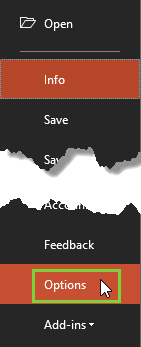
  3. Alternatively, access the File menu and choose Options, as shown highlighted in green within Figure 2, below.
  4. Options within File menu
    Figure 2: Options within File menu
  5. PowerPoint Options with a Keyboard Shortcut

  6. Also, if you are a keyboard aficionado, you can quickly press the Alt + F keys together and then press T.
  7. Keyboard Shortcuts for PowerPoint

    PowerPoint Keyboard Shortcuts

    Do you want more keyboard shortcuts?

    Explore our PowerPoint Keyboard Shortcuts and Sequences Ebook that is updated for all PowerPoint versions.
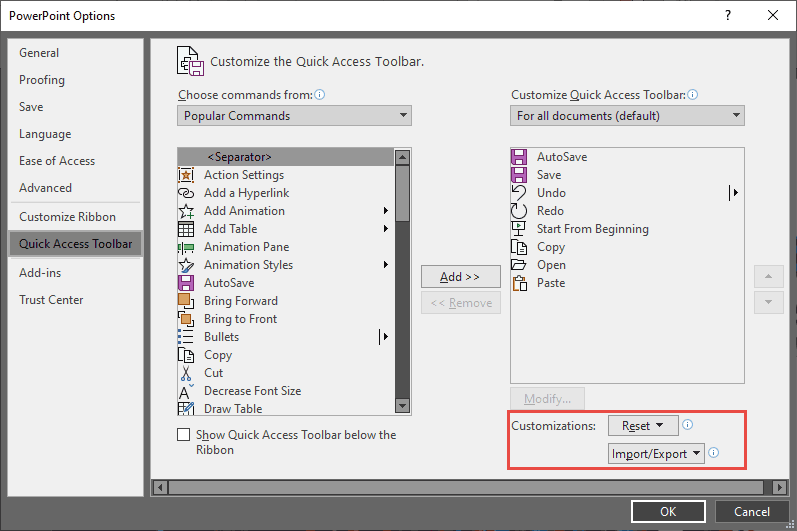
  8. Either way, you end up with the PowerPoint Options dialog box, as shown in Figure 3, below. Make sure you choose the Quick Access Toolbar option within the sidebar. Doing so shows the relevant options on the right side of the PowerPoint Options dialog box, as shown in Figure 3. All the options we will explore in this tutorial are within the Customizations area, as shown highlighted in red within Figure 3.
  9. PowerPoint Options dialog box
    Figure 3: PowerPoint Options dialog box
  10. Let us first explore how you can import and export the QAT customizations. To do so, click the Import/Export button, as shown highlighted in red within Figure 4, below. From the resultant drop-down menu, you can select the Export all customizations option, as shown highlighted in blue within Figure 4, to export your QAT customizations.
  11. Export all customizations option
    Figure 4: Export all customizations option
  12. Doing so brings up the File Save dialog box, as shown in Figure 5, below. Provide a name and location for your customizations file and click the Save button.
  13. File Save dialog box
    Figure 5: File Save dialog box
  14. You import customizations in the same way. Access the drop-down menu as explained in Step 3, and choose the Import customization file option, as shown highlighted in blue within Figure 6, below.
  15. Import customization file option
    Figure 6: Import customization file option
  16. This action opens the File Open dialog box, as shown in Figure 7, below. Here, navigate and locate your (.exportedUI) file, and select it. When done, click the Open button.
  17. File Open dialog box
    Figure 7: File Open dialog box
  18. Doing so brings up a Microsoft Office window, as shown in Figure 8, below. Click the Yes button to replace all existing Quick Access Toolbar customizations.
  19. Microsoft Office window
    Figure 8: Microsoft Office window
  20. This action will replace all the customizations to match the ones taken from the imported file.
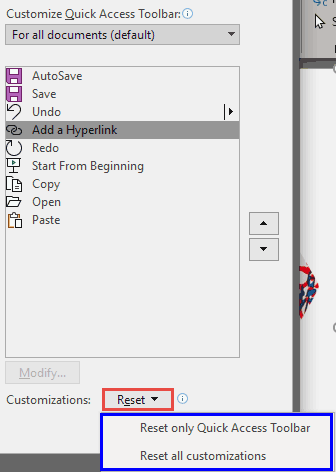
  21. To reset all your customizations, click the Reset button, as shown highlighted in red within Figure 9, further below. The resultant drop-down menu provides two options to reset any customizations done, as shown highlighted in blue within Figure 9.
    • The Reset only Quick Access Toolbar option will only reset the customization of the QAT.
    • The Reset all customizations option resets all the customizations made for Ribbon tabs as well as the QAT. This is like restoring the Ribbon tabs and QAT to the state when you used PowerPoint the first time after installation.
  22. Reset drop-down menu
    Figure 9: Reset drop-down menu
  23. Click the OK button to apply changes made within the PowerPoint Options dialog box, and go back to the PowerPoint 365 interface. Alternatively, press the Cancel button to go back without making any changes.

People Also Ask:

What happens to existing customizations when I import a new QAT file?

Importing a new customization file will replace all existing QAT and Ribbon customizations. It's advisable to export your current settings before importing new ones to avoid losing your configurations.

Are QAT customizations transferable between different Office applications?

No, QAT customizations are specific to each Office application. A customization file from PowerPoint cannot be applied to Word or Excel.

Do QAT customizations sync across devices with the same Microsoft account?

No, QAT customizations do not automatically sync across devices. To replicate your setup on another device, you need to manually export and import your customization file.

See Also:

01 06 08 - Working with QAT and Ribbons: Reset, Export, and Import QAT Customizations in PowerPoint (Glossary Page)

Reset, Export, and Import QAT Customizations in PowerPoint 365 for Mac
Reset, Export, and Import QAT Customizations in PowerPoint 2019 for Windows
Reset, Export, and Import QAT Customizations in PowerPoint 2016 for Windows
Reset, Export, and Import QAT Customizations in PowerPoint 2016 for Mac
Reset, Export, and Import QAT Customizations in PowerPoint 2013 for Windows

You May Also Like: Morph in PowerPoint: Conversation with Lauren Janas | Kangaroo PowerPoint Templates


Popular Posts

Use Safe Fonts Available on All Systems in PowerPoint
Learn about using safe fonts in PowerPoint.

10 Tips for Pecha Kucha
Read 10 amazing Pecha Kucha tips that will help you create and deliver a better Pecha Kucha presentation.

Creating Slide Backgrounds in Photoshop for PowerPoint
Learn how to create slide backgrounds for PowerPoint in Photoshop.

Formatting Arrows (Arrowheads) in PowerPoint 2016 for Windows
Learn how to format arrowheads for lines in PowerPoint 2016 for Windows.


Night Sky Starlit Backgrounds

The ZIP file that you will download contains five Night Sky Starlit Backgrounds in three resolutions: Full Size: 4000x2250 pixels (16:9), Widescreen Size: 1365x768 pixels (16:9), and Standard Size: 1024x768 (4:3). Also included are five PowerPoint Presentations with Night Sky Starlit Backgrounds, set to work with the Morph transition. Yes, these background designs can also animate between slides using PowerPoint's Morph transition.

Go ahead and get this product! You’ll see the price on the order page


Microsoft and the Office logo are trademarks or registered trademarks of Microsoft Corporation in the United States and/or other countries.

Home | PowerPoint | Photoshop | PowerPoint Templates | PowerPoint Tutorials | Blog | Notes | Ezine | Media Kit | Feedback | Site Map | About Us | Contact Us

Link to Us | Privacy | Testimonials

PowerPoint Backgrounds | Christian PowerPoint Backgrounds | Business PowerPoint Presentation Templates

Plagiarism will be detected by Copyscape

©2000-2026, . All rights reserved.