If you have a bunch of commands that you use frequently, you may want to keep them more accessible within PowerPoint 2019 for Windows by customizing your Quick Access Toolbar. You populate the QAT with commands you use often. Over a period, these customizations may become a valuable asset you want to save or share. Let us explore these scenarios:
- What do you do if you need to change your computer, and rather than customize again from scratch, you wonder if there's a way to move your existing customizations?
- Or if you want to replicate your QAT customizations on another existing computer? Maybe you want the same customizations on both your desktop and laptop.
- You may also want to share your QAT customizations with your friends and colleagues.
- You may want to make a backup of your customizations, just in case!
- On the other hand, you probably want to go in the reverse direction because you need to hand over your computer to someone else, so you may want to reset your QAT to the default state, devoid of all your customizations.
Yes, you can do all this and more. If you want to reset, export, or import your QAT customizations, follow these steps in PowerPoint 2019 for Windows:
- Launch PowerPoint and access the PowerPoint Options dialog box. There are two ways to access these options. The easiest way is to right-click anywhere on the QAT and choose the Customize Quick Access Toolbar option, as shown highlighted in red within Figure 1, below.

Figure 1: Customize Quick Access Toolbar option- Alternatively, access the File menu and choose Options, as shown highlighted in green within Figure 2, below.
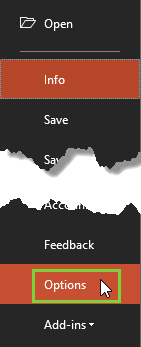
Figure 2: Options within File menu
PowerPoint Options with a Keyboard Shortcut
- Also, if you are a keyboard aficionado, you can quickly press the Alt + F keys together and then press T.
- Either way, you end up with the PowerPoint Options dialog box, as shown in Figure 3, below. Make sure you choose the Quick Access Toolbar option within the sidebar. Doing so shows the relevant options on the right side of the PowerPoint Options dialog box, as shown in Figure 3. All the options we will explore in this tutorial are within the Customizations area, as shown highlighted in red within Figure 3
-

Figure 3: PowerPoint Options dialog box
- Let us first explore how you can import and export the QAT customizations. To do so, click the Import/Export button, as shown highlighted in red within Figure 4, below. From the resultant drop-down menu, you can select the Export all customizations option, as shown highlighted in blue within Figure 4, to export your QAT customizations.

Figure 4: Export all customizations option- Doing so brings up the File Save dialog box, as shown in Figure 5, below. Provide a name and location for your customizations file and click the Save button.

Figure 5: File Save dialog box- You import customizations in the same way. Access the drop-down menu as explained in Step 3, and choose the Import customization file option, as shown highlighted in blue within Figure 6, below.

Figure 6: Import customization file option- This action opens the File Open dialog box, as shown in Figure 7, below. Here, navigate and locate your (.exportedUI) file, and select it. When done, click the Open button.

Figure 7: File Open dialog box- Doing so brings up a Microsoft Office window, as shown in Figure 8, below. Click the Yes button to replace all existing Quick Access Toolbar customizations.

Figure 8: Microsoft Office window- This actio will replace all the customizations to match the ones taken from the imported file.
- To reset all your customizations, click the Reset button, as shown highlighted in red within Figure 9, further below. The resultant drop-down menu provides two options to reset any customizations done, as shown highlighted in blue within Figure 9.
- The Reset only Quick Access Toolbar option will only reset the customization of the QAT.
- The Reset all customizations option resets all the customization made for your Ribbon tabs as well as the QAT. This is like restoring the Ribbon tabs and QAT to the state when you used PowerPoint the first time after installation.

Figure 9: Reset drop-down menu- Click the OK button to apply changes made within the PowerPoint Options dialog box, and go back to the PowerPoint 2019 interface. Alternatively, press the Cancel button to go back without making any changes.




