Indezine Logo


Presenter View in PowerPoint 2019 for Windows

Learn about Presenter view in PowerPoint 2019 for Windows. This is the view that allows you to use two displays effectively to deliver your slides in PowerPoint.


Author:

Product/Version: PowerPoint 2019 for Windows

OS: Microsoft Windows 10 and higher


Presenter view is a purpose-built view that accompanies Slide Show view in PowerPoint. This view is beneficial in an environment that has at least two displays, such as a laptop and a projector, or even two monitors attached to your desktop system. The projector or the secondary display then shows the actual slides, in what is commonly called Slide Show view. However, you see Presenter view on the laptop or on the primary display.

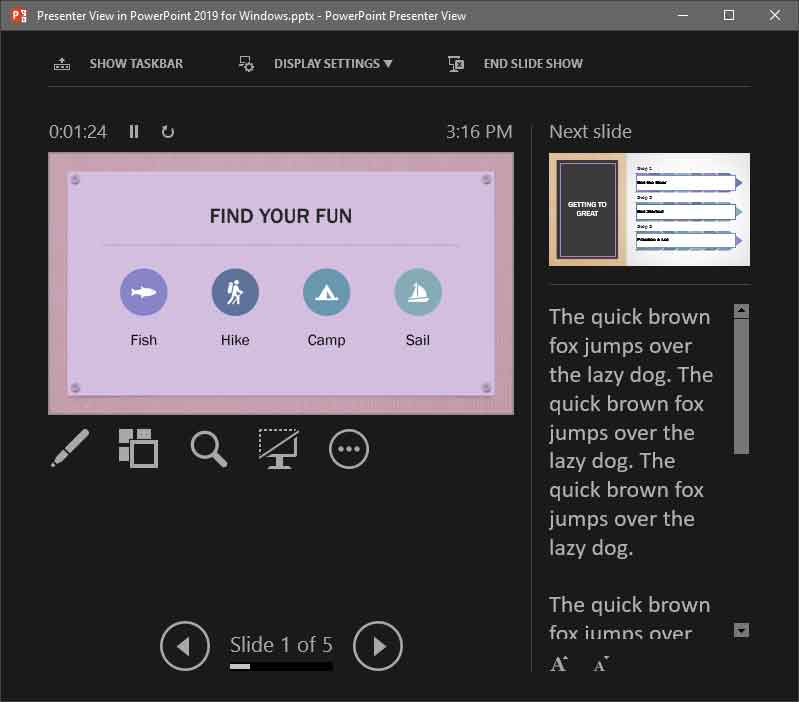
Figure 1, below, shows Presenter view in PowerPoint 2019 for Windows. Notice that you get to see much more than just the slide. Rest assured that the audience viewing the projector or secondary output only sees the slide!
Presenter view in PowerPoint 2019
Figure 1: Presenter view in PowerPoint 2019

While Presenter view in older versions of PowerPoint had to be manually turned on, newer versions of PowerPoint automatically detect if you have two displays and turn on Presenter view. You should however still check and ensure that this view shows up on your primary display and not on the secondary display. We show you how you can swap displays using the Display Settings option, later on this page.

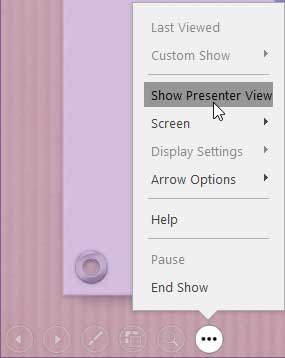
If you are using only a single display, you can still choose to change to Presenter view from within Slide Show view. Hover your cursor over the bottom left area of the slide to find six watermarked navigation icons, as shown in Figure 2, below. Click the last icon and from the resultant menu choose the Show Presenter View option, as shown in Figure 2.
Show Presenter View option to be selected
Figure 2: Show Presenter View option to be selected

Doing so brings up PowerPoint 2019's Presenter view, as shown in Figure 1, above. Notice that PowerPoint 2019's Presenter view has an enhanced Web 2.0 style interface and there are many other features in the Presenter view's console such as zooming onto a specific part of the slide and then panning across the slide area. Also, you have dedicated Pause, Resume, and Restart buttons to give you more control over slide timings. Additionally, you have easy access to the Laser Pointer tool, which directs the audience’s eye with a bright-colored point of light.

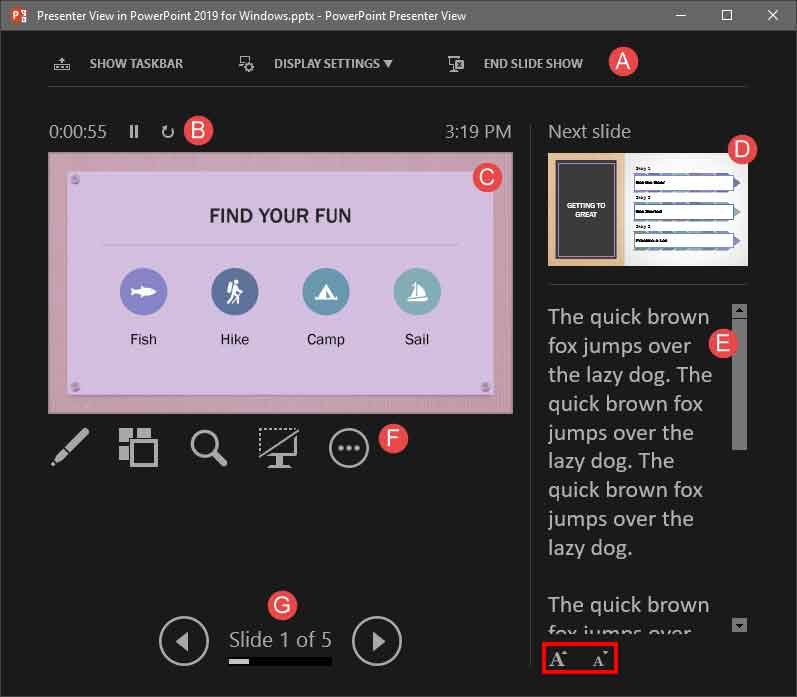
We explain all these features, and more, as marked below in Figure 3.
Presenter View
Figure 3: Presenter view

A. Toolbar

Here you find three options:

  1. Show Taskbar: A toggle that alternates between showing your Window taskbar. Click once to make the taskbar available. You'll then find that the option is now highlighted, as shown in Figure 4, below.
  2. Show Taskbar option gets highlighted on clicking
    Figure 4: Show Taskbar option gets highlighted on clicking
  3. It can be useful to have access to the taskbar if you need to access any open application. Then, once you get back to your slide show, you can click the Show Taskbar option again to hide the taskbar. The option is then no longer highlighted.
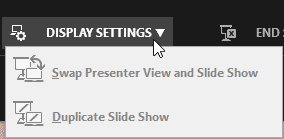
  4. Display Settings: This option, when clicked spawns a drop-down menu, as shown in Figure 5, below. Here, you'll get options to Swap Presenter View and Slide Show, and also another option to Duplicate Slide Show.
  5. Display Settings drop-down menu
    Figure 5: Display Settings drop-down menu
  6. If you are on a single display environment, these options will be grayed out. On a dual-display environment, you can use the Swap Presenter View and Slide Show option to swap displays between your primary and secondary displays. The Duplicate Slide Show option will show Slide Show view on both displays.
  7. End Slide Show: Exits the presentation. You can also duplicate this option using the Esc keyboard shortcut.

B. Timer

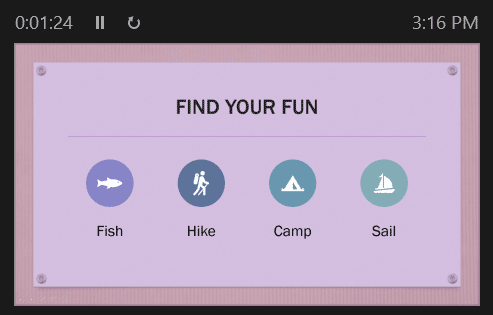
Shows above the Slide Preview area, as shown in Figure 6, below. The Timer determines the time elapsed since the slide show started. Additionally, PowerPoint provides two buttons for Pause/Resume and Restart.
Slide Preview and Timer
Figure 6: Slide Preview and Timer

C. Preview area

This shows the active slide, as shown in Figure 6, above. The same slide is simultaneously displayed full screen on the projected screen (secondary display).

D. Next Slide

On the top right side, you'll find a preview of the next slide.

E. Notes pane

This section displays the notes (if there are any) for the current slide. Here you'll find two buttons to Make the text larger and Make the text smaller, as shown highlighted in red within Figure 3, previously on this page.

F. Extra Controls

There are five extra controls available below the Slide Preview, as shown in Figure 7, below. These are explained from left to right:

Extra Controls within Presenter view
Figure 7: Extra Controls within Presenter view
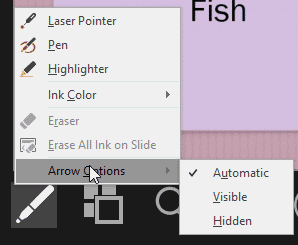
  1. Pen and Laser Pointer tools: Click on this button to bring up a menu, as shown in Figure 8, below.
  2. Contextual menu in Presenter view
    Figure 8: Contextual menu in Presenter view
  3. The options within this menu are explained below:
  4. Laser Pointer: Directs the audience's eye with a bright-colored point of light. You can set the Laser Pointer color within the Set Up Show dialog box. To access this dialog box, choose the Slide Show tab of the Ribbon, and then click the Set Up Slide Show button.
  5. Pen: Lets you draw or annotate with a pen. Learn more in our Using the Pen and Highlighter Tools in Slide Show View in PowerPoint tutorial.
  6. Highlighter: Almost like a virtual highlighter pen. Learn more in our Using the Pen and Highlighter Tools in Slide Show View in PowerPoint tutorial.
  7. Ink Color: Changes the pen color.
  8. Eraser: Lets you erase any pen or highlighter marked areas (grayed out if there are no marked areas on the current slide).
  9. Erase All Ink on Slide: Removes all ink markings (grayed out if there are no marked areas on the current slide).
  10. Arrow Options: Brings up a sub-menu with options to show (Visible) or hide (Hidden) the cursor while presenting. The Automatic option is turned on by default. This option shows the cursor when you move your mouse or trackpad for a while and hides it again when there's no moving activity for a while.
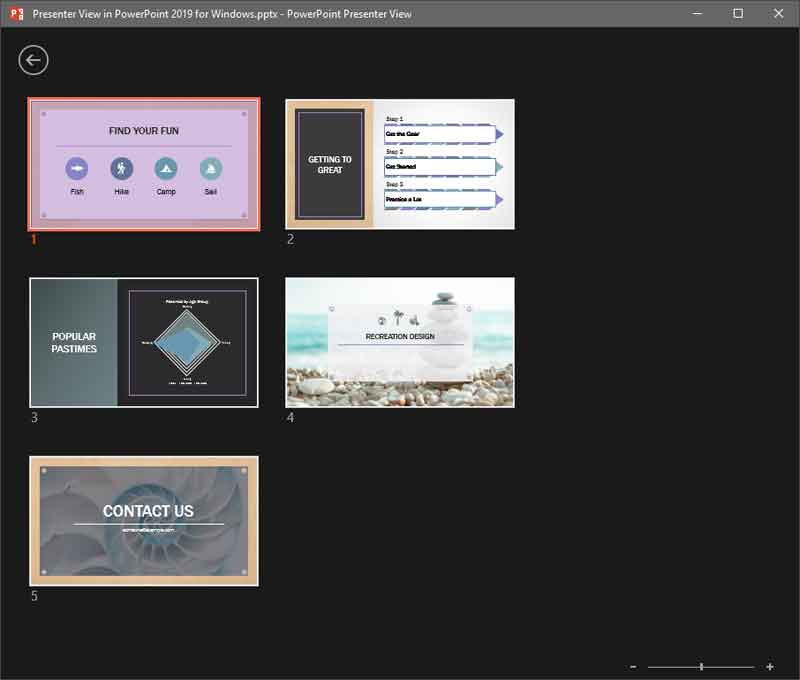
  11. See All Slides: Click on this button to bring up the whole slide stack, as shown in Figure 9, below, and choose any slide. With this option, you can easily switch slides in or out of sequence from a grid that only you see. Your audience only sees the slide you’ve selected.
  12. Slides stack
    Figure 9: Slides stack
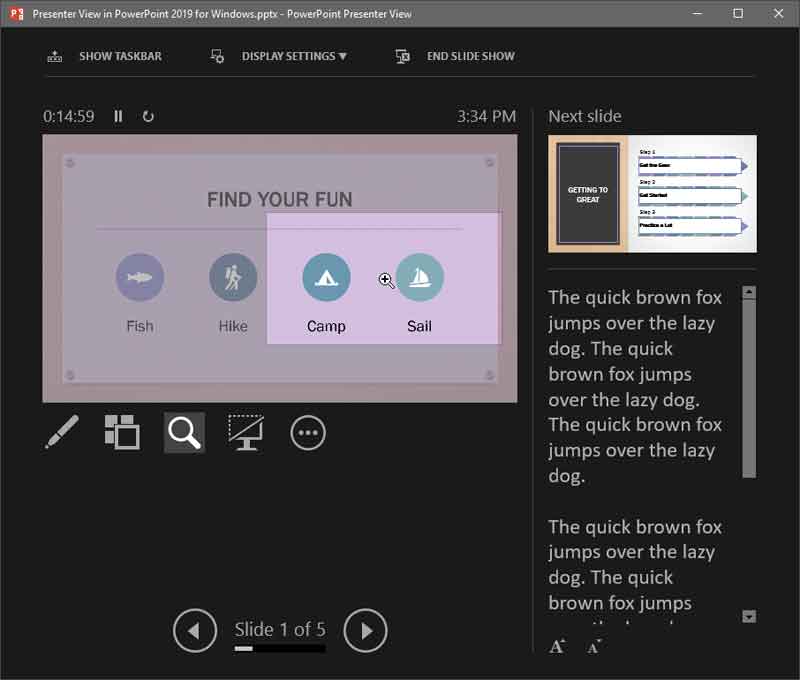
  13. Zoom into the slide: With this tool, you can zoom a part of the slide and then pan around. Figure 10, below, shows the zoom option as active.
  14. Zoom active within the Presenter view
    Figure 10: Zoom active within the Presenter view
  15. Black or Unblack Slide Show: This is the toggle button to turn the screen completely black, click again to un-black the screen. You can get the same results by pressing the B shortcut key. Similarly, you can press the W shortcut key to get a white screen, and press W again to un-white the screen.
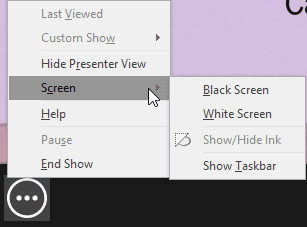
  16. More Slide Show Options: Click this button to bring up a drop-down list, as shown in Figure 11, below.
  17. More slide show options
    Figure 11: More slide show options
  18. Within this list, you'll find more options:
  19. Last Viewed: Goes to the last viewed slide.
  20. Custom Show: Opens a sub-menu that lists all custom shows available in the open presentation. This option is grayed out if there are no Custom Shows created within the presentation being viewed.
  21. Hide Presenter View: Hides Presenter View and takes you back to Slide Show view on a single display environment.
  22. Screen: Lets you show a Black or White screen to the audience, Show/Hide Ink Markup (pen, highlighter, etc.), and reveal the Windows taskbar (Switch Programs).
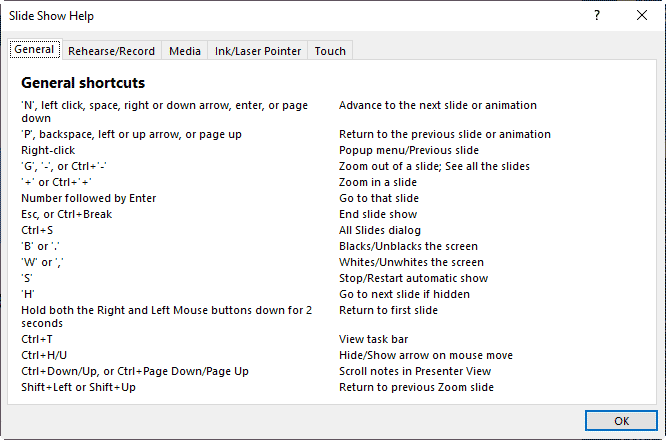
  23. Help: Brings up a list of keyboard shortcuts that you can use while presenting, as shown in Figure 12, below.
  24. Keyboard shortcuts for presenting
    Figure 12: Keyboard shortcuts for presenting
  25. Keyboard Shortcuts for PowerPoint

    PowerPoint Keyboard Shortcuts

    Do you want more keyboard shortcuts?

    Explore our PowerPoint Keyboard Shortcuts and Sequences Ebook that is updated for all PowerPoint versions.

  26. Pause: Lets you pause your slide show. Animations pause too, and you click Pause again to restart, or just press the Pause/Break key on your keyboard. Most laptop keyboards may not have this key but bigger desktop keyboards have the Pause/Break key.
  27. End Show: Exits Slide Show and Presenter view.

G. Navigation

Use the Previous Slide or the Next Slide arrow buttons to navigate to those slides. Also, the area between these buttons shows which slide is active.


See Also:

01 07 11 - Views: Presenter View in PowerPoint (Glossary Page)

Presenter View in PowerPoint 365 for Windows
Presenter View in PowerPoint 365 for Mac
Presenter View in PowerPoint 2016 for Windows
Presenter View in PowerPoint 2016 for Mac
Presenter View in PowerPoint 2013 for Windows
Presenter View in PowerPoint 2011 for Mac
Presenter View in PowerPoint 2010 for Windows

You May Also Like: Why Should You Be Using and Mastering PowerPoint’s Triggers? | Geometric PowerPoint Templates


Popular Posts

Keyboard Shortcuts for PowerPoint 2011 for Mac
Explore keyboard shortcuts in PowerPoint 2011 for Mac.

Insert Video from Facebook in PowerPoint 2016 for Windows
Learn how to insert video from your Facebook account in PowerPoint 2016 for Windows.

Add Pattern Fills to Shapes in PowerPoint 2010 for Windows
Add pattern fills to shapes in PowerPoint 2010 for Windows.

Gradient Fills for Text in PowerPoint 2013
Learn how to add gradient fills to selected text in PowerPoint 2013.


Pictures in Presentations

Is a picture is worth a thousand words? You probably have heard this adage so often that we decided not to repeat this phrase throughout this book! Now here’s some more info: the human brain uses a larger part of its area to store visual information rather than textual content. And that’s possibly because a picture describes so much more than text.

Go and get a copy of our Pictures in Presentations ebook.


Microsoft and the Office logo are trademarks or registered trademarks of Microsoft Corporation in the United States and/or other countries.

Home | PowerPoint | Photoshop | PowerPoint Templates | PowerPoint Tutorials | Blog | Notes | Ezine | Media Kit | Feedback | Site Map | About Us | Contact Us

Link to Us | Privacy | Testimonials

PowerPoint Backgrounds | Christian PowerPoint Backgrounds | Business PowerPoint Presentation Templates

Plagiarism will be detected by Copyscape

©2000-2025, . All rights reserved.