
This is the print version of this page. All content is copyright Indezine.com 2000-2026.
Learn how to hide and unhide slides in PowerPoint 365 for Windows. Hiding slides lets you do so much more.
Author: Geetesh Bajaj
Product/Version: PowerPoint 365 for Windows
OS: Microsoft Windows 10 and higher
Ever created a slide that you just couldn’t delete? It’s like a “just-in-case” drawer in your presentation. You may not use it often, but you know it could come in handy. Now imagine you’re presenting and moving through your slides, and suddenly that drawer opens in front of everyone. Notes, extra data, maybe even unfinished thoughts show up on the screen. Not a great moment. So, in this tutorial, we will explore the entire gamut of hiding and unhiding slides, learn about pro tips, and look at some caveats.

Hide and unhide slides in PowerPoint
Using the Hide Slides Feature
How to Hide and Unhide Slides?
Best Practices for Hiding Slides
Caveats of Hiding Slides
Conclusion
Yes, this is a neat trick: hide the slide. Think of it as sliding that “just-in-case” drawer behind a secret panel. It’s still part of your desk, and you just know exactly how to keep it out of sight! During your presentation, the audience never even knows if that drawer exists. No accidental reveals, no awkward moments. But for you? It’s always there, ready to be opened, edited, or reorganized whenever you like.
And when the timing is perfect, you can pull it back out with a quick unhide, like a pro revealing a hidden compartment at just the right moment.
Many presenters rely on hidden slides. They use them to keep backup data, extra charts, or answers to questions that might come up. It’s a bit like having a safety net—there if you need it, but mostly invisible to the audience.
Pros also use hidden slides to stay flexible. If a discussion goes deeper than expected, they can quickly bring in supporting material without breaking the flow. In training sessions, hidden slides can hold optional examples or exercises that you only use if time permits. In client meetings, they’re useful for handling detailed questions without overloading the main presentation.
Another advantage is focus. By moving secondary content into hidden slides, the main deck stays clear and easier to follow, while you still keep everything you might need within reach.
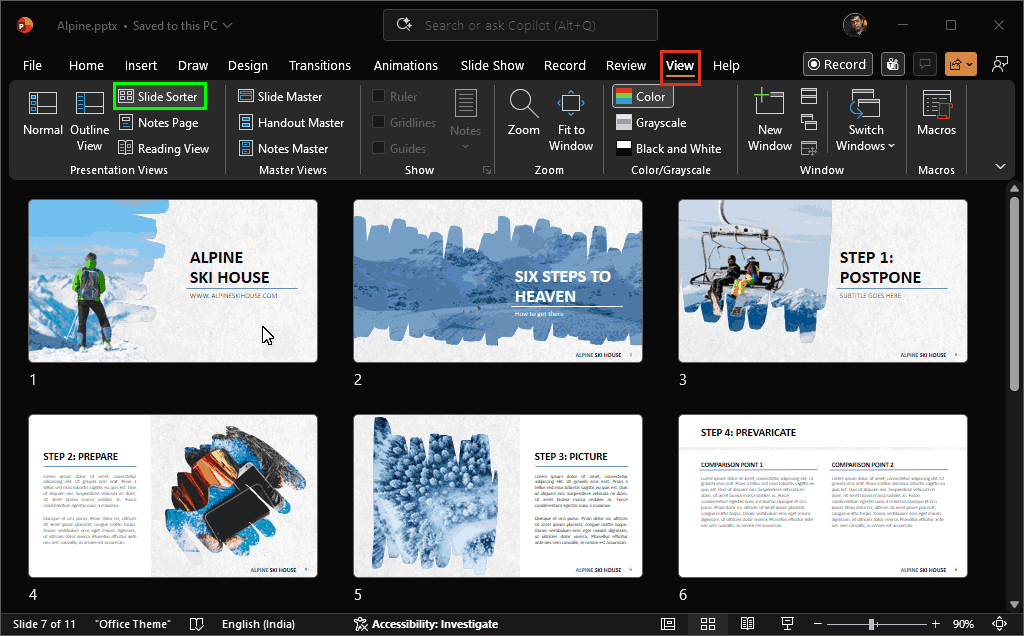
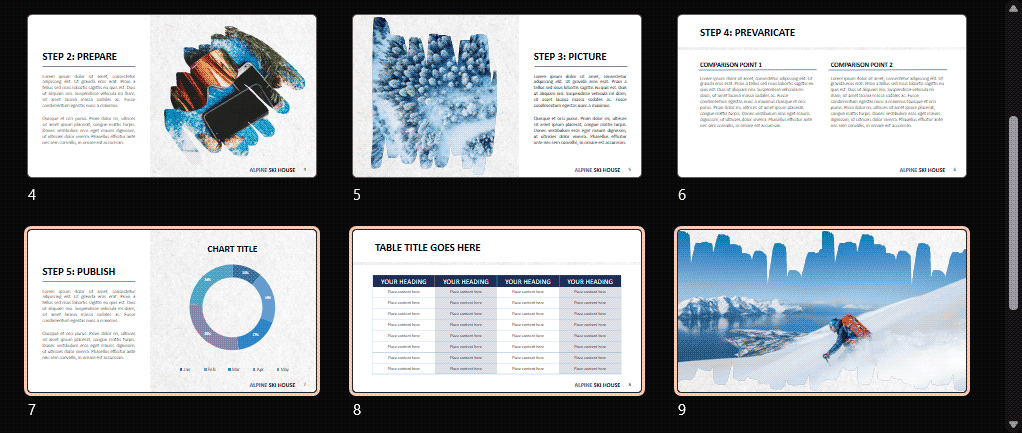
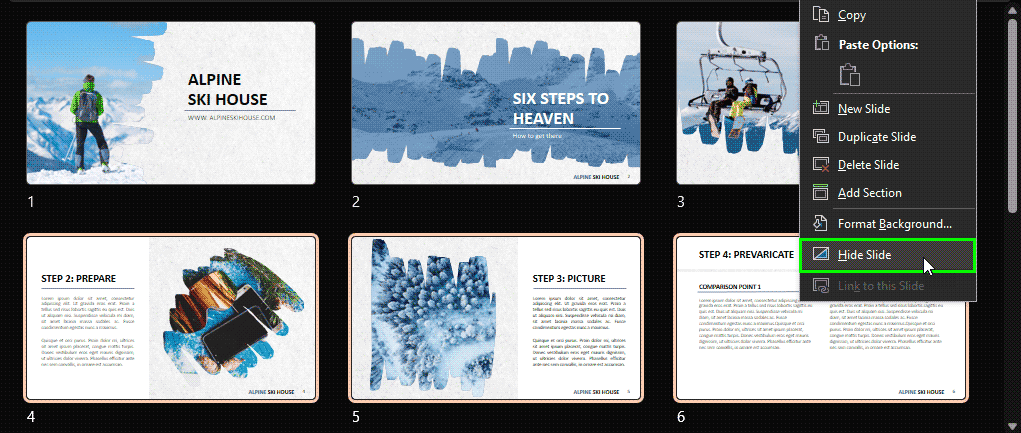
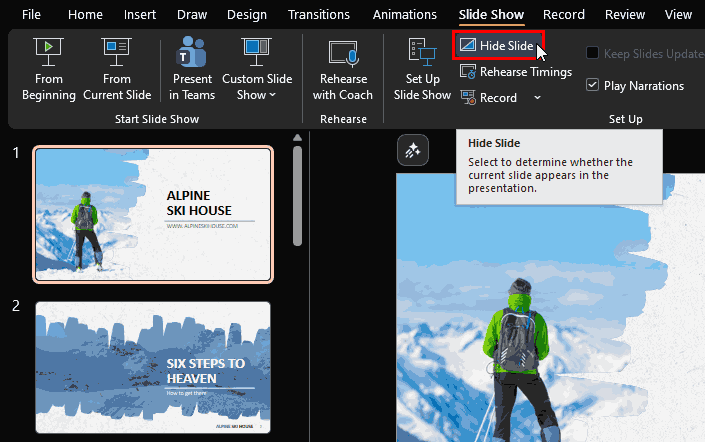
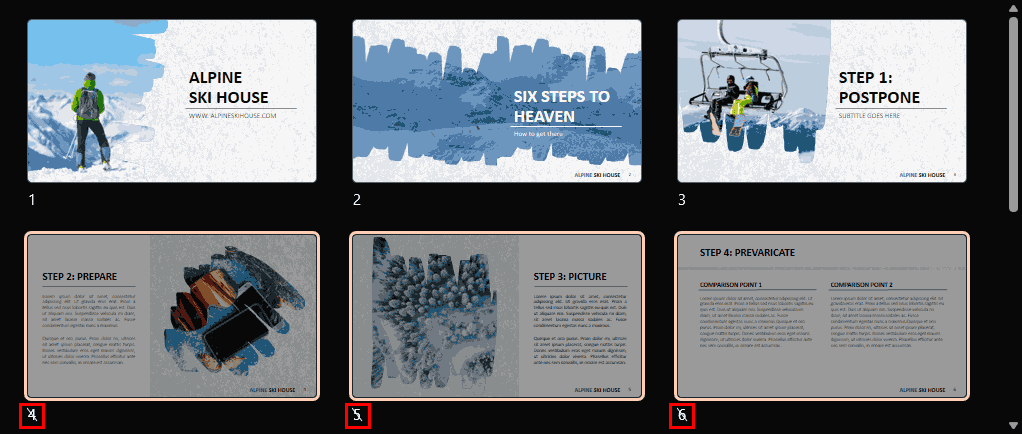
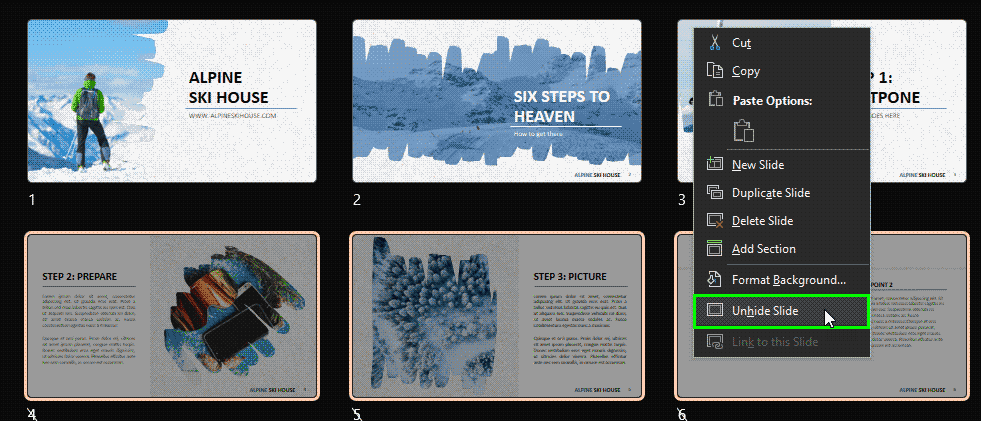
Follow these steps to hide and unhide your slides in PowerPoint 365 for Windows:

Do you want more keyboard shortcuts?
Explore our PowerPoint Keyboard Shortcuts and Sequences Ebook that is updated for all PowerPoint versions.
Need to display a hidden slide during Slide Show view? This can be done efficiently if you know the slide number. For example, to navigate to slide 16, press 1, 6, and Enter keys in rapid succession, and your slide will change to slide number 16. This trick works with all slides, including hidden slides.
When used well, hidden slides in Microsoft PowerPoint can feel like having a quiet “expert assistant” in the room with you. Here are some best practices to make them work for you in high-stakes settings like training sessions or client presentations:
Think of hidden slides as your presentation’s “backup brain.” It’s where you save away things like detailed tables, technical explanations, and answers to questions you might get asked. You probably won’t access those slides every time, but it’s comforting to know they’re there. And when someone asks a tricky question, you can pull out exactly what you need without scrambling.
Did you know that many presenters keep answers to tough questions on hidden slides? It’s like having notes in your back pocket. You may not use them all the time, but they can save the day when you do.
Don’t count on your memory when you’re in the middle of presenting. It has a funny way of disappearing right when you need it most! Think of it like trying to remember a phone number without saving it… not the best plan under pressure. Instead, give yourself a little help:
Many experienced presenters don’t “wing it”. Instead, they leave breadcrumbs for themselves. When things get busy, clear cues beat last-minute guesswork every single time.
Practice how you’ll jump to a hidden slide and then come right back. Yes, it is like taking a quick detour and merging smoothly back onto the main road.
Use slide numbers to get there fast. And have a simple line ready, like: “Let me pull up a quick backup on that…”
The best presenters don’t look like they’re reacting on the spot. Rather, they look like they planned it all along. A little rehearsal turns a “detour” into part of the journey!
Don’t treat hidden slides like a junk drawer where anything goes. Sure, they’re out of sight, but that doesn’t mean they should be a mess! Think of them as a spare room: you may not show it to guests often, but it should still be tidy just in case.
If you ever bring up a hidden slide, your audience assumes it’s important. A clean, clear slide boosts your credibility, while a messy one can make it look like you just threw it together at the last minute.
Don’t confuse hidden with secure. They’re not the same thing. A hidden slide is more like putting papers under the table, not locking them in a safe. Anyone who looks around can still find them.
For client-facing decks:
Many pro presenters keep two versions of the same deck: one for sharing and one for internal use. It’s a simple habit that can save you from some very awkward situations!
Before you send out your presentation or turn it into a PDF, take a moment to double-check your hidden slides. Think of it like packing a suitcase; you don’t want to forget something important, and you definitely don’t want to include something by mistake!
Did you know that many “oops” moments happen not during the presentation, but after sharing the file? A quick check can save you from sending more than you intended.
If someone else is going to present your deck, don’t assume they’ll magically know about your hidden slides. Think of it like handing over a customized car. You’d still explain where the controls are.
Hidden slides can be a real “secret weapon,” but only if the presenter knows they exist. Otherwise, they either stay unused, or worse, they may pop up at the wrong time!
Too many hidden slides can backfire. It’s like stuffing your bag with “just in case” items until you can’t find anything when you actually need it. Stick to what really supports your story. Keep a small set of hidden, backup slides that you can access quickly.
The best presenters don’t carry everything—they carry the right things. A few well-chosen backups beat a pile of unused slides every time.
Hidden slides aren’t just a storage space. They’re more like an insurance policy for your presentation. You hope you won’t need them, but it’s a relief knowing they’re there. They let you keep your main slides clean and to the point, while still having backup ready if things go off script.
The most confident presenters aren’t the ones who know everything by heart. They’re the ones who are prepared for anything. Hidden slides help you do exactly that.
BackAre there any caveats to hiding slides in PowerPoint? Yes—hiding slides in Microsoft PowerPoint is incredibly useful, but there are a few caveats worth keeping in mind:
Hidden slides are still very much part of your presentation. Think of them like files tucked into a folder. Yes, they’re out of sight during the show, but not locked away. Anyone who opens the deck in Normal or Slide Sorter views can spot them and bring them back with a click.
Hiding a slide is more like turning off a light than closing a door. It’s easy to switch back on.
Hidden slides stay out of sight during Slide Show view, but they don’t disappear. Think of them like notes on your desk: the audience can’t see them during the show, but they’re right there when you’re working. If you switch to editing mode and share your screen, those “hidden” slides can suddenly be visible to everyone.
Many accidental reveals happen not during the slideshow, but when presenters switch views. A quick check before sharing your screen can save you from an “oops” moment!
Hidden slides don’t always stay hidden when you print or export your deck. Think of it like making photocopies; if you don’t check what’s in the stack, everything might get copied, even the pages you meant to keep aside. When creating PDFs or printouts, hidden slides can sneak in unless you tell PowerPoint to leave them out.
If you like jumping to slides by typing slide numbers, watch your step because hidden slides are still in the lineup. It’s a bit like dialing a number from memory and reaching someone you didn’t mean to call! If you forget a slide is hidden, you might land on it by mistake during your presentation. Yes, hidden slides don’t disappear from the numbering. They just sit quietly in place. So, if you’re jumping around, it helps to know exactly where you’re going!
Hiding slides is about keeping things out of sight and not keeping them safe. Think of it like putting papers under a book on your desk. They’re hidden, sure, but not protected. If your slides contain sensitive or confidential information, don’t rely on hiding them. Use a separate file or remove those slides altogether.
Many presenters keep a “clean” version of their deck just for sharing. It’s a simple habit that helps avoid sharing more than you intended!
If you’re co-authoring a PowerPoint presentation deck with others, hidden slides can be a bit confusing. It’s like reading a book where some pages are quietly tucked away. Suddenly, page numbers jump, and you wonder what you missed! When collaborators don’t know about hidden slides, they may think something’s wrong with the deck.
Slide numbers don’t change when you hide slides; they just skip over them. A quick heads-up to your team can save a lot of head-scratching!
Think of hidden slides as your presentation’s backstage area. That’s where the extra props and backup material wait while the main show is on. The audience never sees what’s behind the curtain. Yet, it’s all still part of the production, ready to step in if needed.
Just like in a real theater, some of the most important work happens backstage. Hidden slides play that same supporting role!
BackHiding and unhiding slides in PowerPoint isn’t just a technical trick; it’s a smart presentation strategy. When used thoughtfully, hidden slides help you stay prepared, flexible, and in control, whether you’re leading a client meeting, teaching a class, or presenting to a large audience. They let you keep your main story clean and focused while still giving you the freedom to dive deeper when the moment calls for it. As long as you stay mindful of the caveats and follow best practices, hidden slides become a quiet but powerful ally that supports you behind the scenes and elevates your overall presentation experience.
BackHiding preserves content for later use; deleting permanently removes slides.
Yes. Hyperlinks can navigate to hidden slides if directly linked.
No. Hidden slides are excluded from printing unless explicitly selected.
01 09 06 - Working with Slides: Hide and Unhide Slides in PowerPoint (Glossary Page)
Hide and Unhide Slides in PowerPoint 2016 for Windows
Hide and Unhide Slides in PowerPoint 2016 for Mac
Hide and Unhide Slides in PowerPoint 2013 for Windows
Hide and Unhide Slides in PowerPoint 2010 for Windows
Hide and Unhide Slides in PowerPoint for the Web
You May Also Like: Beauty and the Beast: Eyeful’s Adaptation in PowerPoint | Animate Bubble Charts in PowerPoint with Morph


Microsoft and the Office logo are trademarks or registered trademarks of Microsoft Corporation in the United States and/or other countries.
