
This is the print version of this page. All content is copyright Indezine.com 2000-2026.
Explore options within the Status Bar within PowerPoint 2016 for Mac. Most users ignore the Status Bar, but it contains a wealth of information.
Author: Geetesh Bajaj
Product/Version: PowerPoint 2016 for Mac
OS: Mac OS X
The Status Bar
Status Bar Components
The Status Bar is a thin strip located at the bottom of the PowerPoint 2016 for Mac interface as shown highlighted in red within Figure 1. This area provides information about the active slide, and also provides several View options.
To work with options in the Status Bar, you must have a presentation open in PowerPoint 2016 for Mac, otherwise the options within the Status Bar will be grayed out.
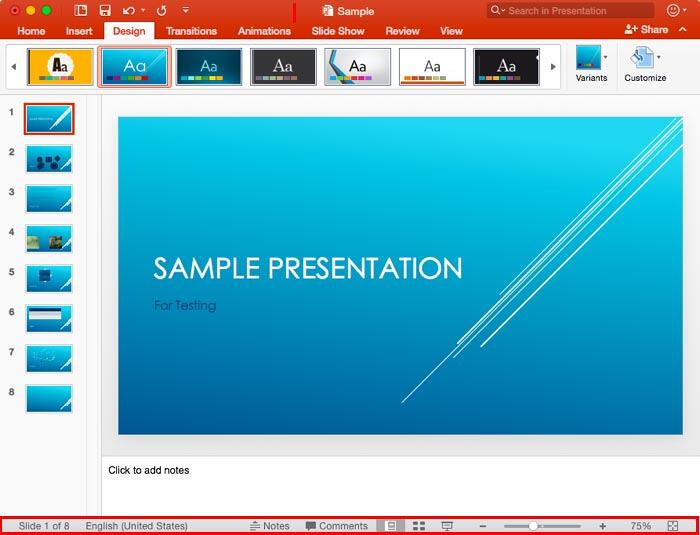
Figure 1: Status Bar
Let's explore the components of the Status Bar. Figure 2 marks some of these components so that we can refer to them in the explanations below:

Figure 2: Status Bar components
Is your PowerPoint 2016 for Mac Status Bar orange in color? Yes, the orange can be glaring in appearance! The Status Bar that you see in Figure 2, above is grey in color since we changed the interface color to grey from the default orange color; this updates the color of the Status Bar too.
This displays the active slide number, as well as the number of slides in the open presentation.
This displays the language specified.
This is a toggle button to open or close the Notes pane.
This again is a toggle button that opens and closes the Comments Task pane.
Here you can select appropriate buttons to switch to Normal, Slide Sorter, or Slide Show views (highlighted in red within Figure 2 above). Shift-click the same buttons to access Slide Master view, Handout Master view, and the Set Up Show dialog box.
There are three options to zoom-in or zoom-out the slide as shown highlighted in blue within Figure 2 above. Pull the slider left or right, or click the plus or minus sign to zoom in or out. You can also click the zoom percentage level value to bring up the Zoom dialog box as shown in Figure 3; here you can specify the zoom level.
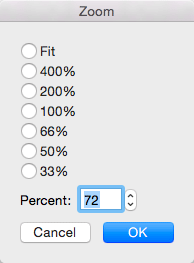
Figure 3: Zoom dialog box
Click this button to fit the slide in the available Slide Area.
You can customize what appears on the Status Bar by right-clicking (or Ctrl-clicking) on it and selecting or deselecting the options in the resultant Customize Status Bar menu that you can see in Figure 4.
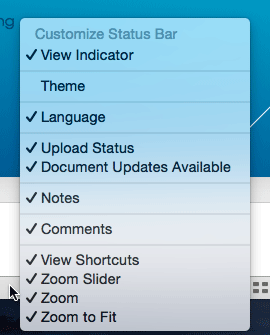
Figure 4: Customize Status Bar menu
As you can see, the Theme option is not selected in Figure 4. If we select it, the Status bar will show the name of the Theme used for the active slide.
Back01 05 04 - Interface Overview: Status Bar in PowerPoint (Glossary Page)
Status Bar in PowerPoint 365 for Windows
Status Bar in PowerPoint 365 for Mac
Status Bar in PowerPoint 2019 for Windows
Status Bar in PowerPoint 2016 for Windows
Status Bar in PowerPoint 2013 for Windows
Status Bar in PowerPoint 2011 for Mac
Status Bar in PowerPoint 2010 for Windows
Status Bar in PowerPoint 2007 for Windows
Status Bar in PowerPoint for the Web
You May Also Like: So Many Slides: Conversation with Robert Befus | The Power of Hiding Slides




Microsoft and the Office logo are trademarks or registered trademarks of Microsoft Corporation in the United States and/or other countries.
