
This is the print version of this page. All content is copyright Indezine.com 2000-2026.
Learn about Slide Show view in PowerPoint 2016 for Mac. This is the view that lets you show your slides in full-screen view to the audience.
Author: Geetesh Bajaj
Product/Version: PowerPoint 2016 for Mac
OS: Mac OS X
Have you created all your slides, and now you want to show them in front of an audience? Or perhaps, you want to use this slide deck in a webinar, or even see it yourself to understand how it looks in full-screen view? In that case, the view that plays your presentation in full-screen mode is Slide Show view, as shown in Figure 1, below.

Figure 1: Slide Show view
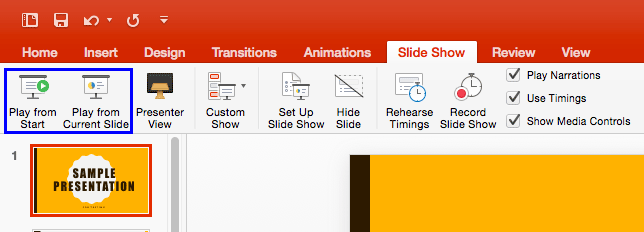
To access Slide Show view in PowerPoint 2016 for Mac, you can choose any of these options:


Do you want more keyboard shortcuts?
Explore our PowerPoint Keyboard Shortcuts and Sequences Ebook that is updated for all PowerPoint versions.
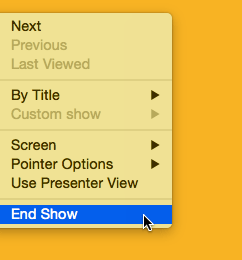
To exit Slide Show view, choose any of these options:
Remember that Slide Show view is purely a display view and no editing can be done on slides at this point of time. However, Slide Show view has some navigation and annotation options. If you hover your cursor over the bottom left area of the slide, you'll find four watermarked navigation icons, as shown in Figure 5, below.

Figure 5: Navigation icons within Slide Show view
These icons are explained below, as marked in Figure 5, above:
Click this icon to navigate to the previous slide (or press the P, Left Arrow, or Delete ⌫ keys).
Click on this icon to bring up a menu, as shown in Figure 6, below.
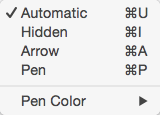
Figure 6: Pen options
The options within this menu are explained below:
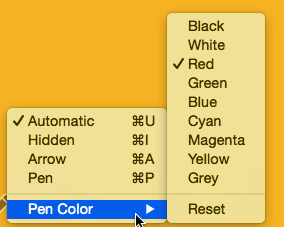
Figure 7: Pen Color Menu
This icon, when clicked, opens a menu, as shown in Figure 8, below, in which is similar to the right-click contextual menu, as shown in Figure 4, previously on this page, including Use Presenter View option to access the Presenter view directly, as shown highlighted in red within Figure 8.
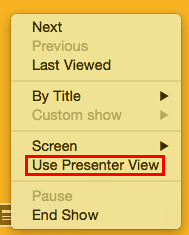
Figure 8: The More Options menu
Click this icon to navigate to the next slide (or press the N, Right Arrow, or Spacebar keys).
By default, Slide Show view works in full-screen mode, but you can change that too. To do so, access the Slide Show tab of the Ribbon, and click the Set Up Slide Show button, as shown highlighted in blue within Figure 9, below.
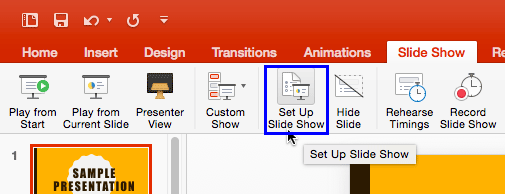
Figure 9: Set Up Slide Show button
Alternatively, you can Shift + click the Slide Show button on the Status Bar, as shown highlighted in red within Figure 2, previously on this page. Either of these options brings up the Set Up Show dialog box, as shown in Figure 10, below.
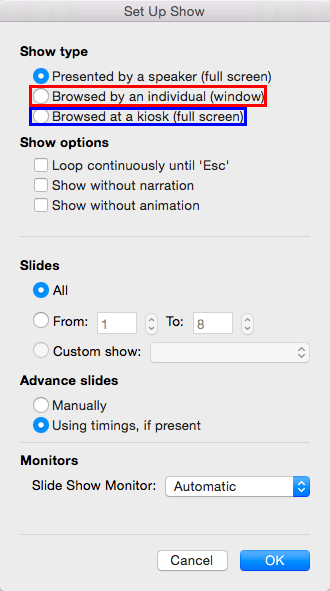
Figure 10: Set Up Show dialog box
In the Show type area, you can choose the Browsed by an individual (window) option, as shown highlighted in red within Figure 10, above. Turning on this option plays your presentation in a window, as shown in Figure 11, below.
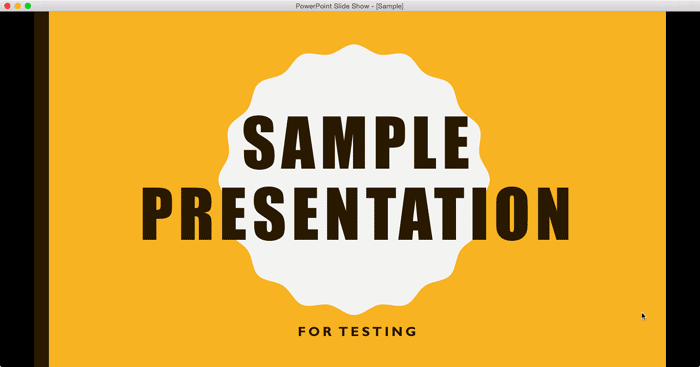
Figure 11: Slide Show within a window
Also within the Set Up Show dialog box, you will find Browsed at a kiosk (full screen) option, as shown highlighted in blue within Figure 10, above. Turning on this option displays the presentation in full screen mode but none of your navigation options such as a mouse click or the keyboard will let you move from one slide to another.
If you are using a multi-display environment such as a laptop plus a projector, you can also use Presenter View in addition to Slide Show view at the same time.
01 07 10 - Views: Slide Show View in PowerPoint (Glossary Page)
Slide Show View in PowerPoint 365 for Windows
Slide Show View in PowerPoint 365 for Mac
Slide Show View in PowerPoint 2019 for Windows
Slide Show View in PowerPoint 2016 for Windows
Slide Show View in PowerPoint 2013 for Windows
Slide Show View in PowerPoint 2011 for Mac
Slide Show View in PowerPoint 2010 for Windows
Slide Show View in PowerPoint for the Web
You May Also Like: What You Need to Know About Leadership Before Becoming a Leader | Heraldry PowerPoint Templates


Microsoft and the Office logo are trademarks or registered trademarks of Microsoft Corporation in the United States and/or other countries.
