
This is the print version of this page. All content is copyright Indezine.com 2000-2026.
Learn quick methods to duplicate slides in PowerPoint 2016 for Mac. We explore keyboard shortcuts, menu commands, and drag options.
Author: Geetesh Bajaj
Product/Version: PowerPoint 2016 for Mac
OS: Mac OS X
"Why would anyone want to duplicate slides?" There are many reasons to do so. For example, you may want to:
Whatever your reasons may be, it is easy to duplicate slides in PowerPoint 2016 for Mac in both the Slides Pane and Slide Sorter View:
Open your presentation and select the slide(s) to be duplicated within the Slides Pane. You can see that we have selected two slides, highlighted in red within Figure 1, below.
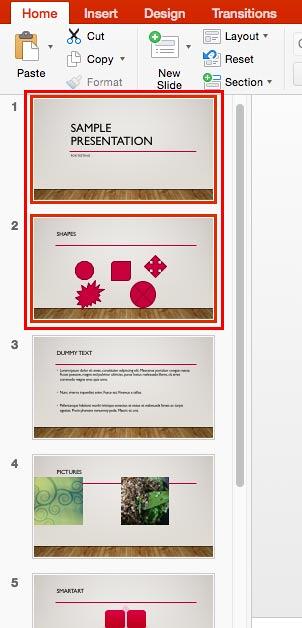
Figure 1: Slides to be duplicated selected within the Slides Pane
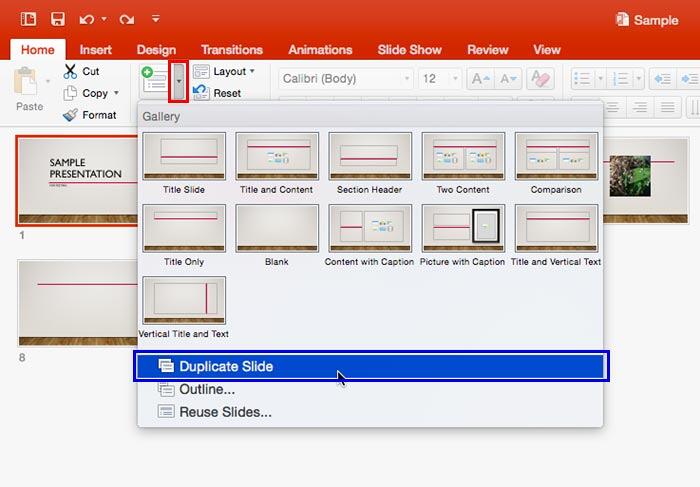
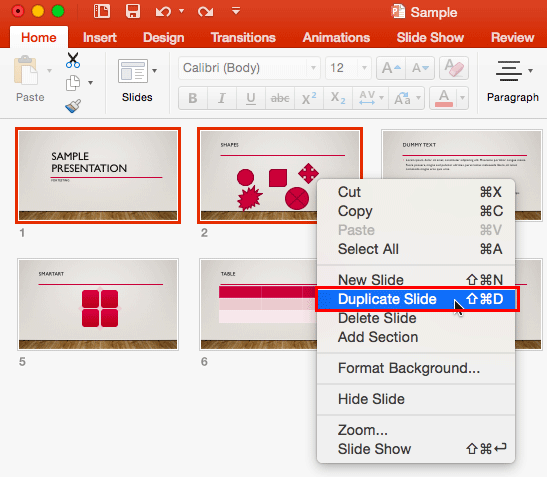
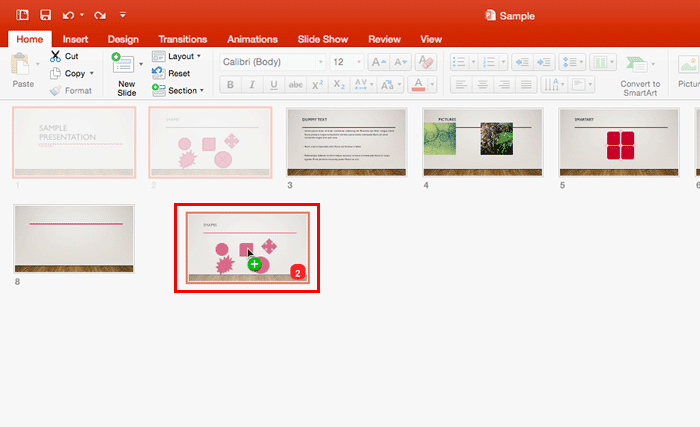
You can now duplicate selected slide(s), following any of these four ways:

Do you want more keyboard shortcuts?
Explore our PowerPoint Keyboard Shortcuts and Sequences Ebook that is updated for all PowerPoint versions.
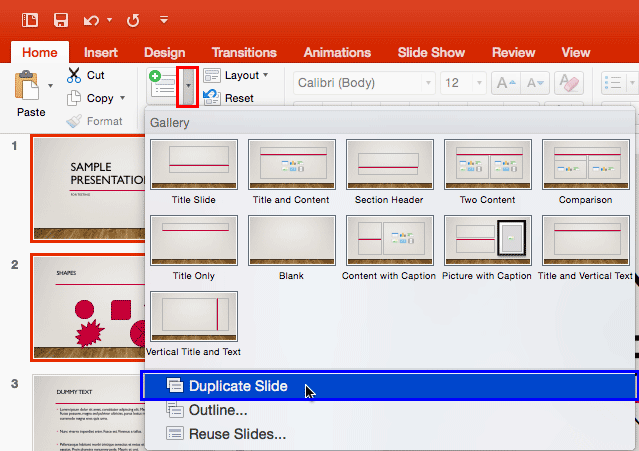
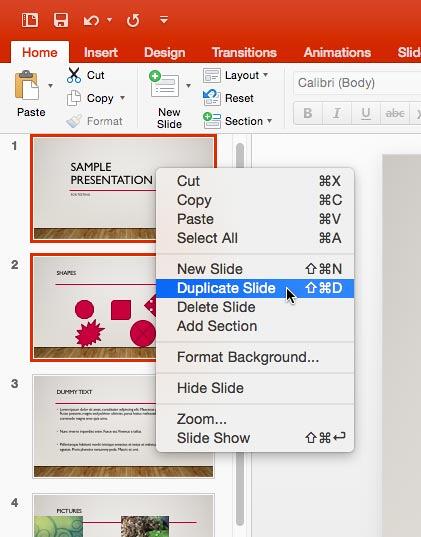
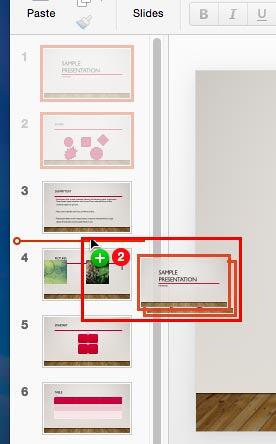
Change the view to Slide Sorter and select the slide or slides to be duplicated, as shown in Figure 5, below.
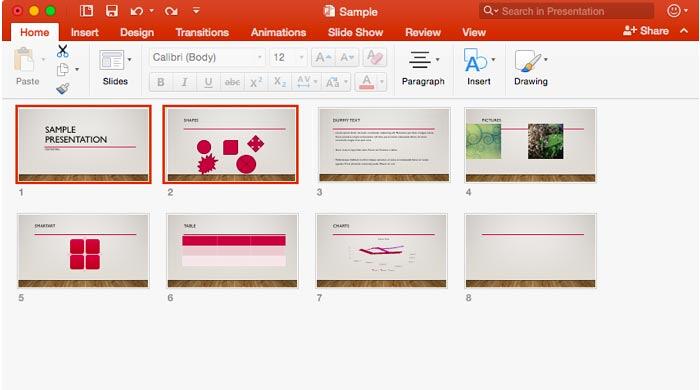
Figure 5: Slides to be duplicated selected within the Slide Sorter view
You can now duplicate selected slide(s), following any of these four ways:
Change the view of your presentation to Normal and also save your presentation.
01 09 05 - Working with Slides: Duplicate Slides in PowerPoint (Glossary Page)
Duplicate Slides in PowerPoint 365 for Windows
Duplicate Slides in PowerPoint 2016 for Windows
Duplicate Slides in PowerPoint 2013 for Windows
Duplicate Slides in PowerPoint 2010 for Windows
Duplicate Slides in PowerPoint for the Web
You May Also Like: Explore Fonts: Bell MT | Presentation Management Strategic to Enterprise Communication: Conversation with James Ontra


Microsoft and the Office logo are trademarks or registered trademarks of Microsoft Corporation in the United States and/or other countries.
