Indezine Logo


Recent Tab of Backstage View in PowerPoint 2016 for Mac

Learn about the Recent option within Backstage view in PowerPoint 2016 for Mac. Recent files help you continue working with files you used a while ago.


Author:

Product/Version: PowerPoint 2016 for Mac

OS: Mac OS X


The Recent option within the Backstage view provides you with a list of recently opened presentations, so that you can quickly select the one that you want to work on. Additionally, the Recent option offers a few more useful functionalities.

Follow these steps to explore the Recent tab of Backstage view in PowerPoint 2016 for Mac:
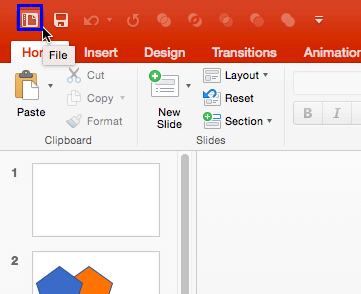
  1. To access Backstage view click the File icon, as shown in Figure 1, below. The File icon, as shown highlighted in blue within Figure 1, is placed at the left extreme of the Quick Access Toolbar.
  2. File icon in QAT
    Figure 1: File icon in QAT
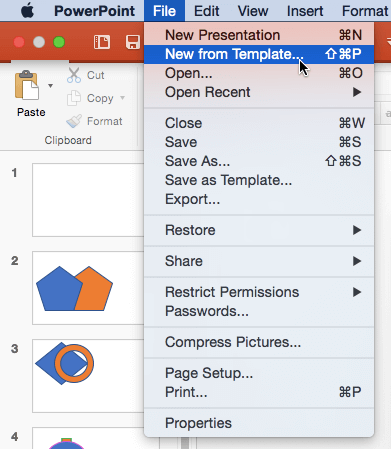
  3. Alternatively, select the File | New from Template menu option, as shown in Figure 2, below.
  4. New from Template option
    Figure 2: New from Template option
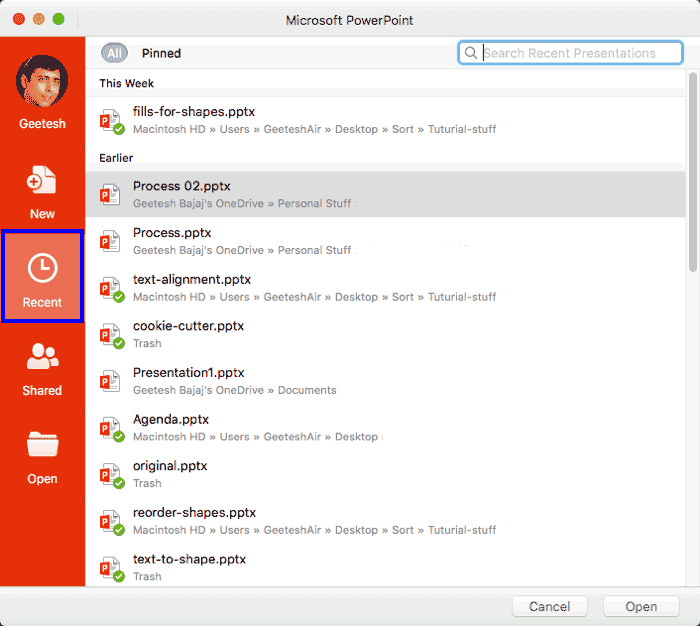
  5. Either action opens Backstage view. Next, select the Recent tab, as shown highlighted in blue within Figure 3, below.
  6. Recent Tab in Backstage View in PowerPoint 2016 for Mac
    Figure 3: Recent tab selected within Backstage view
  7. Options within this Recent tab are explained below, as marked in Figure 3, above:

    A. All

    This is the default option and shows all recent presentations.

    B. Pinned

    Here, you can see presentations that you have 'pinned' to the Recent tab. If you want any presentation to be available easily to you, you will pin the presentation file by:
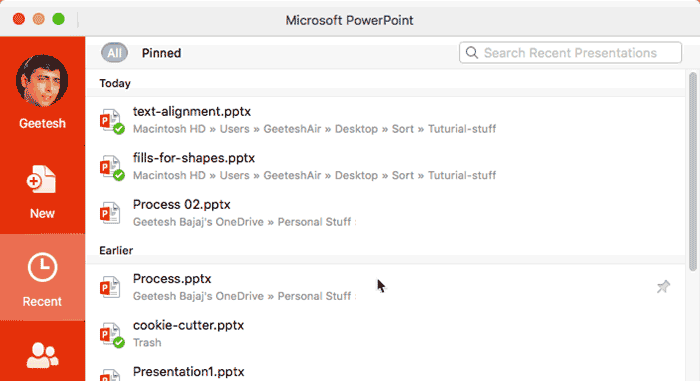
    1. Hover your cursor over any file listed in the All list, so that you can see the pushpin icon towards the right, as shown in Figure 4, below.
    2. Hover to see the pushpin icon
      Figure 4: Hover to see the pushpin icon
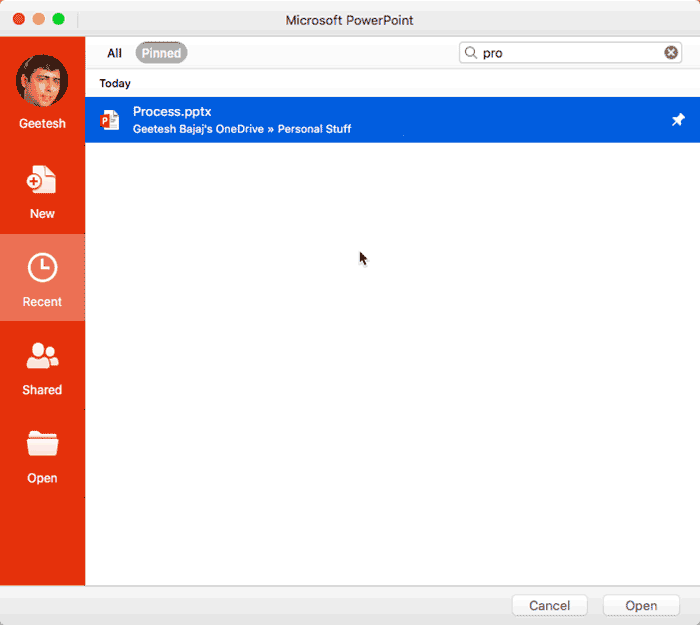
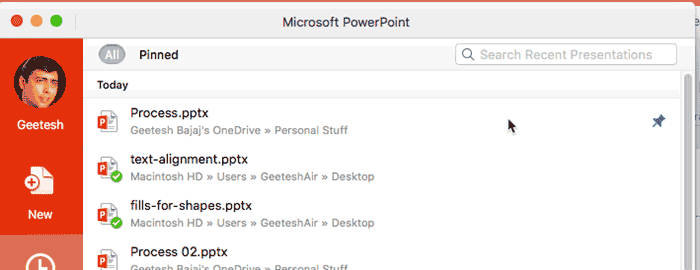
    3. Now, click on the pushpin to pin your presentation file to the top of the All list, as shown in Figure 5, below. The same file will also show up in the Pinned list, as shown in Figure 6, later on this page.
    4. Click the pushpin to add to top of list
      Figure 5: Click the pushpin to add to top of list
    5. Pinned presentation file
      Figure 6: Pinned presentation file
    6. To remove a pinned file, click the pushpin again.

    C. Search

    Type in a name or a partial name of a file to search the Recent files list.

    You can click the Open button to open a selected file, or click the Cancel button to dismiss the Recent tab.


See Also:

01 08 08 - File Types, File Menu, and Backstage View: Recent Tab of Backstage View in PowerPoint (Glossary Page)

Recent Tab of Backstage View in PowerPoint 365 for Windows
Recent Tab of Backstage View in PowerPoint 365 for Mac
Recent Tab of Backstage View in PowerPoint 2019 for Windows
Recent Tab of Backstage View in PowerPoint 2010 for Windows

You May Also Like: Presentation Design and Instagram | Grapes PowerPoint Templates


Popular Posts

Character Spacing in PowerPoint 2013
Explore Character Spacing options in PowerPoint 2013.

Add Secondary Value Axis to Charts in PowerPoint 2013 for Windows
Learn how to add a Secondary Value axis to charts in PowerPoint 2013 for Windows.

Ten Easy Topics for Pecha Kucha
But what are simple topics, that excite you, and are interesting to your audiences? Of course, if you already have a topic, you need not read further, but if you are still looking for ideas, here are ten easy topics that you can use for your Pecha Kucha presentations.

Drawing Arcs in PowerPoint
Explore how you can draw an Arc shape in PowerPoint.


Feature List 01 (Layout with Tabs)

The Feature List Layout comprises three sample PowerPoint presentations: one each to create a visual list for 4 features, 5 features, and 6 features. These work great when you have too much information to fit within one slide. This solution lets you use multiple slides, but the visual result is still that of one single slide!

Buy and Download Feature List 01 (Layout with Tabs) for $4.99+ (671 kb)


Microsoft and the Office logo are trademarks or registered trademarks of Microsoft Corporation in the United States and/or other countries.

Home | PowerPoint | Photoshop | PowerPoint Templates | PowerPoint Tutorials | Blog | Notes | Ezine | Media Kit | Feedback | Site Map | About Us | Contact Us

Link to Us | Privacy | Testimonials

PowerPoint Backgrounds | Christian PowerPoint Backgrounds | Business PowerPoint Presentation Templates

Plagiarism will be detected by Copyscape

©2000-2026, . All rights reserved.