
This is the print version of this page. All content is copyright Indezine.com 2000-2026.
Learn about the Recent option within Backstage view in PowerPoint 365 for Windows. Recent files help you continue working with files you used a while ago.
Author: Geetesh Bajaj
Product/Version: PowerPoint 365 for Windows
OS: Microsoft Windows 10 and higher
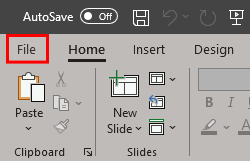
Ever wish you had a magic portal that could whisk you back to the last presentation you worked on? Well, guess what? PowerPoint’s Recent option is indeed that magic portal. You’ll spot the Recent option in the Home or Open tabs of PowerPoint’s Backstage view (that’s the fancy name for the screen you see when you first launch PowerPoint or click File). Think of it as the green room behind the stage—where all the behind-the-scenes action happens.
The Recent list is like your personal breadcrumb trail. It shows you all the presentations you’ve opened lately, so you don’t have to go spelunking through folders like Indiana Jones just to find yesterday’s deck.
But wait—there’s more! The Recent tab isn’t just a glorified history log. It’s got a few extra tricks up its sleeve:
Follow these steps to explore recent files and folders in Backstage view in PowerPoint 365 for Windows:
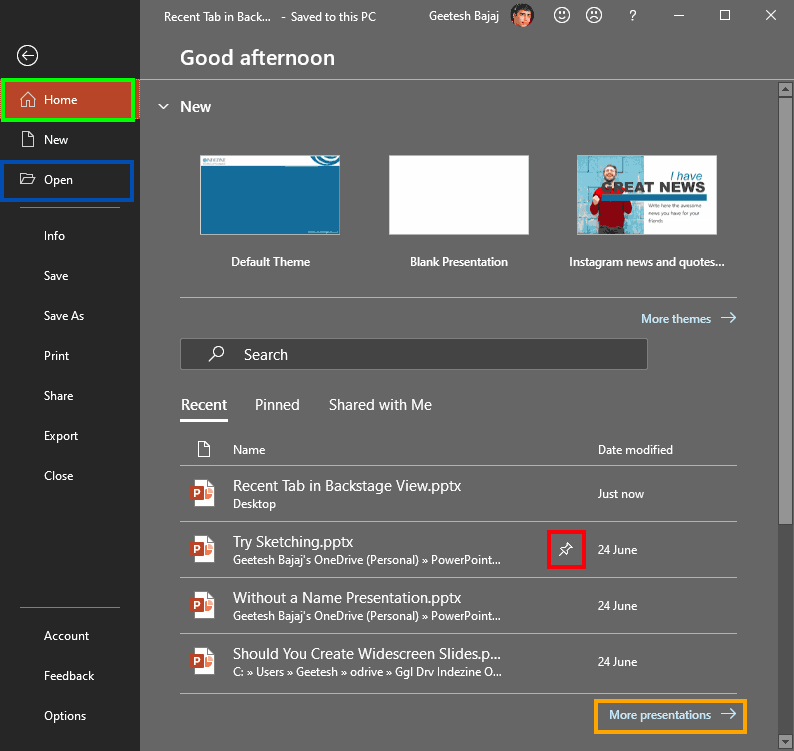

It shows file names, locations, and access times for recently opened presentations.
Yes, if connected, recent files from cloud storage also appear in the Recent tab.
It saves time by providing quick access to recently worked-on files without browsing folders.
01 08 08 - File Types, File Menu, and Backstage View: Recent Tab of Backstage View in PowerPoint (Glossary Page)
Recent Tab of Backstage View in PowerPoint 365 for Mac
Recent Tab of Backstage View in PowerPoint 2019 for Windows
Recent Tab of Backstage View in PowerPoint 2016 for Mac
Recent Tab of Backstage View in PowerPoint 2010 for Windows
You May Also Like: Presentation Management: Why Executives are Starting to Care? | Hong Kong Flags and Maps PowerPoint Templates


Microsoft and the Office logo are trademarks or registered trademarks of Microsoft Corporation in the United States and/or other countries.
