This is the print version of this page. All content is copyright Indezine.com 2000-2026.
Learn about the various options available in the Info tab of Backstage view in PowerPoint 2013 for Windows. This tab has many options, including those for protection, inspection, and management of PowerPoint presentations.
Author: Geetesh Bajaj
Product/Version: PowerPoint 2013 for Windows
OS: Microsoft Windows 7 and higher
Information is power. In PowerPoint, all information that you need about your currently active presentation is available in a single, easily accessible location. This location is the Info pane of Backstage view. Using the options available within this pane, you can access information about permissions set for the active presentation, prepare your content for sharing, and possibly recover older versions of unsaved files. In addition, the Info pane also provides access to many more properties that we will discuss on this page.
Follow these steps to explore options within the Info tab of Backstage view in PowerPoint 2013 for Windows:
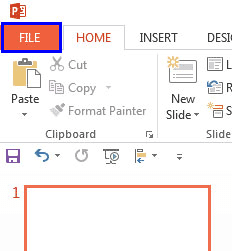
When you click the File tab, you essentially summon PowerPoint 2013 for Windows Backstage view.
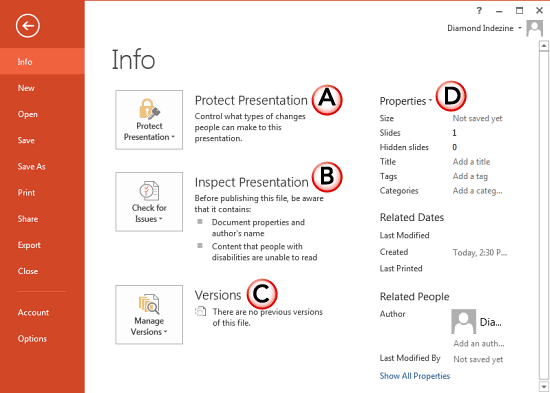
Provides several options to protect your presentation. You can mark your presentation as "final", apply a password, make your presentation read-only, apply a digital signature, or use Information Rights Management (IRM) to control presentation access.
The links below provide detailed information about these features:
If you have some media files (audio or video) contained within your presentation, then you will see additional options within the Info Pane called Optimize Media Compatibility and Compress Media. The Compress Media option lets you optimize any media files so that they take less space. More about this option is explained in our Video Compression Options in PowerPoint 2013 for Windows tutorial.
If you are planning to share your presentation with others, you should inspect your presentation for confidential information, validate its accessibility, and check for compatibility with previous versions. You can also do a spell check, and examine the presentation for hidden data and personal information stored in comments, notes, or document properties. All these tasks can be performed within this area.
The links below provide detailed information:
In this section, you can recover your unsaved presentations. This can be so helpful if you inadvertently closed your file without saving it, or if your computer or application crashed.
Learn more in our Recovering Presentations Manually page.
Here, you can create and modify many of the presentation’s properties. The links below provide detailed information:
We will explore all these options individually in subsequent tutorials of this series.
01 08 07 - File Types, File Menu, and Backstage View: Info Tab of Backstage View in PowerPoint (Glossary Page)
Info Tab of Backstage View in PowerPoint 365 for Windows
Info Tab of Backstage View in PowerPoint 365 for Mac
Info Tab of Backstage View in PowerPoint 2019 for Windows
Info Tab of Backstage View in PowerPoint 2016 for Windows
Info Tab of Backstage View in PowerPoint 2010 for Windows
Info Tab of Backstage View in PowerPoint for the Web
You May Also Like: Make A Connection with Your Audience Through Questions | Graduation PowerPoint Templates


Microsoft and the Office logo are trademarks or registered trademarks of Microsoft Corporation in the United States and/or other countries.