
This is the print version of this page. All content is copyright Indezine.com 2000-2026.
Learn about the various options available in the Info tab of Backstage view in PowerPoint 365 for Windows. This tab has many options, including those for protection, inspection, and management of PowerPoint presentations.
Author: Geetesh Bajaj
Product/Version: PowerPoint 365 for Windows
OS: Microsoft Windows 10 and higher
Think of PowerPoint’s Info tab in Backstage view as your presentation’s “control center”—kind of like the dashboard in your car. Instead of showing your fuel level or speed, it shows everything you need to know about your active presentation—all in one handy spot.
When you pop into the Info tab, here’s what you’ll find:
So, the next time you’re wondering, “Where can I get the lowdown on my deck?”—just head over to the Info tab in Backstage view. It’s your one-stop shop for keeping your slides safe, shareable, and under control.
Follow these steps to explore options within the Info tab of Backstage view in PowerPoint 365 for Windows:
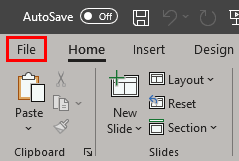
When you click the File tab, you essentially summon PowerPoint 365 for Windows’ Backstage view.
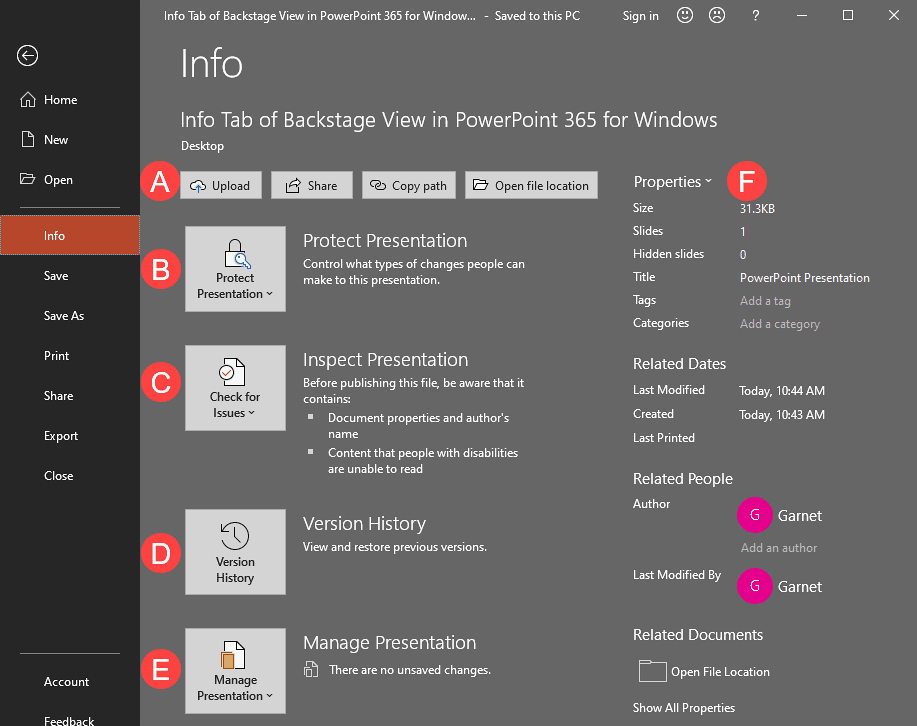
The four buttons here provide quick access to some useful options:
This option is only available for local files. If you see no Upload button, you may have opened a file from your OneDrive account. For local files, clicking this button brings up the Upload dialog box, as shown in Figure 3, below.
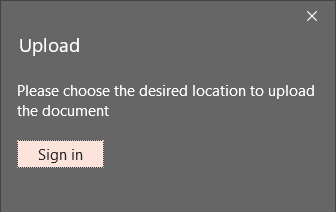
Figure 3: Upload dialog box
If you can see the Sign in button, as shown in Figure 3, above, it means that you haven't logged into your OneDrive account.
Clicking this button brings up the Share dialog box, as shown in Figure 4, below. Here again, you see the Sign in button.
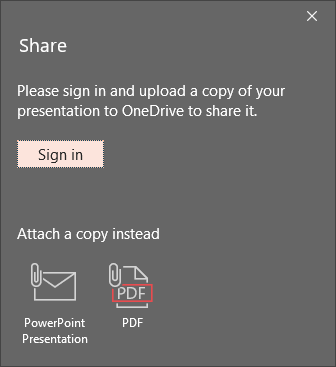
Figure 4: Share dialog box
Once we sign in to OneDrive (or multiple OneDrive accounts), you will see a slightly different Share dialog box, as shown in Figure 5, below.
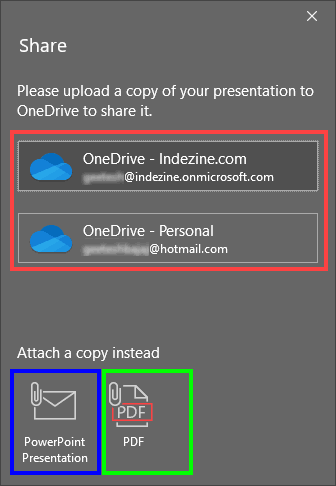
Figure 5: Share dialog box with access to OneDrive
You can upload your file to your OneDrive account to share it with others, highlighted in red within Figure 5, above. You can also attach a copy to an email as a PowerPoint Presentation, as shown highlighted in blue, or even as a PDF highlighted in green within Figure 5, above.
However, what if your presentation has been opened from OneDrive? In that case, you no longer need the upload options, and PowerPoint shows you a different Share dialog box, as shown in Figure 6, below.
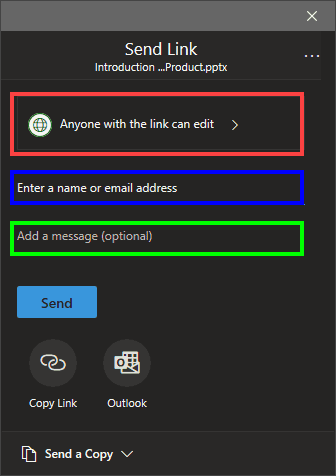
Figure 6: Upload dialog box for files opened from OneDrive
You can first choose permissions by clicking on the Link Settings button, as shown highlighted in red within Figure 6, above. Doing so shows other link options, as shown in Figure 7, below. You can prevent editing, expire your file on a particular date, and also set a password. These settings are optional.
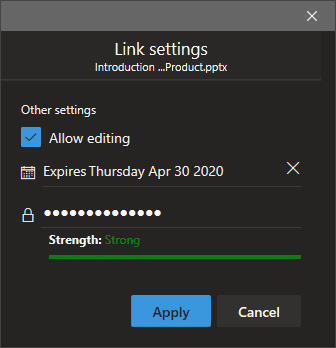
Figure 7: Link settings
Copies the path of the presentation file to the clipboard. This could be the local path or the path to the OneDrive location where your file is located or shared.
This button opens the local folder where the presentation is saved. For presentations on OneDrive, the local OneDrive folder is opened.
This button brings up a flyout menu that provides several options to protect your presentation, as shown in Figure 8, below. Essentially, you can control the types of changes users can make to this presentation.
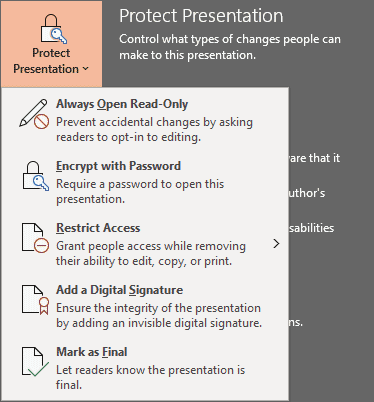
Figure 8: Protect Presentation option
The links below provide detailed information about the Protect Presentation features:

Figure 9: Restrict Access flyout menu
If you have some media files (audio or video) contained within your presentation, then you will see additional options within the Info tab called Optimize Compatibility and Compress Media, as shown in Figure 10, below. The Compress Media option lets you optimize any media files so that they take less space. More about this option is explained in our Video Compression Options in PowerPoint.
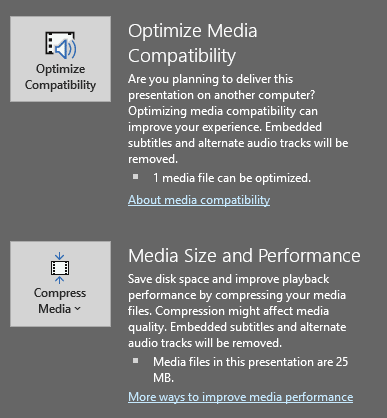
Figure 10: Media Options
If you are planning to share your presentation with others, you should inspect your presentation for confidential information, validate its accessibility, and check for compatibility with previous versions. You can also do a spell check, and examine the presentation for hidden data and personal information stored in comments, notes, or document properties. All these tasks can be performed within this area. Figure 11, below, shows options within the Check for Issues flyout menu.
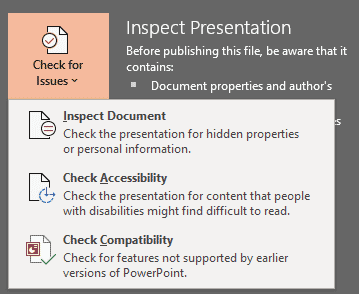
Figure 11: Inspect Presentation option
The links below provide detailed information about the options:
If you are not signed into your Microsoft account and open a local file, and not something that is from a OneDrive location, then clicking the Version History button will bring up the Turn on Version History? dialog box, as shown in Figure 12, below.
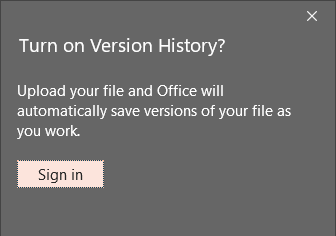
Figure 12: Turn on Version History? dialog box
You are provided with an option to sign in to your Microsoft account and load up your connected OneDrive accounts.
However, if you are signed into your Microsoft account, you will see a variation of the same dialog box, as shown in Figure 13, below. You will see your OneDrive locations here and can choose where you want to upload your file.
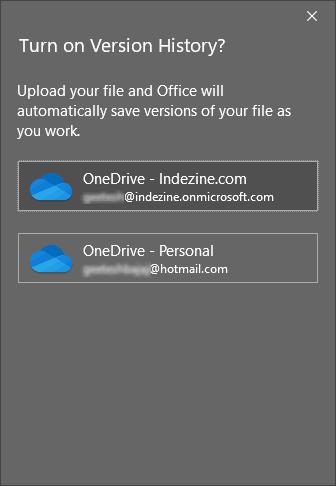
Figure 13: Version History dialog box
Once your file is uploaded to a OneDrive location, and you click the Version History button, you will see the Version History task pane, as shown highlighted in red within Figure 14, below.
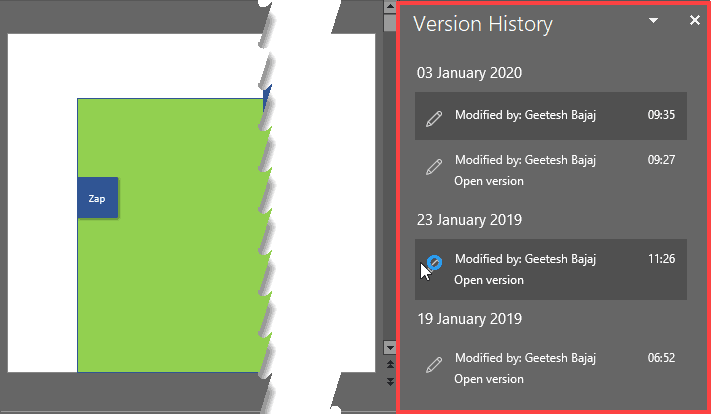
Figure 14: Version History Task Pane
You'll see the history of any versions available to restore. You can click on any of the Open version links to bring up an older version of the opened file.
In this section, as shown in Figure 15, below, you are provided with options to recover your unsaved presentations. This can be so helpful if you inadvertently closed your file without saving it, or if your computer or application crashed.
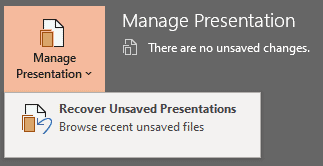
Figure 15: Manage Presentation option
Learn more in our Recovering Presentations Manually page.
Options within this area allow you to create and modify many of the presentation’s properties. The links below provide detailed information:
It centralizes essential tools for file security, metadata management, version control, and presentation optimization.
You can protect, inspect, manage versions, and edit presentation properties like title, author, and tags.
The Info tab was introduced in PowerPoint 2010 and is available in newer versions, including PowerPoint 365.
01 08 07 - File Types, File Menu, and Backstage View: Info Tab of Backstage View in PowerPoint (Glossary Page)
Info Tab of Backstage View in PowerPoint 365 for Mac
Info Tab of Backstage View in PowerPoint 2019 for Windows
Info Tab of Backstage View in PowerPoint 2016 for Windows
Info Tab of Backstage View in PowerPoint 2013 for Windows
Info Tab of Backstage View in PowerPoint 2010 for Windows
Info Tab of Backstage View in PowerPoint for the Web
You May Also Like: Take Lessons From Digital UX to Improve Your Public Speaking | Equatorial Guinea Flags and Maps PowerPoint Templates




Microsoft and the Office logo are trademarks or registered trademarks of Microsoft Corporation in the United States and/or other countries.
