
This is the print version of this page. All content is copyright Indezine.com 2000-2026.
Page 175 of PowerPoint tutorials, presentation essentials, personality interviews, and PowerPoint news.
Previous Archive Page | Next Archive Page
Author: Geetesh Bajaj
Product/Version: PowerPoint
July 28, 2014
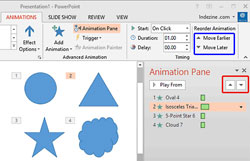
By default, animation effects are numbered in the order in which they are applied to slide objects. You might need to re-order your animations mainly because you may have more than one animated object on a slide, and re-sequencing of animations as they happen in relation to each other may provide a better result. Or you may just want some animations to happen before the others. Also, there are logical reasons to re-order animations since typically entrance and exit animations need to be the first and last animations for any slide object. PowerPoint's Re-Order option for animations lets you play with their sequencing.
Learn to reorder animations on your slides in PowerPoint 2013 for Windows.
July 25, 2014

Dr. James M. Smith gives lectures at facilities/colleges and conferences across the country showing healthcare staff how to analyze and present data more effectively. He shows how data presented as data are meaningless, but data presented as information are priceless. In this conversation, James discusses his new book, Meaningful Graphs.
July 25, 2014
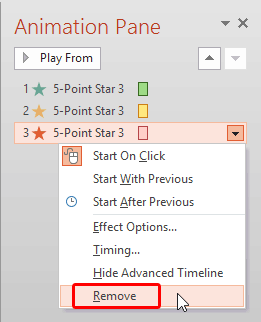
Removing an animation in PowerPoint is a simple select-and-click option, but even before you remove any animation, do ascertain why you want to remove it. Here are some obvious scenarios to explore before removing animations.
Learn how you can remove animations from slide objects in PowerPoint 2013 for Windows.
July 24, 2014

Stencils are something that were very useful in the years before printing wasn't too common. You placed a stencil and painted over it on a surface. While stencils came in all designs and shapes, one of the most common uses of stenciling was to paint alphabets. And today, even though we no longer need stenciled alphabets, they look distinctive. And that's probably the reason why there's a renewed interest in stenciled typefaces. We explore a few of them on this page. Before we explore further, do remember that stenciled fonts only look good at large sizes. Avoid using them for your bulleted text or body type.
Explore our favorite, free Stencil fonts.
July 24, 2014
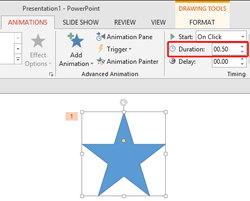
After you add an animation to a selected slide object, you typically set an animation event. Another animation property you can set thereafter is the speed of the animation. Every animation you add within PowerPoint 2013 has a fixed, default speed. This speed essentially is a duration shown in seconds or part thereof and differs from animation to animation. For example, the default duration of a Fade animation is half a second (00.50) whereas for the Wheel animation, it is two seconds (02.00).
Explore the concept of animation speed in PowerPoint 2013 for Windows.
July 24, 2014
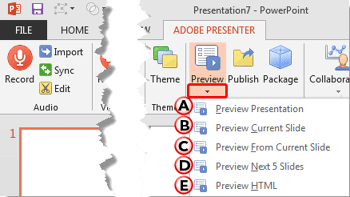
When you work on a presentation using Adobe Presenter within PowerPoint, then you really cannot preview using PowerPoint's Slide Show view. And that's because Adobe Presenter's output options are completely different than PowerPoint's. Now to preview, you will need to use Adobe Presenter's own Preview options. Having said so, these Preview options essentially render output on the fly and show it to you.
Explore the various preview options for content you create within Adobe Presenter.
July 23, 2014

Boxes, boxes everywhere! Do your slides always have shapes that look so geometric and perfect? What if you could make all these shapes irregular? Won’t that be cool? Then you will love these irregular shapes for PowerPoint. These shapes are already within PowerPoint slides. Just copy them and paste them within your slides.
Download and use these shapes in your slides.
July 23, 2014
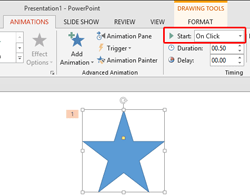
Once you add an animation to any slide object, you can play the animation in Slide Show view by clicking your mouse cursor or pressing the spacebar on your keyboard. Another option is to use a button on a presentation remote. Each of these options advances one animation at a time, or may even take you to the subsequent slide. While this approach works for slides that have an animation or two, you will quickly realize that this is certainly not the way to go if your slides have tens of animations, or more. If you add that many animations to any slide, you probably want your animations to be automatically sequenced and play one after the other without a click. That's exactly where PowerPoint's animation events can help.
Learn about using animation events in PowerPoint 2013 for Windows.
July 23, 2014
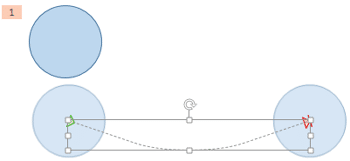
Motion Path animations determine the route (path) and the direction in which the animated slide object moves across or around the slide. When you add a motion path animation to an object, you see the path as a dotted line with two arrowheads. Additionally, PowerPoint 2013 sports the new faded preview of the animated slide object at the end point of the motion path. The benefit of this faded preview of the end position is that you know exactly where the slide object will stop once the animation concludes.
Explore position previews for Motion Path animations in PowerPoint 2013 for Windows.
July 22, 2014

In this issue, we first look at how you can set a default recording device in Windows. We also have a conversation with James Ontra about Shufflrr, a document management system for presentations. We also explore how you can format content in Excel cells as text, important if your header rows are being formatted as data in your PowerPoint charts! PowerPoint 2013 users can learn about Motion Path animations: adding them, drawing custom paths, reversing paths, and exploring opened/closed motion paths. We also look at animating ungrouped tables and adjusting the chart series overlaps.
Read Indezine's PowerPoint and Presenting News.
July 22, 2014
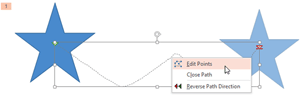
While working with Motion Paths, especially after drawing a Custom Motion Path to animate your slide object, you may feel that the path drawn is not very smooth. Or you may have used one of the preset Motion Paths to animate your slide object, and now you want to make some changes. Maybe you want to extend the path or use smoother corners rather than the default pointed ones. Since Motion Paths are essentially lines drawn in PowerPoint, you can always edit them using the Edit Points option, and reorient them as required.
Learn how you can edit motion paths using the Edit Points option in PowerPoint 2013 for Windows.
July 22, 2014
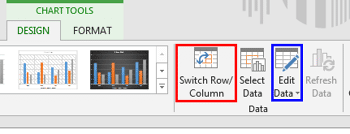
Any typical Column chart contains two sets of data. One set shows as the Series within your charts, and the other set ends up representing the Categories. By default, the Series shows up as the Legend (and columns) within the chart. Categories on the other hand constitute the groups of these individual columns. You can quickly swap the visual representation of Series and Categories in the chart.
Learn how to switch data between your series and categories in PowerPoint 2013 for Windows.
July 21, 2014
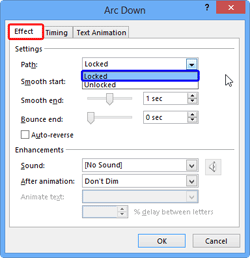
When most people use Motion Path animations, the feature they probably use the least is locking and unlocking the Motion Paths. Why is that so? Probably because these options are not too well documented or even intuitive. However, it's good to know more about these options since locking and unlocking Motion Paths can help you create better animations.
Learn how to lock and unlock motion paths for animations in PowerPoint 2013 for Windows.
July 21, 2014
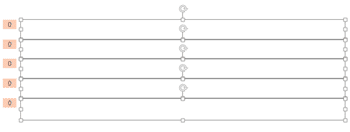
In PowerPoint, animating table components is not possible unless you ungroup the table. Once your table is ungrouped, you can animate the ungrouped table components as you wish. However, for those of you who don't want to ungroup your table, there is another workaround where you don't actually apply any animation to the table components, but when you play the slide containing the table, it looks like your table components are animating!
Learn how to fake-animate a table in PowerPoint 2013 for Windows.
July 18, 2014

After receiving graduate degrees in both Instructional Design and Project Management, Michelle Schoen has developed E-learning and software demos for Fortune 500 companies such as Delta, IBM, AT&T, and Kimberly Clark. Michelle specializes in Camtasia Studio and PowerPoint training and consulting as well as in coaching her clients to create compelling online videos and demos. In this conversation, Michelle discusses using PowerPoint to create video demos.
July 18, 2014
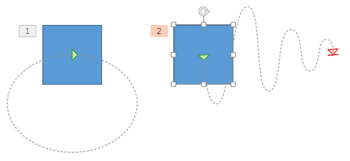
Motion paths are essentially the paths (or lines) through which slide objects animate. These motion paths are just like any other line with curves, points, etc. If you are familiar with the drawing tools in PowerPoint (Line, Curve, Scribble, and Freeform), you know that paths can be either open or closed. A circle is a good example of a closed path, whereas an arc is an open path. So, how is the concept of open and closed paths relevant to Motion Path animations in PowerPoint?
Explore open and closed paths for Motion Path animations in PowerPoint 2013 for Windows.
You May Also Like: Carrot PowerPoint Templates | How to Use Your Voice to Engage Your Audience When Presenting (Online or In-Person)




Microsoft and the Office logo are trademarks or registered trademarks of Microsoft Corporation in the United States and/or other countries.
