Indezine Logo


Duplicate Slide Masters in PowerPoint 2011 for Mac

Learn how to duplicate Slide Masters in PowerPoint 2011 for Mac.


Author:

Product/Version: PowerPoint 2011 for Mac

OS: Mac OS X


Learn PowerPoint

Learn how to change alignment of numbers in a PowerPoint chart.


Duplicating a Slide Master is different from adding a new Slide Master. And it's a time saving option because you don't have to make the same changes all over again. Let's explain this with a scenario. Imagine you have formatted your existing Slide Master by applying a Background Style, adding a logo, or even adding your own Picture placeholder layout. And now you want a new Slide Master that's almost the same as your existing one, but you want a different Theme Colors set to be used. For such a small change, it is advisable that you duplicate your existing Slide Master and then make any more changes instead of starting all over again with a new Slide Master.

Follow these steps to learn how you can duplicate your existing Slide Master in PowerPoint 2011 for Mac:
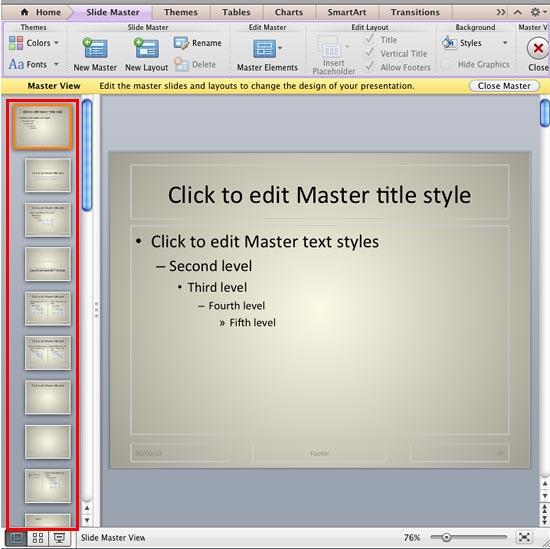
  1. Launch PowerPoint and open your presentation. Next, select the View | Master | Slide Master menu option. This opens the Slide Master View, as shown in Figure 1. Here, within the pane on the left, you'll find the existing Slide Master with associated layouts and some formatting done (highlighted in red within Figure 1).
  2. Slide Master in a PowerPoint Presentation
    Figure 1: Slide Master in a PowerPoint Presentation
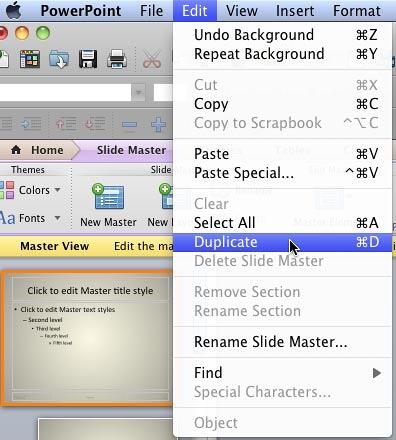
  3. To duplicate the Slide Master select it and choose the Edit | Duplicate menu option, as shown in Figure 2. You can also select your existing Slide Master, and press the + D keyboard shortcut.
  4. Duplicate option within the Edit menu
    Figure 2: Duplicate option within the Edit menu
  5. Keyboard Shortcuts for PowerPoint

    PowerPoint Keyboard Shortcuts

    Do you want more keyboard shortcuts?

    Explore our PowerPoint Keyboard Shortcuts and Sequences Ebook that is updated for all PowerPoint versions.

  6. This will create a duplicate of your existing Slide Master, as shown highlighted in red within Figure 3. Notice that this duplicated Slide Master is just like your existing Slide Master. If you had added new Slide Layouts to the original Slide Master, you will see those new Slide Layouts within the duplicated Slide Master as well.
  7. Duplicated Slide Master
    Figure 3: Duplicated Slide Master
  8. Tip: PowerPoint will just prefix a number before the name of the duplicated Slide Master. Ideally, you should provide a sensible name to your new Slide Master. We explain how you can rename the Slide Master in our Add and Rename Slide Masters in PowerPoint 2011 tutorial.
  9. Now, you can make the requisite changes to the duplicated Slide Master.
  10. When done, click the Close Master button (highlighted in blue within Figure 3 above) within the Slide Area. This will get you back to Normal View.
  11. Save your presentation often.

See Also:

Slide Master and Slide Layouts: Duplicate Slide Masters in PowerPoint (Index Page)

Duplicate Slide Masters in PowerPoint 2016 for Windows
Duplicate Slide Masters in PowerPoint 2016 for Mac
Duplicate Slide Masters in PowerPoint 2013 for Windows
Duplicate Slide Masters in PowerPoint 2010 for Windows

You May Also Like: The Single Most Important Factor For Persuasion | Animals - G PowerPoint Templates


Popular Posts

Keyboard Shortcuts for PowerPoint 2011 for Mac
Explore keyboard shortcuts in PowerPoint 2011 for Mac.

Insert Video from Facebook in PowerPoint 2016 for Windows
Learn how to insert video from your Facebook account in PowerPoint 2016 for Windows.

Add Pattern Fills to Shapes in PowerPoint 2010 for Windows
Add pattern fills to shapes in PowerPoint 2010 for Windows.

Gradient Fills for Text in PowerPoint 2013
Learn how to add gradient fills to selected text in PowerPoint 2013.


Pictures in Presentations

Is a picture is worth a thousand words? You probably have heard this adage so often that we decided not to repeat this phrase throughout this book! Now here’s some more info: the human brain uses a larger part of its area to store visual information rather than textual content. And that’s possibly because a picture describes so much more than text.

Go and get a copy of our Pictures in Presentations ebook.


Microsoft and the Office logo are trademarks or registered trademarks of Microsoft Corporation in the United States and/or other countries.

Home | PowerPoint | Photoshop | PowerPoint Templates | PowerPoint Tutorials | Blog | Notes | Ezine | Media Kit | Feedback | Site Map | About Us | Contact Us

Link to Us | Privacy | Testimonials

PowerPoint Backgrounds | Christian PowerPoint Backgrounds | Business PowerPoint Presentation Templates

Plagiarism will be detected by Copyscape

©2000-2025, . All rights reserved.
