Unlike in previous versions, PowerPoint 2007 includes the exact, same dialog Font box if you are formatting font in a text box, placeholder, or even in a chart. In this tutorial, we'll show you the formatting options available in this dialog box.
Follow these steps to get familiar with the Font dialog box in PowerPoint 2007 for Windows:
- Select any text on your slide, or select the entire text box or placeholder, as shown in Figure 1, below.
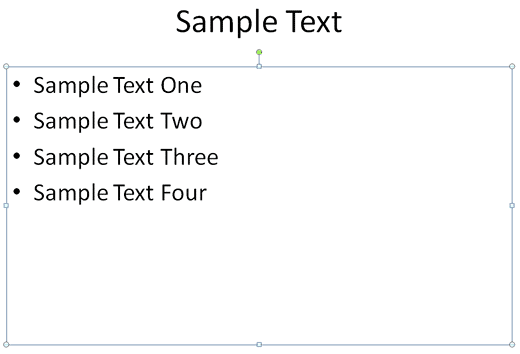
Figure 1: Select text- Access the Home tab of the Ribbon and click the dialog launcher, as shown highlighted in red in the Font group, as shown in Figure 2, below.
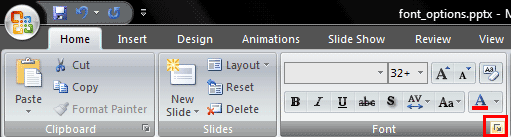
Figure 2: Launch font dialog- Doing so brings up the two-tabbed Font dialog box, as shown in Figure 3, below. These two tabs are Font and Character Spacing.
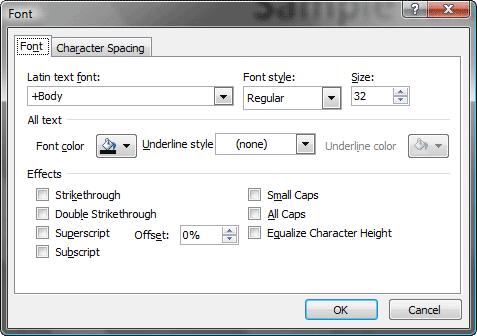
Figure 3: Font dialog box
Note:
Some of the options in these tabs may be already present in the Font group of the Home tab on the Ribbon. It's just that PowerPoint tends to provide some options in more than one place. Having said that, some options in the Font dialog box are not available anywhere else in the PowerPoint 2007 interface. So, exploring this area can be very rewarding.
- Select the Font tab first to explore these options:
Latin text fonts
- This dropdown lets you choose between your Theme Fonts (+Heading or +Body) and any of the other fonts that are installed in your system.
Font Style
- Choose from common font styles such as bold, italics, bold italics, etc.
Size
- Select the font size in points.
All Text
- Includes options such as font color, underline style and underline color. Figure 4, below, shows how these options works.
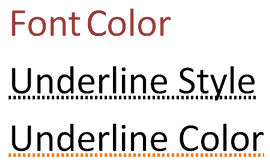
Figure 4: All text optionsEffects
- This section of the dialog box contains effects that can be applied to any selected text. Figure 5, below, shows all the results of applying all these effects.
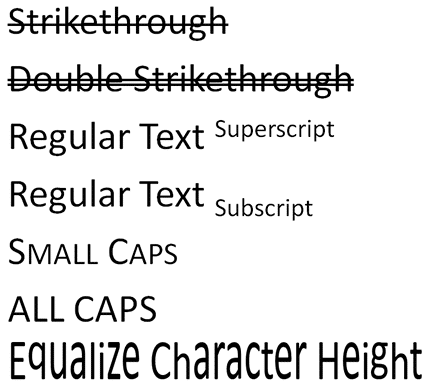
Figure 5: Text Effects- Now select the Character Spacing tab of the Font dialog box, as shown in Figure 6, below.
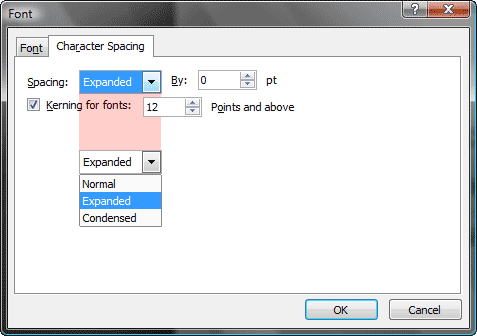
Figure 6: Character Spacing dialog box- Here you'll find options that control the spacing between text characters:
Normal
- This is regular text spacing that's in place even if you don't make any changes in this dialog box. Most of the time, this works just great.
Expanded
- This is loose fitting text, and you can choose the spacing in points in the adjacent By numbered list box that lets you change values all the way from 0 to 200 and more. With 200, the text looked as if it had lost all control, and we was very scared to enter a larger number! Most of the time, try and stay within the 0 to 10 range.
Condensed
- This is the exact opposite of Expanded. Here the text is placed close to each other. Again the By numbered list box lets you have oodles of fun. Never, ever type in 200 in that box; anything between 0 and 3 worked for me with 32 points text size.
Kerning for fonts
- Kerning in simple terms just means text spacing although some fonts have kerning info built inside them. By default, kerning works best for text that's not too teeny weeny. So, PowerPoint lets you set a limit on the size of text that it applies kerning to. The default is 12 points and above, and that's a good value to adhere to.