
This is the print version of this page. All content is copyright Indezine.com 2000-2026.
Explore options within the Font dialog box in PowerPoint 2013 for Windows. There's more than just Bold, Italics, and Underline in this dialog box.
Author: Geetesh Bajaj
Product/Version: PowerPoint 2013 for Windows
OS: Microsoft Windows 7 and higher
Fonts are more than just pretty characters, although your choice of fonts can have a profound effect on how readable your text is to the audience. We have already explored how you can format font styles to make your text bold, italicized, underlined, etc. Beyond these basic offerings, PowerPoint 2013's Font dialog box offers some advanced format options for selected text. You can still change the font type, set the font size, color, and other font attributes in this dialog box, and you can also do more. In this tutorial, we'll explore the font format options within the Font dialog box in PowerPoint 2013 for windows:



Click the down-arrow to bring up a list of installed fonts, as shown in Figure 5, below. Note that the top two fonts named +Heading and +Body are from the active Theme Fonts set. Choose any font typeface available within Latin text font list. Alternatively, you can directly type the name of the font within the Latin text font box. Typing the first few alphabets of your font name should work.

Figure 5: Font typeface drop-down list
This option also brings up a drop-down list from where you can choose a font style such as Bold, Italics, etc. for your selected text, as shown in Figure 6, below.
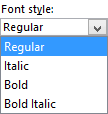
Figure 6: Font style drop-down list
Use the up or down arrows to increase or decrease the font size. Also you can directly type in the font size value within the Size box.
Changes color of selected text.
PowerPoint offers 16 underline styles for text, such as: single line, wavy line, etc, as shown in Figure 7, below.

Figure 7: Underline style drop-down list
Here you can select a color for the underline. Note that this option will be only active when underline style is applied to the text.
This section provides seven effects for selected text. Select the required Effects check-box(s) to apply to the selected text. Figure 8 shows all the results of applying all these effects.
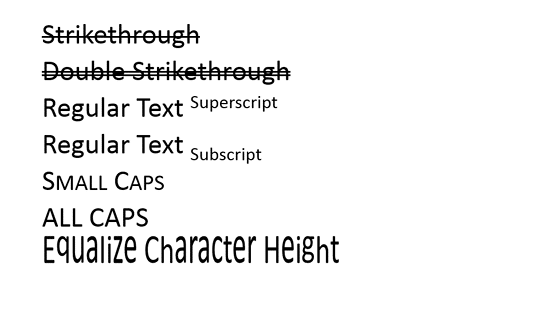
Figure 8: Text Effects
See Also:
Fonts: Font Dialog Box in PowerPoint (Index Page)
Font Dialog Box in PowerPoint 2016 for WindowsYou May Also Like: How to Disagree Constructively: by Ally Yates | Cosmetics PowerPoint Templates


Microsoft and the Office logo are trademarks or registered trademarks of Microsoft Corporation in the United States and/or other countries.
