
This is the print version of this page. All content is copyright Indezine.com 2000-2026.
Learn how to use the picture floatie within PowerPoint Touch in Office 2013 for Windows.
Author: Geetesh Bajaj
Product/Version: PowerPoint
OS: Microsoft Windows 7 and higher
Tap on a selected picture on a Touch device and you will see a floatie spawning right there. In this case, you see the Picture floatie that provides formatting options for the tapped picture. In this tutorial, we'll explore various options within this floatie, as shown in Figure 1, below.
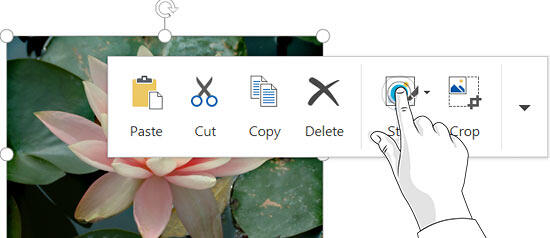
Figure 1: Tap on the required button within the floatie
Refer to our similar tutorial on the Shape floatie. This shows up when you tap a selected shape. In the same way, the Text floatie spawns when you tap some selected text.
To activate any of the options within the Picture floatie, you need to tap the required button, as shown in Figure 1, above.
Look again at the Picture floatie, and you will find buttons for formatting the tapped picture, as shown marked in Figure 2, below. The first four buttons (Paste, Cut, Copy, and Delete) have been already explained in our Using the Touch Floatie within PowerPoint Touch in Office 2013 for Windows tutorial.

Figure 2: Picture floatie
The remaining buttons are explained below, as marked in Figure 2, above.
Tap on the Style button to bring up the Style drop-down gallery, as shown in Figure 3, below. The Style drop-down gallery contains a collection of prebuilt styles. Note that within the Style drop-down gallery, you have to slide from the bottom to reveal more styles, as shown in Figure 3.
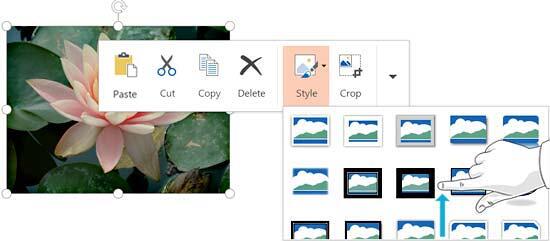
Figure 3: Style drop-down gallery
Tap on any of these Styles to apply it to your selected picture.
Learn more about Picture Styles in our Picture Styles in PowerPoint 2013 tutorial.
When you tap on this button, dark crop handles appear on the edge of the picture, as shown in Figure 4, below. We explain how you can crop a picture on a touch device while using Office 2013 in our Crop Pictures within PowerPoint Touch in Office 2013 for Windows tutorial.

Figure 4: Shape with crop handles
Tap on the down-arrow to bring up a drop-down menu with more formatting options for the selected picture, as shown in Figure 5, below.
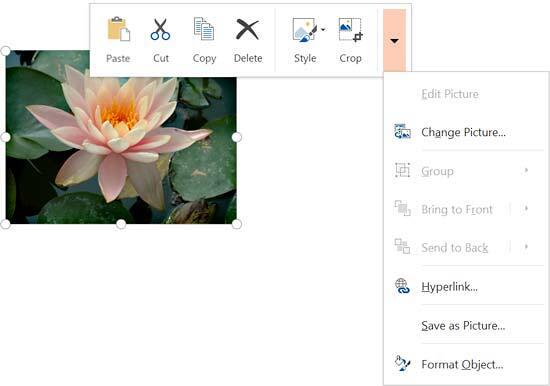
Figure 5: More picture formatting options
Some of these options may be grayed out, if you have selected a single picture, or if there's no other slide object on your slide.
Save your documents often.
Make sure Touch Mode is enabled and you’re using a supported Office version; older or non-touch editions may not display the Floatie.
Yes, drag the Picture Floatie to a new position so it doesn’t block your image or content.
No, it provides quick, touch-friendly shortcuts, while the Ribbon offers complete editing options.
23 02 03 - Using Floaties: Picture Floatie within PowerPoint Touch in Office 2013 for Windows (Glossary Page)
You May Also Like: Hide Logos with Logo Toggle in PowerPoint | How to Prevent Your Online Audience from Getting Distracted


Microsoft and the Office logo are trademarks or registered trademarks of Microsoft Corporation in the United States and/or other countries.
