
This is the print version of this page. All content is copyright Indezine.com 2000-2026.
Learn how to use the text floatie within PowerPoint Touch in Office 2013 for Windows.
Author: Geetesh Bajaj
Product/Version: PowerPoint
OS: Microsoft Windows 7 and higher
On a touch device such as Microsoft's Surface tablets, you may not have access to a regular keyboard and mouse. Everything happens with a tap or a slide or some other gesture. To adapt an existing program such as Word, Excel, or PowerPoint for a touch environment is no easy task. However, Microsoft has made this happen, and it has happened so well! Unlike the desktop versions of Office programs, the touch versions have a floatie. This is a floating toolbar that contains options that are relevant to the tapped object.
There are various floatie iterations; the one you see is dependent on the tapped slide object. Learn more in our Using the Touch Floatie in Office 2013 tutorial. Other than the Shape floatie and the Picture floatie, there's also the Text floatie that we explore in this tutorial.
Tap on any selected text to see the Text floatie, as shown in Figure 1, below.
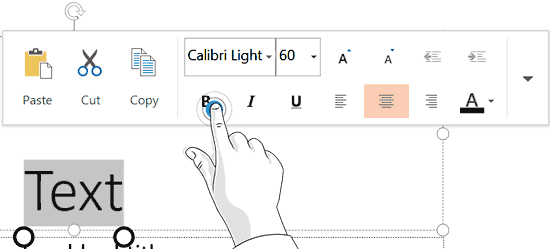
Figure 1: Tap on the required button within the floatie
It's a little tricky to bring up the Text floatie because if you just tap over a text box or placeholder, you might end up bringing up the Shape floatie. To counter this problem, first select the text so that your text appears highlighted, as shown in Figure 1, above. Then, tap carefully over the highlighted text.
Within the floatie itself, you can activate any of the available options by tapping on the required button, as shown in Figure 1, above:
Look again at the Text floatie, and you will find buttons for formatting the tapped text, as shown marked in Figure 2, below. The first four buttons (Paste, Cut, Copy, and Delete) are already explained in our Using the Touch Floatie in Office 2013 tutorial.
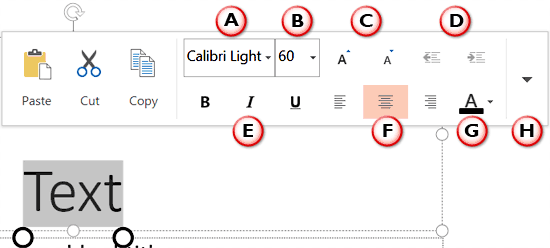
Figure 2: Text floatie
The remaining buttons are explained below, as marked in Figure 2, above.
Tap the down arrow to the right of the font name to open the font drop-down gallery, as shown in Figure 3, below. Tap on the font that you want to apply to the selected text.
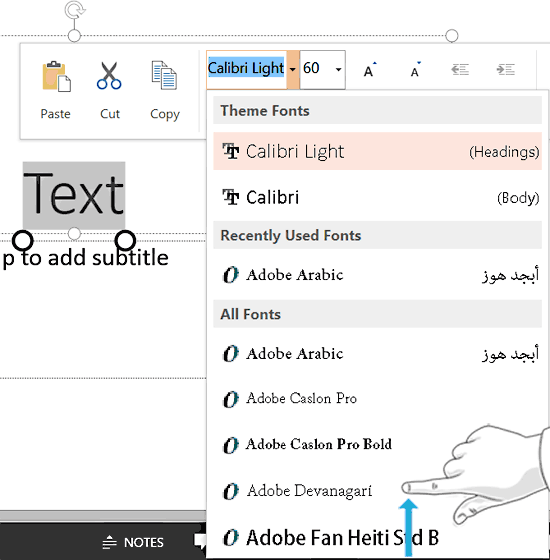
Figure 3: Font drop-down gallery
Note that within the Font drop-down gallery, you may have to slide from the bottom to reveal more fonts, as shown in Figure 3, above.
Tap to get a drop-down gallery of font sizes, as shown in Figure 4, below. Tap on the font size you want to apply to the selected text.
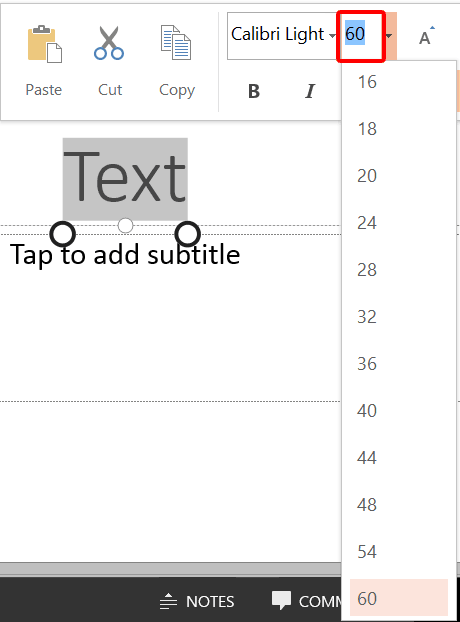
Figure 4: Font size drop-down gallery
You can also type in a value within the Font Size box, highlighted in red within Figure 4, above.
Tap on these buttons to increase or decrease the font size respectively.
Tap on these buttons to Decrease List Level (Promote) to convert selected text to a higher indented level in the list. Similarly, use the Increase List Level (Demote) to convert selected text to a lower indented level. These buttons may be greyed out, as shown in Figure 2, previously on this page. These buttons will work for bulleted text.
Tap any of the style buttons to make your selected text Bold, Italic, and Underline. These are toggle buttons, so if your text is already bold, then tapping the Bold button will unbold it—italics and underline attributes work in the same way.
Tap to select text align options like Left, Center, or Right.
Tap to bring up the Font Color drop-down gallery, as shown in Figure 5, below. Select any color from the options available. If you need a different color, tap on the More Colors option, as shown in Figure 5.
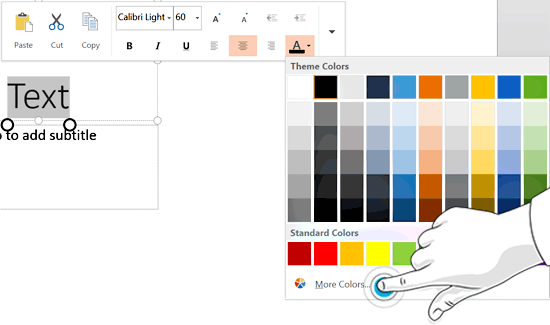
Figure 5: Font Color drop-down gallery
Tap on the down-arrow to bring up a drop-down menu with more formatting options for selected text, as shown in Figure 6, below.
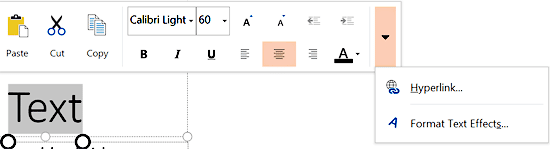
Figure 6: More text formatting options
Lets you add a hyperlink to the selected text.
Brings up the Format Shape pane that lets you change the appearance of your text.
Save your documents often.
Make sure Touch Mode is enabled and that you’re using a supported version of Office on a touch-enabled device.
No, those options aren’t available on the Floatie; use the Ribbon or gestures instead.
The Text Floatie appears for text formatting, while Picture and Shape Floaties offer image- or object-specific tools.
23 02 04 - Using Floaties: Text Floatie within PowerPoint Touch in Office 2013 for Windows (Glossary Page)
You May Also Like: Differences in PowerPoint Usage in Microsoft Teams and Zoom: Conversation with Dave Paradi | Leadership Storytelling: Conversation with Ronan Dunne


Microsoft and the Office logo are trademarks or registered trademarks of Microsoft Corporation in the United States and/or other countries.
