Indezine Logo


Add Places in PowerPoint 365 for Windows

Learn to add places in PowerPoint 365 for Windows. These places are locations with files that you can open and save from the cloud.


Author:

Product/Version: PowerPoint 365 for Windows

OS: Microsoft Windows 10 and higher


You can open and save files from any location on your computer or network, but did you know you can add even more places to access your files? In Backstage view, both the Open and Save As tabs give you options to add new file locations. These options are highlighted in red within Figures 1 and 2, below. This option to add places makes it super easy to keep all your important files organized and accessible!
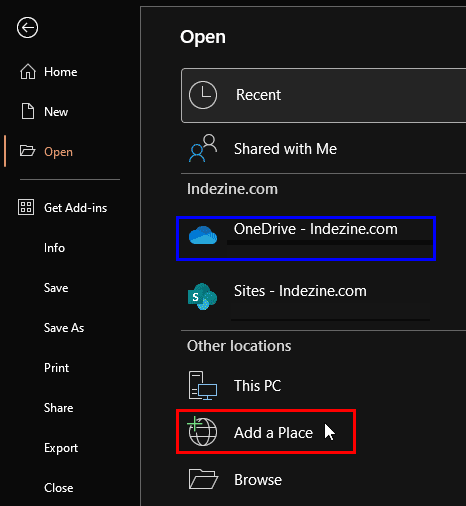
Add a place option in the Open tab in PowerPoint 365 for Windows
Figure 1: Add a place option in the Open tab
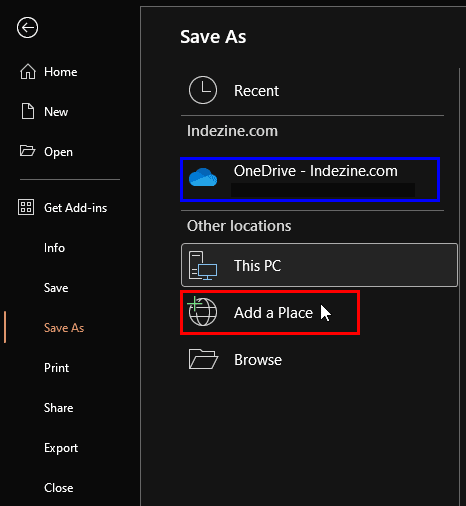
Add a place option in the Save As tab in PowerPoint 365 for Windows
Figure 2: Add a place option in the Save As tab

Do note that within the existing places in both tabs, the default OneDrive location is already accessible because we have signed in to our Microsoft Account, as shown highlighted in blue within both Figures 1 and 2, above.

By default, your OneDrive location is available as a place, but only if you're signed in. But guess what? You can add even more places! In this tutorial, we’ll show you how to expand your file-saving options by adding new locations. It’s a great way to keep all your important files within easy reach!

Follow these easy steps to learn how you can add a new place in PowerPoint 365 for Windows:
  1. We assume you are signed in to your Microsoft Account. If you have multiple Microsoft Accounts, you need to be signed in to one of them to access your default OneDrive location. If you are not signed in, explore our Sign and Switch Accounts in PowerPoint tutorial to learn more.
  2. Now access the Open tab of Backstage view, and click the Add a Place option, as shown highlighted in red within Figure 1, previously on this page.
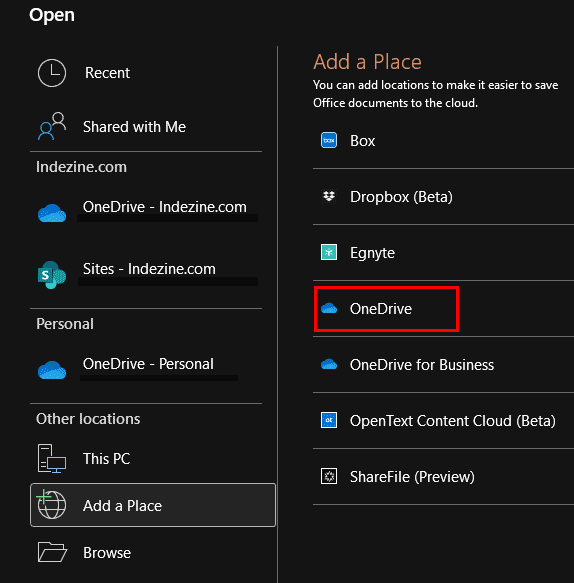
  3. Doing so brings up the Add a Place options towards the right, as shown in Figure 3, below. You can choose to add a OneDrive for Business or a OneDrive location as a place. The former option is for those who have business subscriptions to an Office 365 or Microsoft 365 account, whereas the latter option is suitable for those who want to add another Microsoft Account. Of course, you get many more options to choose from such as Box, Dropbox, Egnyte, and others. We opted to add a second OneDrive place, as shown highlighted in red within Figure 3.
  4. Choose the place you want to add in PowerPoint 365 for Windows
    Figure 3: Choose the place you want to add
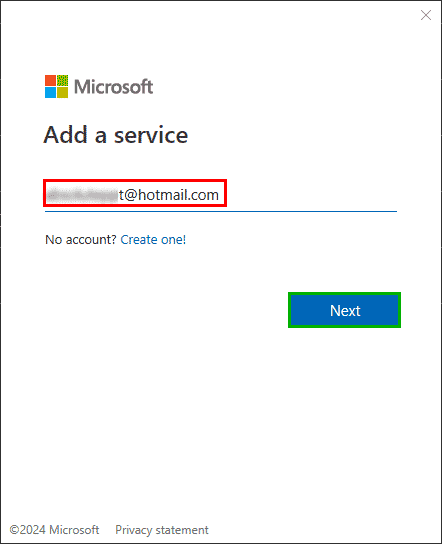
  5. If you choose the OneDrive option, you summon the Add a service dialog box, as shown in Figure 4, below. Type in your email address, as shown highlighted in red within Figure 4. Thereafter, click the Next button, shown highlighted in green within Figure 4.
  6. Add a service such as OneDrive
    Figure 4: Add a service
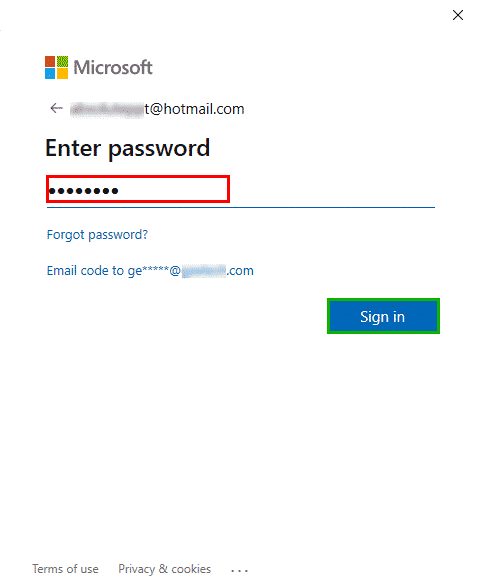
  7. In the ensuing screen, type in your password, as shown highlighted in red within Figure 5, below. Thereafter, click the Next button, shown highlighted in green within Figure 5.
  8. Enter password screen
    Figure 5: Enter your password to log in
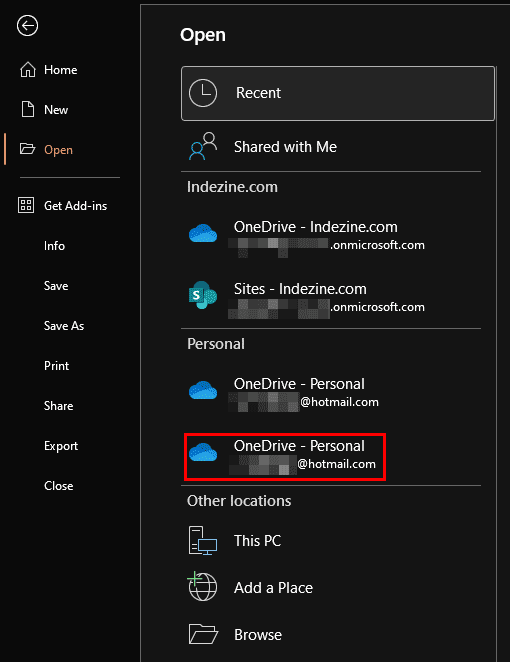
  9. You will now see that a new OneDrive account shows up within the Open and Save tabs of Backstage view. You can see the new Place in the Open tab, as shown highlighted in red within Figure 6, below. Compare with Figure 1, shown previously on this page.
  10. New OneDrive Place added in PowerPoint 365
    Figure 6: New OneDrive Place added

People Also Ask:

Which services can I add using Add a Place?

You can add OneDrive, SharePoint, and other supported Microsoft 365 storage services.

Do I need a Microsoft account to add a Place?

Yes. You must sign in with a valid Microsoft or Microsoft 365 organizational account.

Are added Places available across all Office apps?

Yes. Once added in PowerPoint, they also appear in Word and Excel for the same account.

See Also:

01 08 23 - File Types, File Menu, and Backstage View: Add Places in PowerPoint (Glossary Page)

Add Places in PowerPoint 2016 for Windows
Add Places in PowerPoint 2016 for Mac
Add Places in PowerPoint 2013 for Windows
Add Places in PowerPoint for iOS – iPad

You May Also Like: Explore Fonts: Baskerville Old Face | Telecom PowerPoint Templates


Popular Posts

Add Pattern Fills to Shapes in PowerPoint 2010 for Windows
Add pattern fills to shapes in PowerPoint 2010 for Windows.

Gradient Fills for Text in PowerPoint 2013
Learn how to add gradient fills to selected text in PowerPoint 2013.

Formatting Outlines for Shapes (Dashes) in PowerPoint 2013 for Windows
Learn how to apply the dash attribute to shape outlines in PowerPoint 2013 for Windows.

Change the Unit of Measurement in Windows 10
Learn how to change the unit of measurement from US to Metric, and vice versa in Windows 10.


Jeopardy-Like PowerPoint Template (25 Questions)

Want to play a Jeopardy-like game using PowerPoint slides? Yes, this is absolutely doable but making PowerPoint slides with all the interactivity and layouts takes too much work. Fortunately, we have done the work for you. just download our Jeopardy-like 25 (5x5) question PowerPoint template, replace the placeholders provided for questions, answers, and categories, and you’re done! You'll still need a real human being to track scores and you could soon be playing this amazing game as part of a fun exercise, a training program, or even a quiz show.

Download and play your own Jeopardy-like game


Microsoft and the Office logo are trademarks or registered trademarks of Microsoft Corporation in the United States and/or other countries.

Home | PowerPoint | Photoshop | PowerPoint Templates | PowerPoint Tutorials | Blog | Notes | Ezine | Media Kit | Feedback | Site Map | About Us | Contact Us

Link to Us | Privacy | Testimonials

PowerPoint Backgrounds | Christian PowerPoint Backgrounds | Business PowerPoint Presentation Templates

Plagiarism will be detected by Copyscape

©2000-2025, . All rights reserved.