Indezine Logo


Slide Master View in PowerPoint 365 for Mac

Learn about Slide Master view in PowerPoint 365 for Mac. This is the view that lets you access the Slide Master in PowerPoint and make edits to the Masters and individual Slide Layouts.


Author:

Product/Version: PowerPoint 365 for Mac

OS: Mac OS X


Learn PowerPoint

Learn how to use output Notes from PowerPoint.

Slide Master view is an important view within PowerPoint 365 for Mac. Why? Because, if you make any changes or edits within this view, these modifications will influence all slides within your presentation. For example, if you want to make your company logo appear on all the slides, you will have to add the logo within the Slide Master. If you want the font size of your slide titles to be a little larger or smaller, then those edits also need to be made within the Slide Master.

Do note though that this tutorial will not explore how you can make changes in the Slide Master. Rather, this is a brief overview of how you can access Slide Master view. You can see the Slide Master interface in Figure 1, below. We explain how you can bring up Slide Master view, later on this page.

Slide Master view in PowerPoint 365 for Mac
Figure 1: Slide Master view in PowerPoint 365 for Mac

Figure 1, above, shows how a typical Slide Master looks like. Here are some guidelines for working in this view:

  • First, look at the Slides pane on the left, and you will find one large slide thumbnail and several smaller slide thumbnails below.
  • The larger slide thumbnail on the top represents the Slide Master, and changes made to the Slide Master influence all Slide Layouts contained within the selected Slide Master.
  • The smaller slide thumbnails placed below the Slide Master represent individual Slide Layouts. These are the same layouts that you see in the Layout gallery, as explained in our Changing Slide Layouts in PowerPoint tutorial. Any change you make to these individual Slide layouts influences only the slides based on that particular layout.
  • The active slide in Figure 1 is the Slide Master itself. The two most important placeholders here are the Title and the Text placeholders; these represent the title and body text in your slides respectively.

Access Slide Master View

To access the Slide Master view, you can choose either of these options:
  1. Shift + click the Normal view button on the Status Bar, as shown highlighted in red within Figure 1, previously on this page.
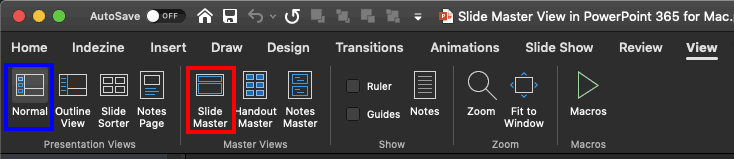
  2. Access the View tab of the Ribbon and click on the Slide Master button, as shown highlighted in red within Figure 2, below.
  3. Slide Master button
    Figure 2: Slide Master button

Once you are in Slide Master view, you can edit the actual Slide Master(s) and its Slide Layouts. In subsequent tutorials, we explore options available within the Slide Master:

  1. Change Background Styles in the Slide Master
  2. Slide Layouts within Slide Master View
  3. Change Background Styles for Slide Layouts
  4. Custom Backgrounds for Slide Master and Layouts
  5. Duplicate, Rename, and Edit Slide Layouts
  6. Add New Slide Layouts
  7. Inserting New Placeholders in Slide Layouts
  8. Formatting Picture Placeholders
  9. Create Custom Shaped Picture Placeholders
  10. Add Your Logo or Graphic to the Slide Master
  11. Add and Rename Slide Masters
  12. Duplicate Slide Masters

To go back to Normal view from Slide Master view, choose any of these options:

  • Access the Slide Master tab of the Ribbon. Within the Close group, click the Close Master View button, as shown highlighted in blue within Figure 1, previously on this page.
  • Access the View tab of the Ribbon, locate the Presentation Views group, and click the Normal button, as shown highlighted in blue within Figure 2, previously on this page.
  • You can also click the Normal button located on the Status Bar, as shown highlighted in red within Figure 1, previously on this page.

See Also:

01 07 07 - Views: Slide Master View in PowerPoint (Glossary Page)

Slide Master View in PowerPoint 365 for Windows
Slide Master View in PowerPoint 2019 for Windows
Slide Master View in PowerPoint 2016 for Windows
Slide Master View in PowerPoint 2016 for Mac
Slide Master View in PowerPoint 2013 for Windows
Slide Master View in PowerPoint 2011 for Mac
Slide Master View in PowerPoint 2010 for Windows

You May Also Like: Developing Your Leadership Capabilities | Crinkle PowerPoint Templates


Popular Posts

Texture Fills for Slide Backgrounds in PowerPoint 2013 for Windows
Use texture fills for slide backgrounds in PowerPoint 2013 for Windows.

Adding More Guides in PowerPoint 2016 for Windows
Learn how to add more guides in PowerPoint 2016 for Windows.

Notes Page View in PowerPoint 2016 for Windows
Learn about Notes Page view in PowerPoint 2016 for Windows.

Christmas PowerPoint Presentation
This presentation is a great introduction to why we celebrate Christmas for both Christian and non-Christian audiences.


Pictures in Presentations

Is a picture is worth a thousand words? You probably have heard this adage so often that we decided not to repeat this phrase throughout this book! Now here’s some more info: the human brain uses a larger part of its area to store visual information rather than textual content. And that’s possibly because a picture describes so much more than text.

Go and get a copy of our Pictures in Presentations ebook.


Microsoft and the Office logo are trademarks or registered trademarks of Microsoft Corporation in the United States and/or other countries.

Home | PowerPoint | Photoshop | PowerPoint Templates | PowerPoint Tutorials | Blog | Notes | Ezine | Media Kit | Feedback | Site Map | About Us | Contact Us

Link to Us | Privacy | Testimonials

PowerPoint Backgrounds | Christian PowerPoint Backgrounds | Business PowerPoint Presentation Templates

Plagiarism will be detected by Copyscape

©2000-2025, . All rights reserved.