
This is the print version of this page. All content is copyright Indezine.com 2000-2026.
Learn about file opening and closing options within Backstage view in PowerPoint 2019 for Windows. We explore how you can do more with the Open and Close options.
Author: Geetesh Bajaj
Product/Version: PowerPoint 2019 for Windows
OS: Microsoft Windows 10 and higher
When launched, PowerPoint typically opens with Backstage view, that has several tabs to be used for various functions, as shown in Figure 1, below.
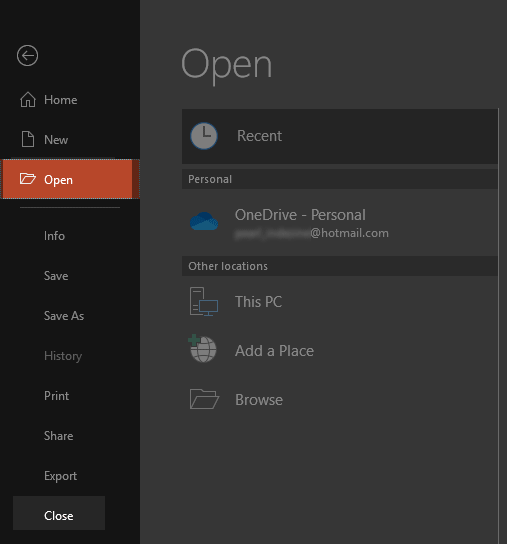
Figure 1: Open and Close tabs
In this tutorial, we explore two of those tabs, as shown in Figure 1, above. If you want to create a new presentation, you can do so using the New tab. If you want to work on any of the already created presentations, you can open them by using the various options in the Open tab.
Follow these steps to open an existing file on your computer in PowerPoint 2019 for Windows:
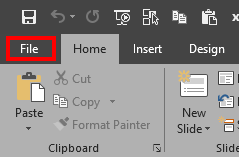
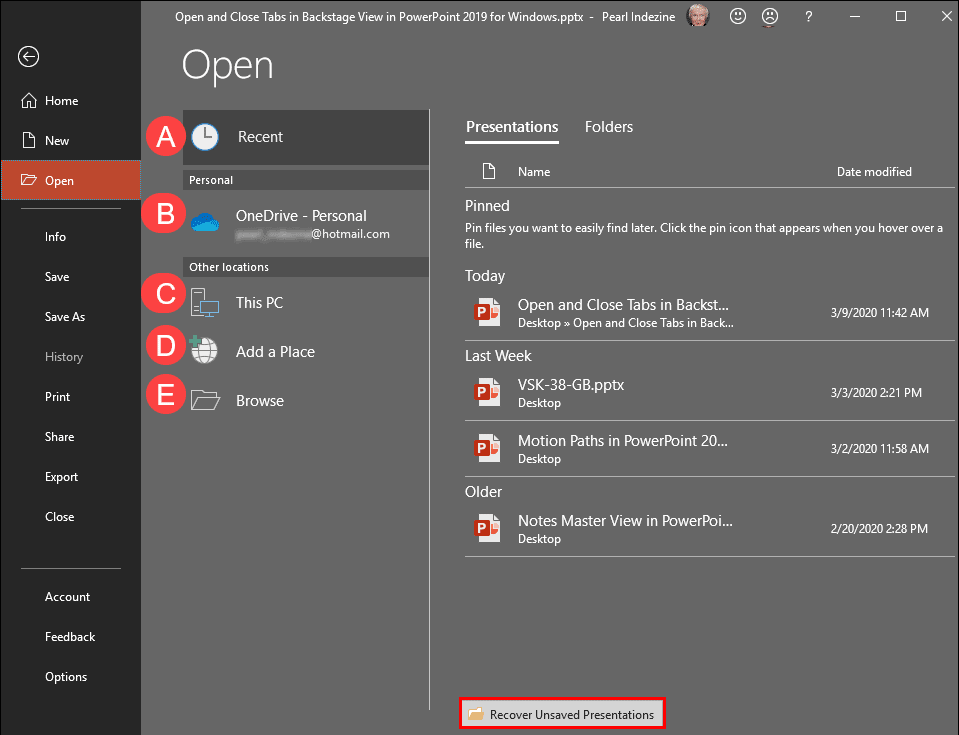
In this section, you'll find two tabs. The Presentations tab is where you can find a list of your recently accessed presentations. Similarly, the Folders tab shows a list of recently accessed folders. Both of these tabs provide options to pin your files and folders. The pinned content shows up right on top. To pin a presentation or folder, just hover your cursor over any file or folder within the Presentations or the Folders tab, and click the Pin this item to the list icon, as shown highlighted in red within Figure 4, below. It's a good idea to pin your most frequently used files and folders so that you can access them quickly.
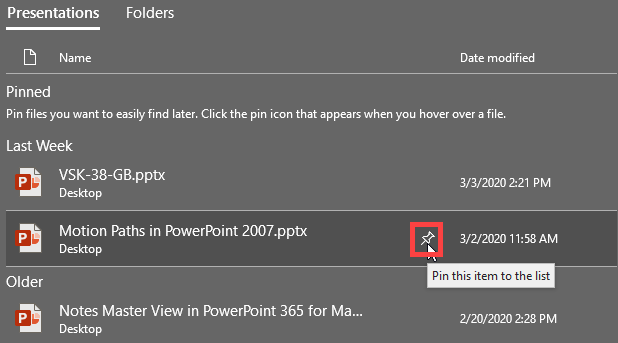
Figure 4: Pin this item to the list icon
Within the Recent section, you will also find the Recover Unsaved Presentations button, as shown highlighted in red within Figure 3, previously on this page. Click this option, and PowerPoint will try to recover unsaved presentations that may have been lost to unexpected PowerPoint or computer crashes.
Within this tab, you'll find a list of online files stored on your OneDrive. To view and open these files, you need to sign in to your OneDrive account from within PowerPoint or any other Microsoft Office 365 program. As you can see in Figure 5, below, we can navigate our OneDrive like a local folder.
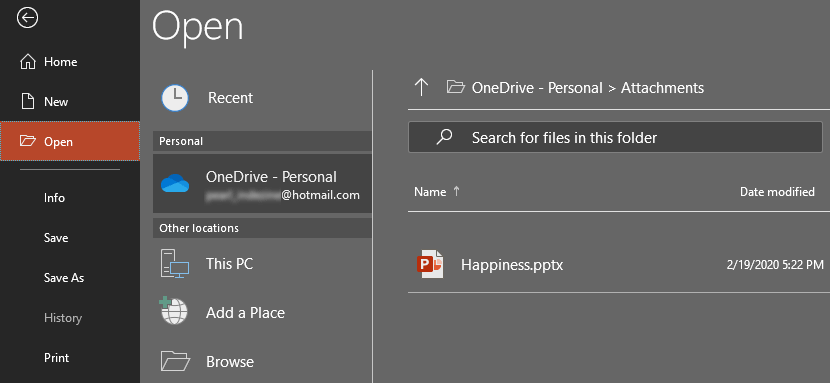
Figure 5: OneDrive
This tab lets you explore files and folders from your local system. You just access the folder where your file is saved, select the file, and open it. In Figure 6, below, you can see a list of folders from where we could open a file.
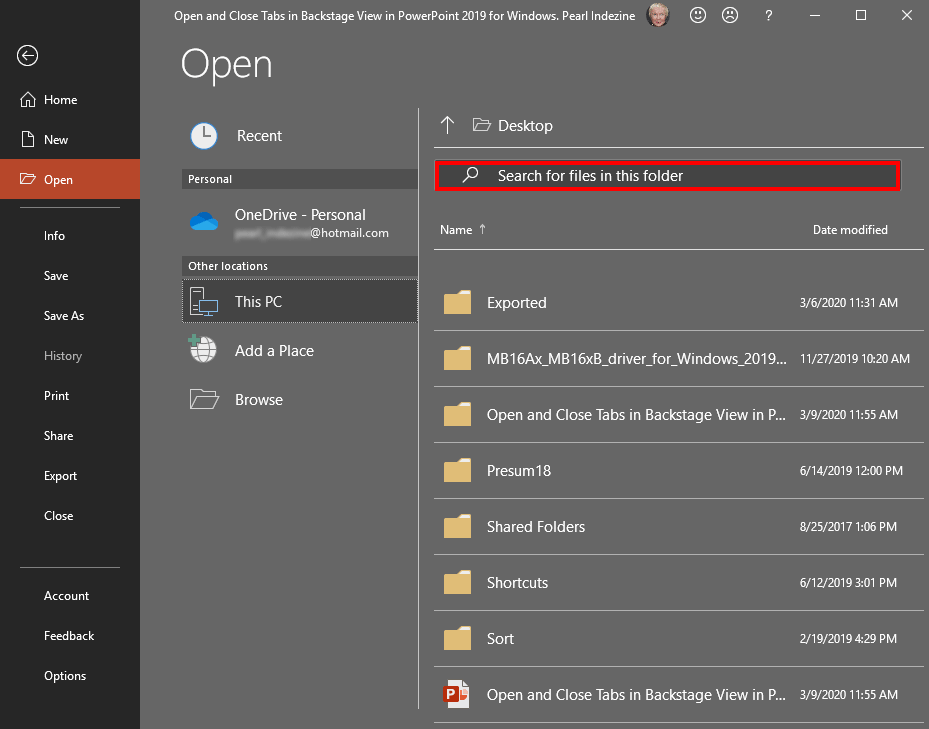
Figure 6: This PC
Atop the list of files and folders, you'll also find the Search bar, as shown highlighted in red within Figure 6, above. Type in a file name or even part of a file name. Results will look through your recent files and folders, and also files shared with you on cloud locations.
You can also choose the Add a Place option, as shown in Figure 7, below. You can choose to add multiple OneDrive and OneDrive for Business accounts. These added accounts will show up in multiple places within the Open tab of Backstage view. Learn more in our Add a Place tutorial.
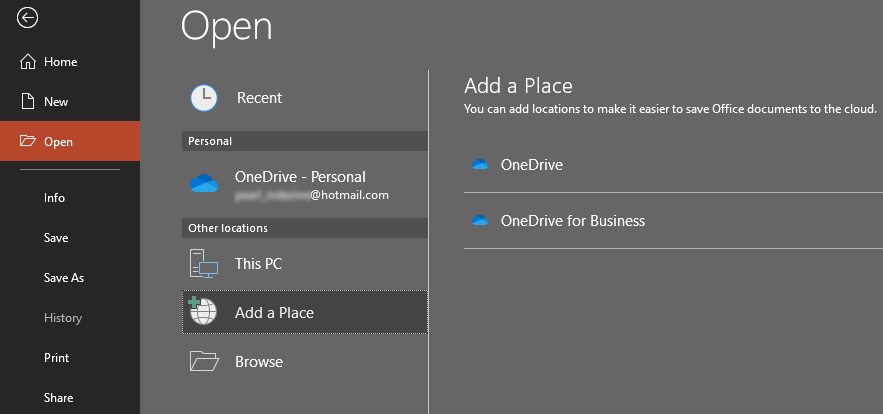
Figure 7: Add a Place
To open a presentation in an old-fashioned way, click the Browse option. Doing so brings up the Open dialog box, as shown in Figure 8, below. Navigate to wherever your presentation files are saved, and you can open any of them. You'll find that PowerPoint can open files of various formats (types).
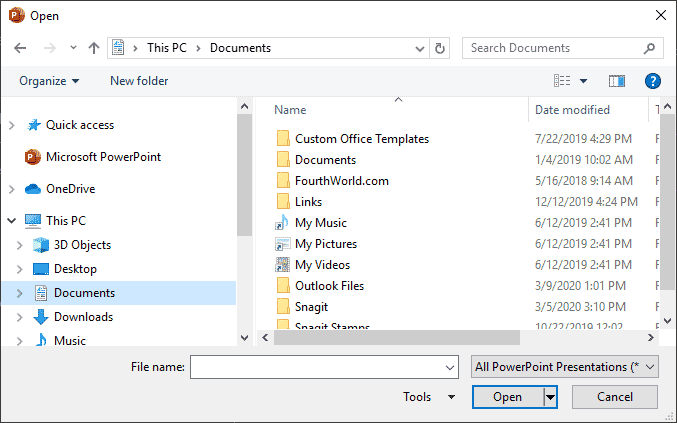
Figure 8: Open dialog box
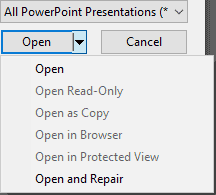
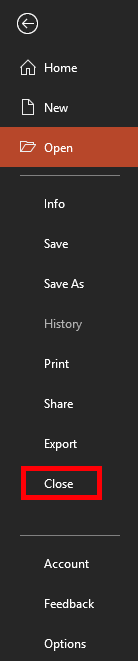
The Close option, as shown highlighted in red within Figure 10, below, is used to close the active presentation. PowerPoint prompts you to save any unsaved changes.
01 08 06 - File Types, File Menu, and Backstage View: Open and Close Tabs of Backstage View in PowerPoint (Glossary Page)
Open and Close Tabs of Backstage View in PowerPoint 365 for Windows
Open and Close Tabs of Backstage View in PowerPoint 365 for Mac
Open and Close Tabs of Backstage View in PowerPoint 2016 for Windows
Open and Close Tabs of Backstage View in PowerPoint 2016 for Mac
Open and Close Tabs of Backstage View in PowerPoint 2013 for Windows
Open and Close Tabs of Backstage View in PowerPoint 2010 for Windows
You May Also Like: Becoming a Webinar Expert: Conversation with Ellen Finkelstein | East Timor Flags and Maps PowerPoint Templates




Microsoft and the Office logo are trademarks or registered trademarks of Microsoft Corporation in the United States and/or other countries.
