
This is the print version of this page. All content is copyright Indezine.com 2000-2026.
Learn about file opening and closing options within Backstage view in PowerPoint 2013 for Windows. We explore how you can do more with the Open and Close options.
Author: Geetesh Bajaj
Product/Version: PowerPoint 2013 for Windows
OS: Microsoft Windows 7 and higher
When you click the File menu and access Backstage view in PowerPoint, several options appear as tabs, as shown in Figure 1, below.
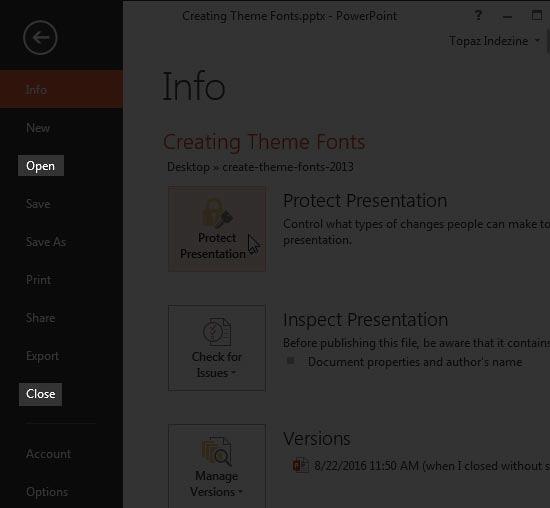
Figure 1: Open and Close options
In this tutorial, we explore options within two of these tabs, as shown in Figure 1, above:
Follow these steps to open an existing file on your computer in PowerPoint 2013 for Windows:
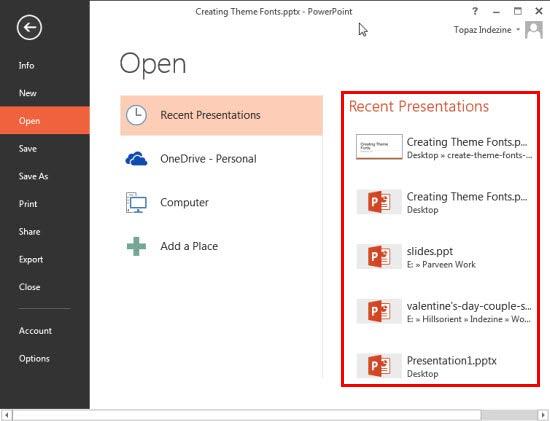
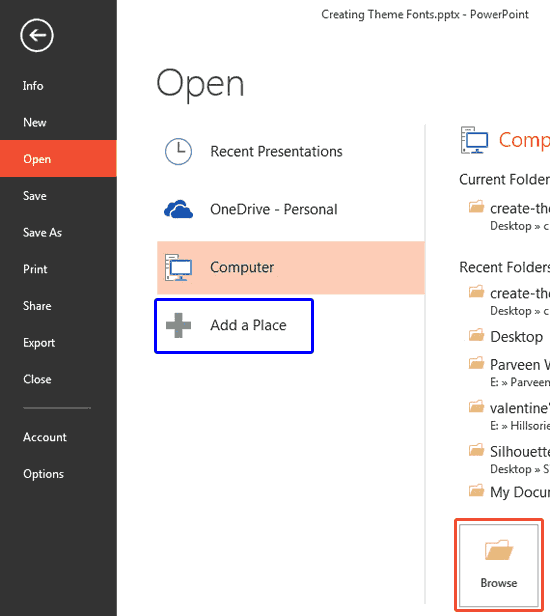
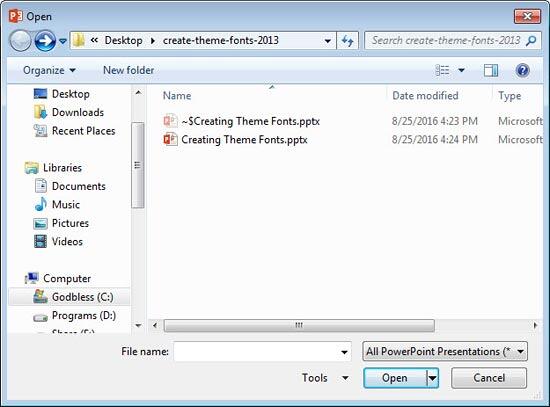
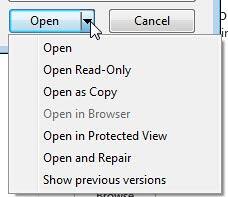
Open, the default option is the same as clicking the Open button.
Open Read-Only lets you open a read-only copy of the presentation. This is great if you don't want to make changes and overwrite the original presentation.
Open as Copy lets you open a copy of the presentation, almost like creating a new presentation while leaving the original unaltered.
Open in Browser works only with certain file formats, such as MHT. See file formats PowerPoint can open.
Open in Protected View lets you open a presentation with restrictions to protect your computer from damage. You can open potentially dangerous files, such as those downloaded from an unknown source on the Internet, in the Protected View.
Open and Repair allows PowerPoint to attempt repair of a file that is possibly corrupt.
The Close option, as shown highlighted in blue within Figure 6, below, is used to close the active presentation. PowerPoint prompts you to save any unsaved changes.
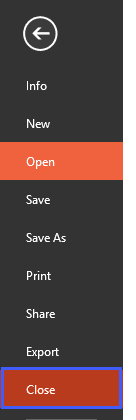
Figure 6: The Close option
01 08 06 - File Types, File Menu, and Backstage View: Open and Close Tabs of Backstage View in PowerPoint (Glossary Page)
Open and Close Tabs of Backstage View in PowerPoint 365 for Windows
Open and Close Tabs of Backstage View in PowerPoint 365 for Mac
Open and Close Tabs of Backstage View in PowerPoint 2019 for Windows
Open and Close Tabs of Backstage View in PowerPoint 2016 for Windows
Open and Close Tabs of Backstage View in PowerPoint 2016 for Mac
Open and Close Tabs of Backstage View in PowerPoint 2010 for Windows
You May Also Like: Impossible to Ignore: Conversation with Carmen Simon | Sections PowerPoint Templates




Microsoft and the Office logo are trademarks or registered trademarks of Microsoft Corporation in the United States and/or other countries.
