
This is the print version of this page. All content is copyright Indezine.com 2000-2026.
Learn quick methods to duplicate slides in PowerPoint 365 for Windows. We explore keyboard shortcuts, menu commands, and drag options.
Author: Geetesh Bajaj
Product/Version: PowerPoint 365 for Windows
OS: Microsoft Windows 10 and higher
Duplicating slides in PowerPoint 365 for Windows is a simple yet powerful technique that can dramatically speed up your workflow. Whether you're building a presentation from a consistent template, reusing layouts, or experimenting with variations of a design, duplication helps you work smarter with minimal effort. This guide walks you through the different ways to duplicate slides: using right-click menus, keyboard shortcuts, and the Ribbon, so you can choose the method that fits your style. Mastering this small skill can make a big difference in how efficiently you create, refine, and deliver your presentations.

Duplicate Slides in PowerPoint
Why Duplicate Slides?
Duplicating Slides within Slides Pane
Duplicating Slides within Slide Sorter View
Duplicating slides is a capability that is often underutilized, largely because its practical value is not immediately evident. A common initial reaction is to ask, “Why would one need to duplicate slides?” In practice, however, slide duplication plays a meaningful role in streamlining the presentation development process. For instance, you may wish to:
Consultants and trainers routinely duplicate slides and tailor messaging, data, and examples to suit different clients or audience segments. By duplicating existing slides, they preserve fonts, alignment, animations, and object formatting, while ensuring consistency while efficiently creating new content. Presenters also use duplicated slides to build progressive reveals by incrementally adding or removing elements, avoiding reliance on complex animations. Additionally, they repurpose well-designed slides by reusing their layouts or visual structures as templates for subsequent content within the presentation.
In practice, slide duplication accelerates slide production while preserving consistency and flexibility across the presentation. In Microsoft PowerPoint 365 for Windows, you can duplicate slides quickly and efficiently from either the Slides Pane in Normal view or Slide Sorter view.
BackOpen your presentation and select the slide(s) you wish to duplicate within the Slides Pane. In the example below, two slides have been selected, as shown highlighted in red within Figure 1, below.
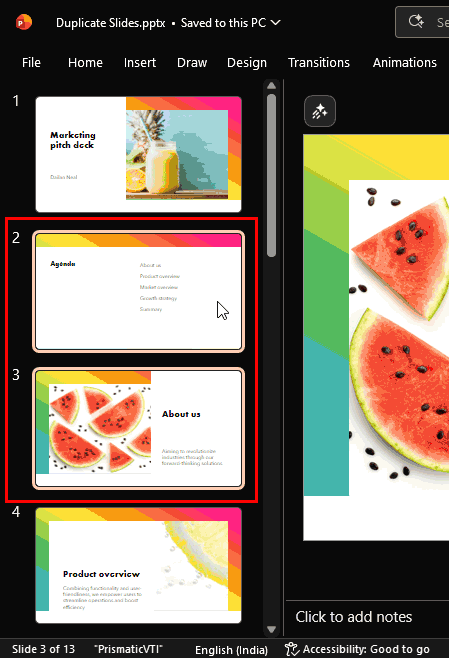
Figure 1: Slides selected within the Slides Pane
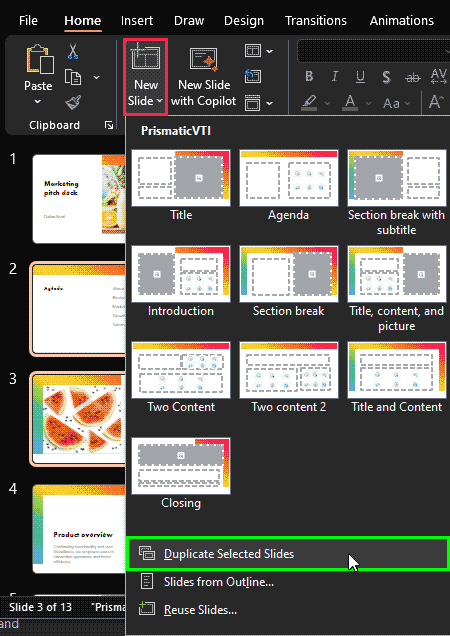
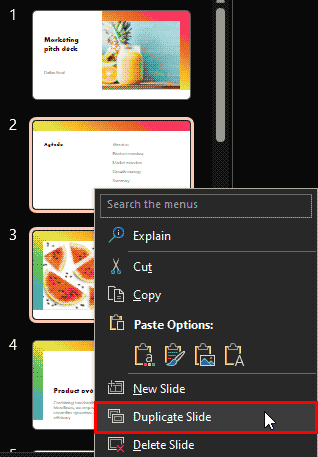
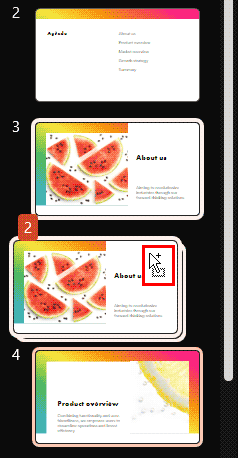
You can now duplicate the selected slide(s) using any of the following four methods:

Do you want more keyboard shortcuts?
Explore our PowerPoint Keyboard Shortcuts and Sequences Ebook that is updated for all PowerPoint versions.
Save your presentation often.
BackChange the view to Slide Sorter and select the slide or slides to be duplicated, as shown in Figure 5, below.
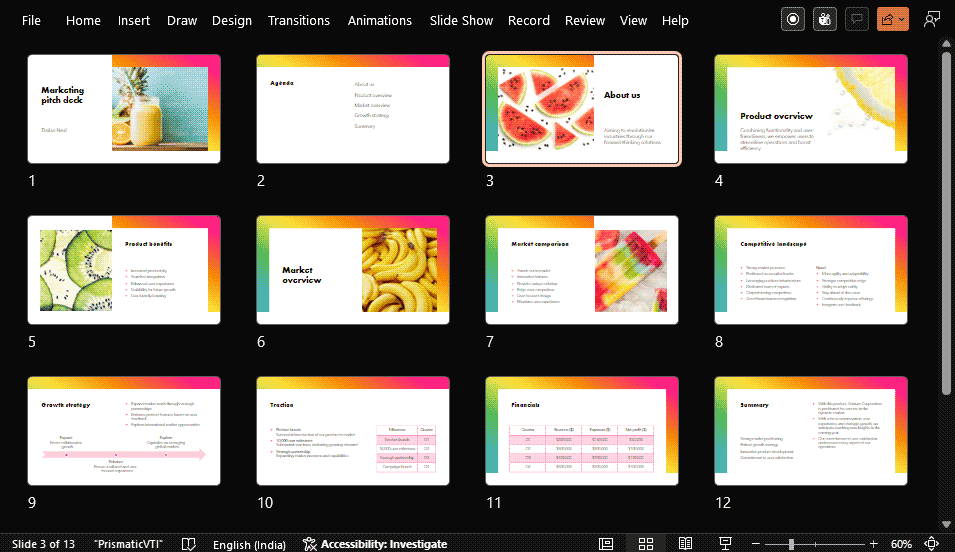
Figure 5: Slides selected within Slide Sorter view
You can now duplicate the selected slide(s) using any of the following three methods:
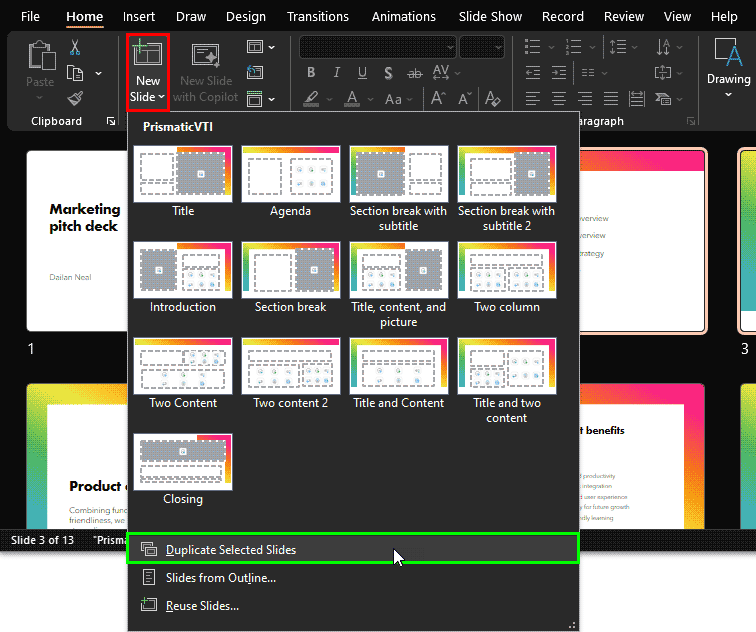

Switch the presentation view to Normal, and ensure that you save your presentation to preserve the changes.
BackIt ensures uniform layouts, typography, and visual balance without rebuilding slides manually.
Duplicating preserves slide formatting, placeholders, and transitions more reliably.
No. The duplicated slide inherits the original layout and style.
01 09 05 - Working with Slides: Duplicate Slides in PowerPoint (Glossary Page)
Duplicate Slides in PowerPoint 2016 for Windows
Duplicate Slides in PowerPoint 2016 for Mac
Duplicate Slides in PowerPoint 2013 for Windows
Duplicate Slides in PowerPoint 2010 for Windows
Duplicate Slides in PowerPoint for the Web
You May Also Like: Are You Violating Copyright Laws?: by Alex Leopold | Walking the Tightrope: by Sarah Rowlands



Microsoft and the Office logo are trademarks or registered trademarks of Microsoft Corporation in the United States and/or other countries.
