
This is the print version of this page. All content is copyright Indezine.com 2000-2026.
Learn how to insert a text box in PowerPoint 2013 for Windows. Text boxes are among the important building blocks in PowerPoint.
Author: Geetesh Bajaj
Product/Version: PowerPoint 2013 for Windows
OS: Microsoft Windows 7 and higher
In PowerPoint there are some differences between text placeholders and text boxes. As far as formatting for text placeholders and text boxes is concerned, almost everything else does work in the same way. However, there is one more vital difference between a text placeholder and a text box:
Follow these steps to learn how you can insert a text box in PowerPoint 2013 for Windows:
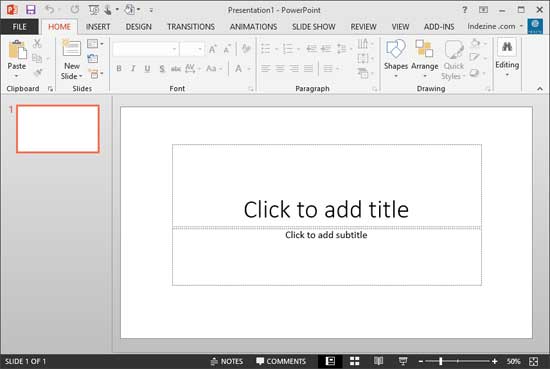
If you want to learn more about the PowerPoint 2013 interface, check our PowerPoint 2013 Interface tutorial.
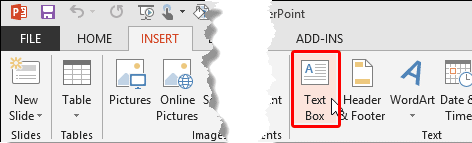
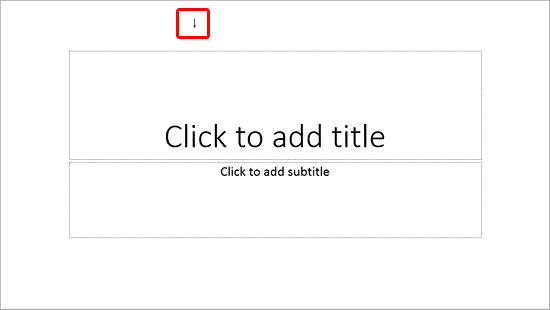
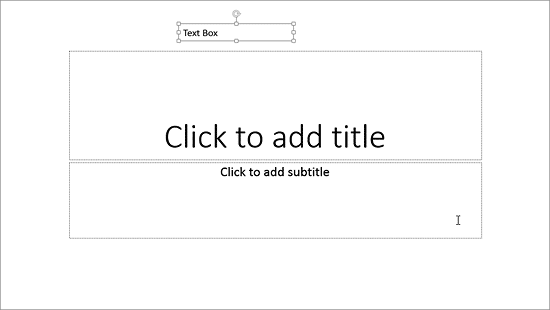
i. To create a text box which automatically enlarges as you type more text, click once where you want the text to start, and begin typing.
ii. To create a text box with a width specified, and that automatically wraps text to the next line and grows in height, click and drag to draw a box where you want the text box to be. The height drawn may snap back to a single text line height. However it will grow in height as you type more text into it.
See Also:
Text Basics: Inserting a Text Box in PowerPoint (Index Page)
Inserting a Text Box in PowerPoint 2016 for WindowsYou May Also Like: How to Give People the Level of Detail They Need in Your Presentation | Food - P PowerPoint Templates


Microsoft and the Office logo are trademarks or registered trademarks of Microsoft Corporation in the United States and/or other countries.
