Indezine Logo


Inserting a Text Box in PowerPoint 2011 for Mac

Learn how to insert a text box in PowerPoint 2011 for Mac. Text boxes are among the important building blocks in PowerPoint.


Author:

Product/Version: PowerPoint 2011 for Mac

OS: Mac OS X


Learn PowerPoint

How can I convert a presentation into a movie format like MPG, AVI or QuickTime?


You have already learned the differences between text placeholders and text boxes within PowerPoint 2011. Beyond those differences, almost everything else does work in the same way as far as formatting for text placeholders and text boxes is concerned. However, there is one more vital difference between a text placeholder and a text box:

  • You never insert a text placeholder on a slide since they are part of the layout for your slide.
  • Text boxes on the other hand need to be inserted manually.

Follow these steps to learn how you can insert a text box in PowerPoint 2011:

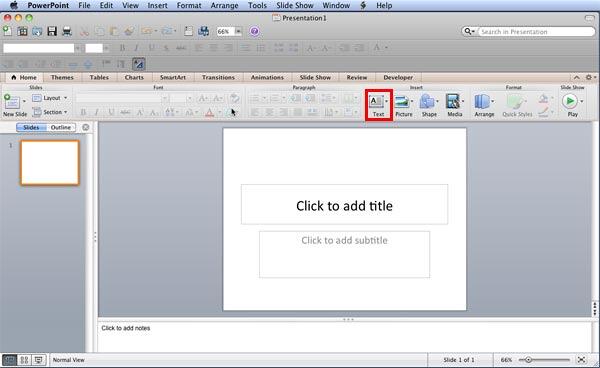
  1. Launch PowerPoint. You will see the Presentation Gallery which allows you to set all attributes of your new presentation, such as a preset Theme or template. Make selections or just click Cancel in this gallery to open a new blank presentation, containing one slide as shown in Figure 1.
  2. PowerPoint 2011 opens with a blank presentation when launched
    Figure 1: PowerPoint 2011 opens with a blank presentation when launched
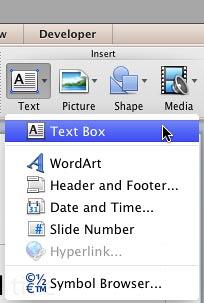
  3. Within the Home tab of the Ribbon, locate the Insert group, and click the Text button (highlighted in red in Figure 1 above). This opens the Text menu shown in Figure 2. Choose the Text Box option in this menu (refer to Figure 2 again).
  4. Text Box option selected within the Text drop-down menu
    Figure 2: Text Box option selected within the Text drop-down menu
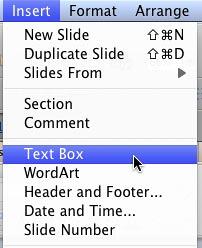
  5. Alternatively, you can directly choose the Insert | Text Box menu option, as shown in Figure 3.
  6. Menu option for inserting a Text Box
    Figure 3: Menu option for inserting a Text Box
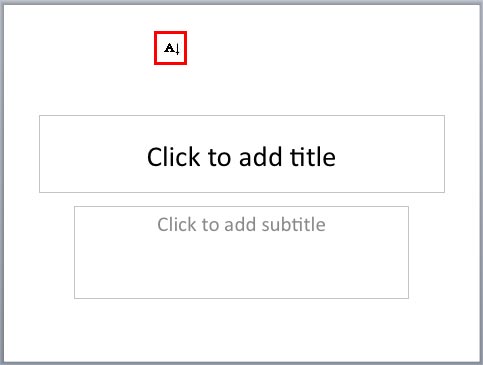
  7. This changes the cursor into a vertical line along with the character 'A' in front of it, as shown highlighted in red in Figure 4.
  8. Cursor indicates text box insertion mode
    Figure 4: Cursor indicates text box insertion mode
  9. Now, choose any of the following options:
  10. To create a text box which automatically enlarges as you type more text, click once where you want the text to start, and begin typing.
  11. To create a text box with a width specified, and that automatically wraps text to the next line and grows in height, click and drag to draw a box where you want the text box to be. The height drawn may snap back to a single text line height. However it will grow in height as you type more text into it.
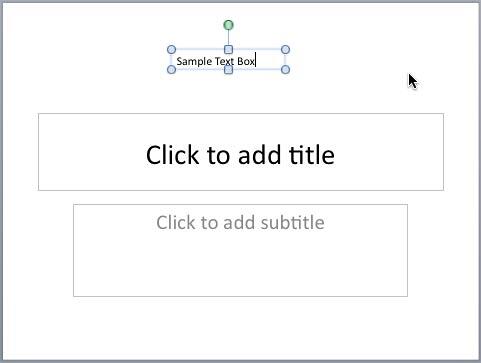
  12. Figure 5 shows a text box inserted that contains typed text. In subsequent tutorials, you will learn how you can work with text boxes, and format them. Also a text box is just another shape in PowerPoint -- so any of the tutorials on using shapes in PowerPoint are relevant to working with text boxes.
  13. Text typed within the text box
    Figure 5: Text typed within the text box
  14. Save your presentation often.

See Also:

Text Basics: Inserting a Text Box in PowerPoint (Index Page)

Inserting a Text Box in PowerPoint 2016 for Windows
Inserting a Text Box in PowerPoint 2016 for Mac
Inserting a Text Box in PowerPoint 2013 for Windows
Inserting a Text Box in PowerPoint 2010 for Windows

You May Also Like: Presentations are Enterprise Marketing | Onion PowerPoint Templates


Popular Posts

Formatting Outlines for Shapes (Dashes) in PowerPoint 2013 for Windows
Learn how to apply the dash attribute to shape outlines in PowerPoint 2013 for Windows.

Change the Unit of Measurement in Windows 10
Learn how to change the unit of measurement from US to Metric, and vice versa in Windows 10.

PowerPoint Tutorials, Articles and Reviews
Tutorials, reviews, articles and templates for Microsoft PowerPoint and other presentation software.

PowerPoint Templates
Find over 6000 PowerPoint templates in thousands of categories and all colors—from a trusted PowerPoint template resource for 20 years.


PowerPoint Keyboard Shortcuts and Sequences:
PowerPoint 2016, 2013, 2011, 2010, 2007 and 2003 for Windows
PowerPoint 2016 and 2011 for Mac
PowerPoint Online for Windows and Mac

Have your ever used keyboard shortcuts and sequences in PowerPoint? Or are you a complete keyboard aficionado? Do you want to learn about some new shortcuts? Or do you want to know if your favorite keyboard shortcuts are documented?

Go and get a copy of our PowerPoint Keyboard Shortcuts and Sequences ebook.


Microsoft and the Office logo are trademarks or registered trademarks of Microsoft Corporation in the United States and/or other countries.

Home | PowerPoint | Photoshop | PowerPoint Templates | PowerPoint Tutorials | Blog | Notes | Ezine | Media Kit | Feedback | Site Map | About Us | Contact Us

Link to Us | Privacy | Testimonials

PowerPoint Backgrounds | Christian PowerPoint Backgrounds | Business PowerPoint Presentation Templates

Plagiarism will be detected by Copyscape

©2000-2026, . All rights reserved.