Indezine Logo


Change Text Case in PowerPoint 2013 for Windows

Learn how to change text case to lowercase, uppercase, etc. in PowerPoint 2013 for Windows. These changes can also be achieved with a keyboard shortcut.


Author:

Product/Version: PowerPoint 2013 for Windows

OS: Microsoft Windows 7 and higher


Often, you may receive some content for your presentation from someone. And rather than typing all that content, you may just copy it from an email or a document, and paste it within PowerPoint. The problem with this approach may stem from the fact that whoever sent you the content is one of those people who type everything in small case, or maybe they just turn on the Caps Lock button and forget turning it off! Whatever the reason may be, you will end up with text that is certainly not usable on your slide. Rather than retyping the whole text again, you can use PowerPoint 2013's Change Case option to quickly change the case of selected text on your slide:
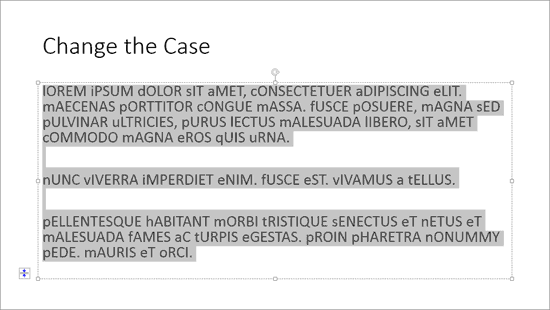
  1. Open any presentation and select the text you want to change the case for. In Figure 1, we have selected some text that seems to be suffering from a serious case of the CAPS disease!
  2. Improper text selected
    Figure 1: Improper text selected
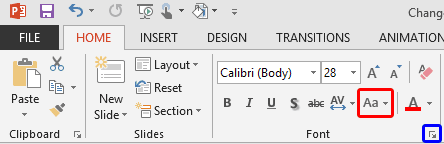
  3. Now, access the Home tab of the Ribbon and click the Change Case button, highlighted in red within Figure 2.
  4. Change Case button
    Figure 2: Change Case button
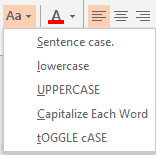
  5. This brings up the Change Case drop-down gallery, as shown in Figure 3.
  6. Change Case drop-down gallery
    Figure 3: Change Case drop-down gallery
  7. Within the Change Case drop-down gallery there are five options:
  8. Sentence case

  9. Capitalizes the first letter of the first word in the sentence, or bullet point.
  10. lowercase

  11. Converts all characters to lowercase that are not already so. It does not do anything to numbers or symbols.
  12. UPPERCASE

  13. Converts all characters to uppercase that are not already so. Does not do anything to numbers or symbols.
  14. Capitalize Each Word

  15. Also known as Title Case, this will capitalize the first letter of each word.
  16. tOGGLE cASE

  17. Reverses the case of each letter of the selected text to the opposite of the current case. This is useful if the Caps Lock key was inadvertently left on while typing!
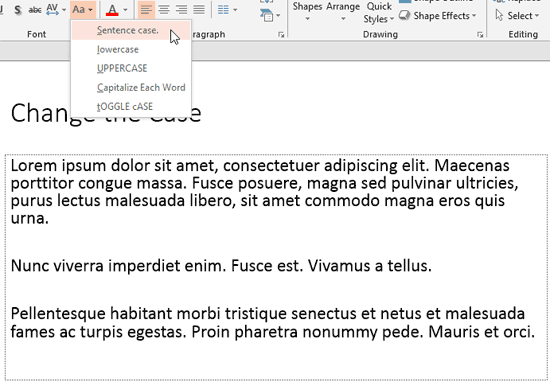
  18. To change the text case, make sure the text is selected. Choose any text case type from within the Change Case drop-down gallery. As you hover your cursor over any of the case options you'll see a Live Preview of text case changing on the active slide. Figure 4, shows Sentence case option being selected. Notice the live preview of the selected text within the Slide Area. Compare Figures 4 and 1. Click on the case option (as opposed to hovering over it) within the drop-down gallery to apply it to the selected text.
  19. Sentence case. option being selected
    Figure 4: Sentence case. option being selected
  20. Tip: Use the Shift+F3 keyboard shortcut to quickly toggle between the three most common selections when you wish to change case — UPPERCASE, lowercase, and Sentence case.
    Keyboard Shortcuts for PowerPoint

    PowerPoint Keyboard Shortcuts

    Do you want more keyboard shortcuts?

    Explore our PowerPoint Keyboard Shortcuts and Sequences Ebook that is updated for all PowerPoint versions.
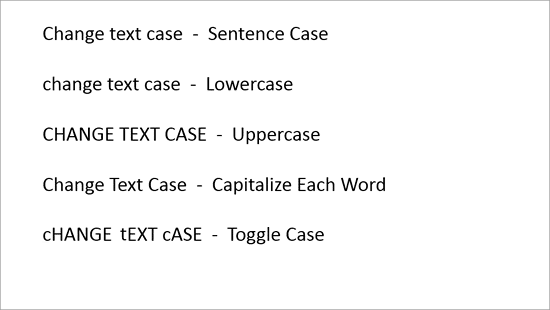
  21. Figure 5, shows immediate results of applying the five options of Text Case drop-down gallery to the selected text:
  22. Text applied with various Text Case options
    Figure 5: Text applied with various Text Case options
  23. Save your presentation often.

In addition to the five case options explained in this tutorial, PowerPoint 2013 offers two more options: Small Caps and All Caps. These options can be found in the Font dialog box. To access this dialog box, click the dialog launcher within the Font group, highlighted in blue within Figure 2, shown earlier on this page. This opens the Font dialog box, as shown in Figure 6. Within the Font tab of Font dialog box you'll find two text case check-boxes: Small Caps and All Caps (highlighted in red within Figure 6). Choose as required and click the OK button within the Font dialog box to apply.
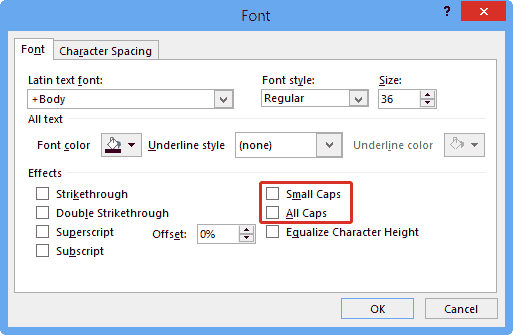
Text Case check-boxes within the Font dialog box
Figure 6: Text Case check-boxes within the Font dialog box

Figure 7, below shows samples of the text applied with Small Caps and All Caps options. While Small Caps changes the entire selected text to smaller variations of capital letters other than the first character of a word, All Caps is similar to the UPPERCASE option within the Change Case drop-down gallery.

Text applied with Small Caps and All Caps options
Figure 7: Text applied with Small Caps and All Caps options


See Also:

Change Text Case PowerPoint 2011 for Mac
Change Text Case PowerPoint 2010 for Windows

You May Also Like: Diagrammer: Conversation with Nancy Duarte | Geology PowerPoint Templates


Popular Posts

Shapes
Shapes
Learn how you can create and manipulate shapes in PowerPoint -- knowledge of working with shapes is significant because they are the building blocks of creativity in PowerPoint.

Insert Picture from the Office ClipArt Collection in PowerPoint 2013
Learn how to insert picture using Office ClipArt in PowerPoint 2013.

Snow Effect in PowerPoint
Create a snow fall effect inside PowerPoint using animation techniques.

PowerPoint Transitions: Curtains
Explore the Curtains transition effect in PowerPoint.


Pictures in Presentations

Is a picture is worth a thousand words? You probably have heard this adage so often that we decided not to repeat this phrase throughout this book! Now here’s some more info: the human brain uses a larger part of its area to store visual information rather than textual content. And that’s possibly because a picture describes so much more than text.

Go and get a copy of our Pictures in Presentations ebook.


Microsoft and the Office logo are trademarks or registered trademarks of Microsoft Corporation in the United States and/or other countries.

Home | PowerPoint | Photoshop | PowerPoint Templates | PowerPoint Tutorials | Blog | Notes | Ezine | Media Kit | Feedback | Site Map | About Us | Contact Us

Link to Us | Privacy | Testimonials

PowerPoint Backgrounds | Christian PowerPoint Backgrounds | Business PowerPoint Presentation Templates

Plagiarism will be detected by Copyscape

©2000-2025, . All rights reserved.