An Indezine reader asked me if he could create three circles next to each other, and make sure that they looked like this:
- The first circle should be filled-in full (entirely)
- The second circle should be half full
- The third and last circle should have no fill (empty)
The first and third circles are easy, all you need to do is ensure that the first circle has both an
outline and a
solid fill, and that the third circle has
only an outline with no fill. The second
circle though is an easy challenge that we'll teach you create in this one page tutorial using PowerPoint 2003 for Windows.
Follow these steps to get started:
- PowerPoint 2003 for Windows. Most of the time, PowerPoint will open with a new slide in a presentation. Users can change the
slide layout to Blank (or Title Only) by selecting Format |
Slide Layout, and then choose the Blank (or Title Only) layout in the resultant
task pane.
- You will find the Oval AutoShape option in the Drawing toolbar located below the
PowerPoint interface. Select this option, and click once on the blank slide to place a circle AutoShape. Press the
Ctrl key to constrain and resize as required so that the circle does not elongate to an oval shape.
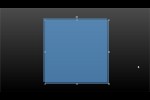
Position the circle as shown in Figure 1.

Figure 1: Circle
Tip: If you can't see the Drawing toolbar, choose View | Toolbars |
Drawing.
- Copy the circle (select and press Ctrl + C), and paste twice
(Ctrl + V) to end up with three circles. Reposition as shown in
Figure 2.
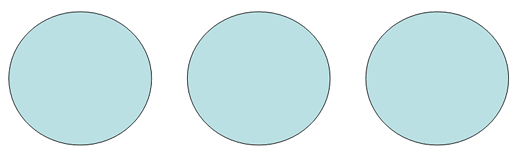
Figure 2: Copy circle- Select all three circles, and add a medium-thick
outline to them. You can also
change the line color. Your slide will look
similar to what you can see in Figure 3.
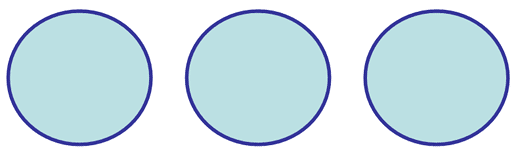
Figure 3: Add outline- Select the second and third circles, and format their fills to
No Fill, as shown in Figure 4.
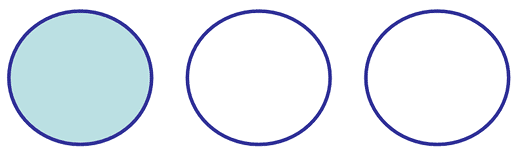
Figure 4: No fill- Now create a semi-circle on a new slide, as shown in our
Creating a Semi-Circle in PowerPoint 2003 tutorial.
- Rotate the semi-circle 180 degrees using the green rotation handle on top so that your semi-circle looks like what
you can see in Figure 5.
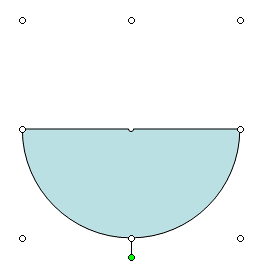
Figure 5: Rotate circle- Set the outline for this semi-circle to
no fill, and match the
solid color fill to the same as the fill in the
first circle (refer to Figure 1). Copy this semi-circle and paste it on top of the second circle so that it looks like
what you can see in Figure 6.

Figure 6: Paste semi-circle- Now carefully select the pasted semi-circle, right-click and choose Order | Send Backward
as shown in Figure 7.
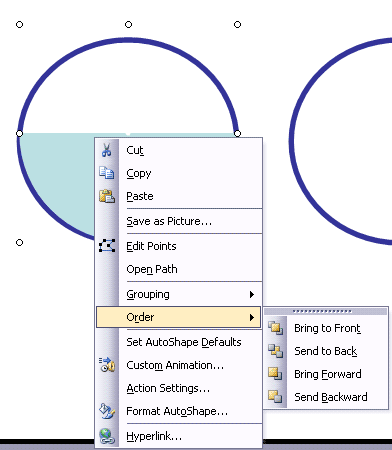
Figure 7: Send Backward- Repeat the Send Backward option until the semi-circle is behind the full circle and looks like a half circle as shown in
Figure 8.
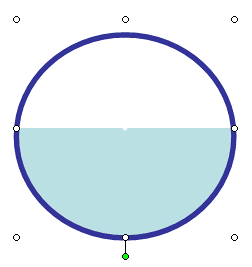
Figure 8: Half circle- Save your presentation.