PowerPoint provides four line drawing tools: line, curve, freeform, and scribble. You have already explored the
Line and
Curve tools, and in this tutorial you will learn how you can use
the Freeform tool to create lines that can be drawn with more creative freedom. In fact, the Freeform tool lets you draw just like using a pencil on
a piece of paper. In addition, you can create straight lines as well. Although the Freeform tool takes a while getting used to, practice will make
your attempts perfect.
Now follow these steps to draw with the Freeform shape tool in PowerPoint 2011 for Mac:
- Launch PowerPoint. You will see the
Presentation Gallery which allows you to set all
attributes of your new presentation, such as a preset Theme or template. Make selections or just click Cancel in this gallery to
open a blank presentation with a new slide. PowerPoint 2011 users can
change the slide layout of this slide to Blank by
selecting the option Layout | Blank option within the Home tab of the
Ribbon.
- Within the Home tab of the Ribbon, click the
Shape button to view the Shape gallery that you can see in Figure 1. Select the
Lines and Connectors option within this gallery, and from the resultant sub-menu, select the Freeform shape (refer
to Figure 1 again).
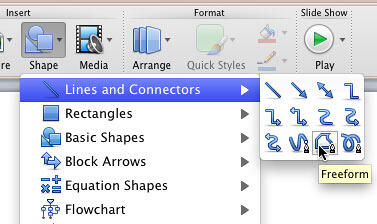
Figure 1: Freeform shape selected- As soon as the Freeform shape is selected, the cursor changes to a cross hair (see Figure 2).

Figure 2: Cursor changed to a cross hair- Click anywhere on the slide to establish the starting point. Release the mouse button and drag the cursor to draw a straight line as shown in
Figure 3. Click the mouse button at the position where you want to finish drawing the straight line. This option works just like the
Line tool we explored in a previous tutorial, but that's where
the similarity ends, as we will explore in the next step.
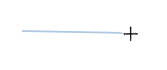
Figure 3: Drawing a straight line with the Freeform tool- Now, press the mouse button again, but don't release it yet. To draw a freeform line, continue drawing without releasing the mouse button to end
up with something similar to what you can see in Figure 4.
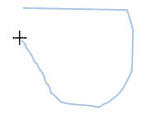
Figure 4: Drawing a Freeform line- You can continue drawing (as if you are drawing with a pencil on a paper). While drawing, whenever you need to draw a straight line, release the
mouse button and simply drag the cursor and click again to establish the end point of the line (and the beginning of the freeform). You will end up
with a combined straight-lined and freeform shape, something like what you see in Figure 5.
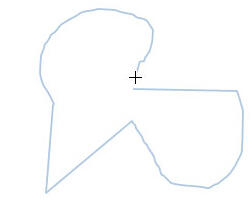
Figure 5: Shape being drawn with the Freeform shape tool- To finish your drawing as an open shape, just double-click the mouse (or press the Esc key) when you are done. If you want to
create a closed shape, click on the starting point of your drawing. The shape gets filled to denote that it has indeed been closed, and your shape
will be surrounded by eight handles indicating that it has been
selected, as shown in Figure 6.
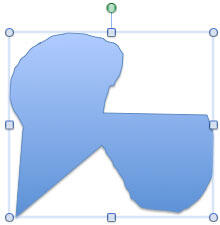
Figure 6: Freeform line as an open shape- Click anywhere on the slide to deselect the shape. Save the presentation.