Indezine Logo


Drawing Curved Lines in PowerPoint 2007 for Windows

Learn how to draw a curved line in PowerPoint 2007 for Windows. Drawing a curved line is much easier than many PowerPoint users may believe.


Author:

Product/Version: PowerPoint 2007 for Windows

OS: Microsoft Windows XP and higher


Learn PowerPoint

Temporarily Installing Fonts with Font Loader


You learned how simple it is to draw a straight, point to point line in PowerPoint in a previous tutorial. Now we'll move on to show you how you can draw a curved line in PowerPoint 2007.

Follow these step to draw a curved line in PowerPoint 2007 for Windows:
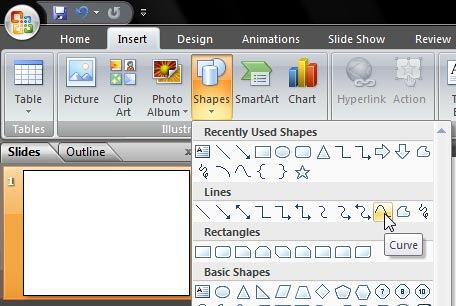
  1. Launch PowerPoint 2007. Most of the time, PowerPoint will open with a new slide in a presentation. PowerPoint 2007 users can change the slide layout to Blank by selecting Home tab | Layout | Blank.
  2. Within the Home or Insert tab of the Ribbon, click the Shapes button to view the Shapes gallery that you can see in Figure 1. Within the Lines group select Curve.
  3. Curve selected
    Figure 1: Curve selected
  4. As soon as the curve shape is selected the cursor changes to a cross hair (see Figure 2).
  5. Cross hair cursor
    Figure 2: Cross hair cursor
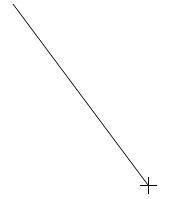
  6. Click anywhere on the slide to establish the starting point of your curve. Thereafter, move the cursor bottom-right of the first point in an approximately 45-degree angle, as shown in Figure 3.
  7. Drawing a line
    Figure 3: Drawing a line
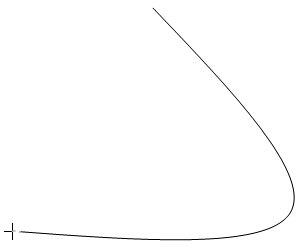
  8. Click again and move the cursor leftward. Now you'll see the curve bend at the point where you clicked (see Figure 4).
  9. Drawing a curve
    Figure 4: Drawing a curve
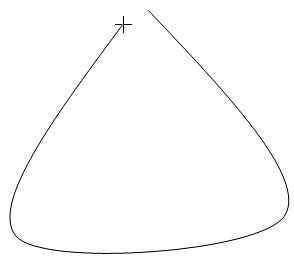
  10. Click again after moving a little leftwards (like a triangular) to establish a third point. Now move the cursor upwards in the direction of the first point, as shown in Figure 5.
  11. Drawing a shape with a curve
    Figure 5: Drawing a shape with a curve
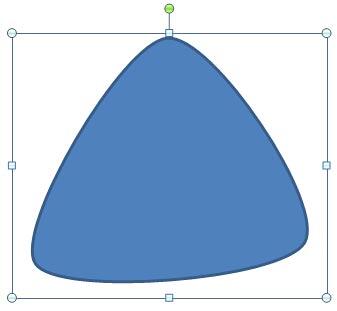
  12. Now click over the first point to close the shape. The shape gets filled by a solid color to denote that it has indeed been closed. You'll also see the shape is surrounded by eight selection handles, as shown in Figure 6.
  13. A closed shape drawn with curve
    Figure 6: A closed shape drawn with curve
  14. Tip: To finish your drawing as an open shape, just double-click the mouse (or press the ESC key) at the point where you want to end the shape. When you do that, your drawing will be surrounded by eight handles indicating that it is selected.
  15. Click anywhere on the slide to deselect the curve.
  16. Save the presentation.

See Also:

Drawing Lines: Drawing Curved Lines in PowerPoint (Index Page)

Drawing Curved Lines in PowerPoint 2016 for Windows
Drawing Curved Lines in PowerPoint 2013 for Windows
Drawing Curved Lines in PowerPoint 2011 for Mac
Drawing Curved Lines in PowerPoint 2010 for Windows

You May Also Like: Preparation Before Speaking: Conversation with Nigel Holmes | Windowpane PowerPoint Templates


Popular Posts

Set Minimum and Maximum Values on Value Axis in PowerPoint 2013 for Windows
Learn how to set the Minimum and Maximum values on Value Axis of Charts in PowerPoint 2013 for Windows.

Crop Pictures (Mask to Shape) in PowerPoint 2011 for Mac
Learn how to crop pictures using Mask to Shape option in PowerPoint 2011 for Mac.

Playing Video Across Slides in PowerPoint 2016 for Windows
Play a video clip across slides in PowerPoint 2016 for Windows.

Set Document Resolution in PowerPoint 2016 for Windows
Learn how to set document resolution in PowerPoint 2016 for Windows.


Polygon Center Circles for PowerPoint

These special circles have polygon centers: the centers are made of triangles, squares, pentagons, and hexagons! And based on the sides of the polygon, the rest of the circle has that many segments.

Download and use these Polygon Center Circles in your slides for just $4.99


Microsoft and the Office logo are trademarks or registered trademarks of Microsoft Corporation in the United States and/or other countries.

Home | PowerPoint | Photoshop | PowerPoint Templates | PowerPoint Tutorials | Blog | Notes | Ezine | Media Kit | Feedback | Site Map | About Us | Contact Us

Link to Us | Privacy | Testimonials

PowerPoint Backgrounds | Christian PowerPoint Backgrounds | Business PowerPoint Presentation Templates

Plagiarism will be detected by Copyscape

©2000-2025, . All rights reserved.