
This is the print version of this page. All content is copyright Indezine.com 2000-2026.
Learn about various file types that can open and work in PowerPoint for the Web. This will help you work with more than just the default PowerPoint file formats.
Author: Geetesh Bajaj
Product/Version: PowerPoint for the Web
OS: Microsoft Windows and Mac OS X
PowerPoint isn’t just a handy tool—it’s a powerhouse in your workflow! Not only does it come packed with tons of features, but it also plays nice with a bunch of different file formats. You can open and save files in many formats, making it super versatile. But here’s the kicker—PowerPoint can even open some file types that it can’t save as, expanding its file-handling superpowers even more!
In this tutorial, we’ll take a look at the file types that PowerPoint for the Web can open. Sure, it doesn’t handle as many formats as the full PowerPoint 365 for Windows desktop version, but don’t worry—it still works with a good number of file types! Let’s dive in and see what’s possible.
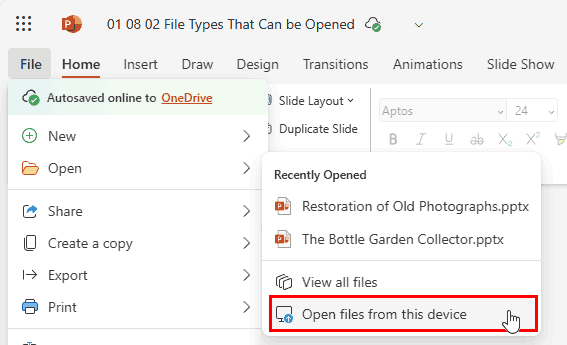
Follow these steps to open a file in PowerPoint for the Web:
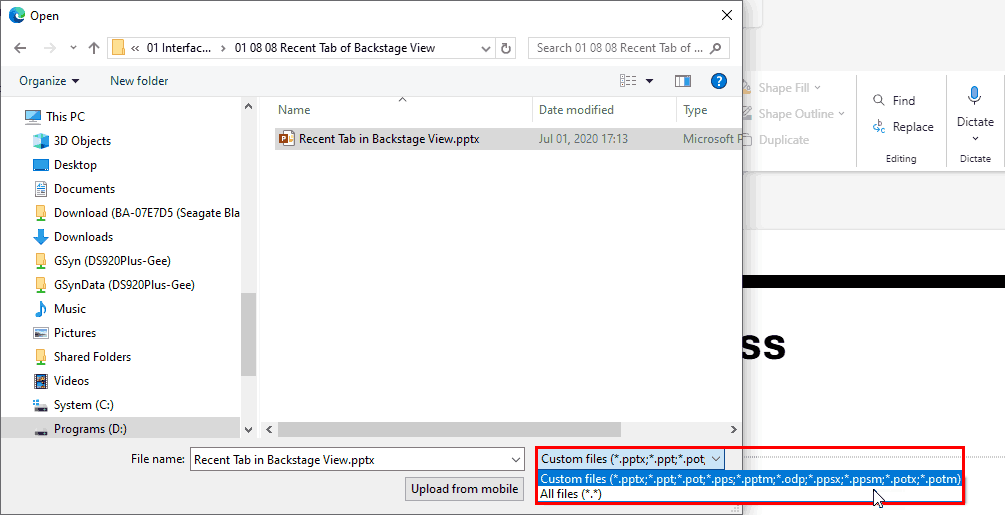
This file type is the default open option in PowerPoint 2007 and later. It is based on XML and can be distinctly identified as different from the older file formats for PowerPoint because it has four letters rather than three, for example, PPTX rather than the older PPT format.
This file type was the default format for presentations created in PowerPoint versions 2003 and earlier. Most of the time, this is known as the PowerPoint 97 to 2003 format (or the PowerPoint 97 to 2004 format if you include Mac versions of PowerPoint).
This file type is a template in PowerPoint 97 to 2003. You can still open and use these in newer versions of PowerPoint.
This file type comprises presentations that have been saved as a slide show in PowerPoint 97 to 2003. In all respects, this is the same as a PPT file, but when double-clicked, it opens in Slide Show view rather than Normal view. If you use the Open dialog, it opens in Normal view. See our PPT vs. PPS (or PPTX vs. PPSX) article to understand the differences better.
ODP (Open Document Presentation) files are created by Google Slides, OpenOffice, or LibreOffice. Microsoft has some information about what features are supported for ODP files, when you open and edit them in PowerPoint for the Web.
This file type comprises presentations that have been saved as a slide show. In all respects, this is the same as a PPTX file, but when double-clicked, it opens in Slide Show view rather than Normal view. If you use the Open dialog, it opens in Normal view. See our PPT vs. PPS (or PPTX vs. PPSX) article to understand the differences better.
This file type comprises presentations that have been saved as a slide show with macros enabled and works in the same way as PPSX files.
This file type is a template that you can use as a starter for future presentations. This file format works with PowerPoint 2007 and subsequent versions of PowerPoint.
This file type is a template in the same way as POTX files, but with macros enabled.
01 08 02 - File Types, File Menu, and Backstage View: File Types That Can be Opened in PowerPoint (Glossary Page)
File Types That Can be Opened in PowerPoint 365 for Windows
File Types That Can be Opened in PowerPoint 365 for Mac
File Types That Can be Opened in PowerPoint 2019 for Windows
File Types That Can be Opened in PowerPoint 2016 for Windows
File Types That Can be Opened in PowerPoint 2016 for Mac
File Types That Can be Opened in PowerPoint 2013 for Windows
File Types That Can be Opened in PowerPoint 2011 for Mac
File Types That Can be Opened in PowerPoint 2010 for Windows
You May Also Like: PowerPoint Presentation Design Deep Dive 2021: Conversation with Amy Balliett | Fall / Autumn PowerPoint Templates


Microsoft and the Office logo are trademarks or registered trademarks of Microsoft Corporation in the United States and/or other countries.
