Indezine Logo


Embed Presentations from PowerPoint for the Web

Learn to embed presentations from PowerPoint for the Web.


Author:

Product/Version: PowerPoint for the Web

OS: Microsoft Windows and Mac OS X


PowerPoint for the Web may have fewer options than desktop versions of PowerPoint. Yet, this version does have one option that makes it so easy to share your PowerPoint presentations on your website or blog post. In this tutorial, let us explore the Embed option that generates embed code for your presentation.
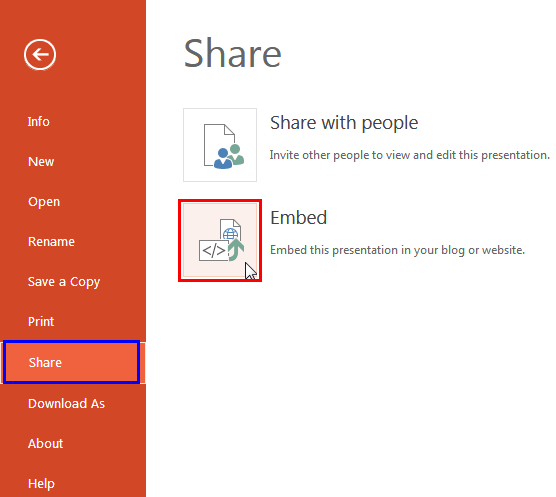
  1. Make sure you have made all changes to your file. No saving is needed because PowerPoint for the Web auto-saves your file. Now, click the File tab of the Ribbon. Doing so brings up Backstage view in PowerPoint for the Web, as shown in Figure 1, below. Select the Share pane, as shown highlighted in blue within Figure 1.
  2. Share Pane of the Backstage View
    Figure 1: Share Pane of Backstage View
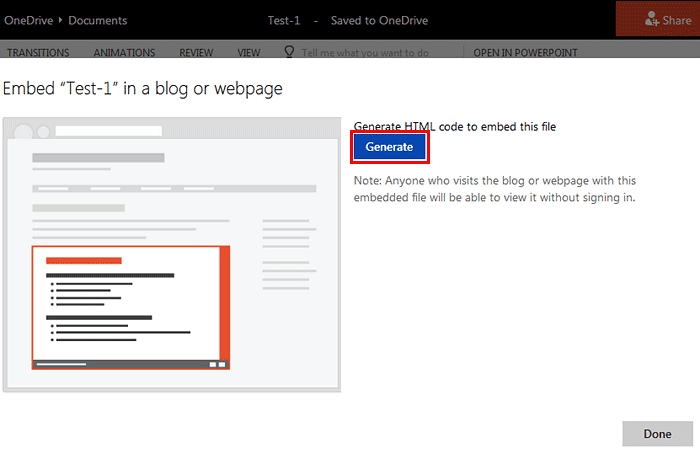
  3. Share pane includes two options: Share with people and Embed. Click the Embed option to bring up the window, as shown in Figure 2, below. Here, click the Generate button, as shown highlighted in red within Figure 2.
  4. Generate button
    Figure 2: Generate button
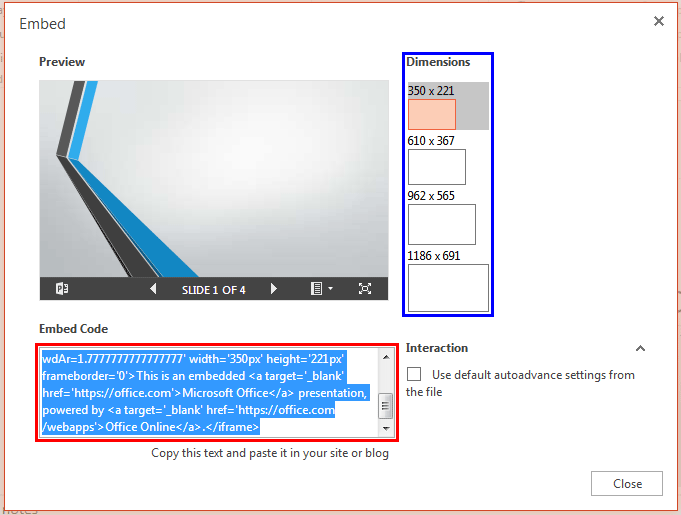
  5. Doing so brings up the Embed dialog box, as shown in Figure 3, below. Select the required dimension from the Dimensions provided, as shown highlighted in blue within Figure 3, and copy the code within the Embed Code box, as shown highlighted in red within Figure 3. Click the Close button to exit the dialog box.
  6. Embed code generated
    Figure 3: Embed code generated
  7. This copied code can be pasted within the web page where you want to embed the presentation. Here, we have embedded a PowerPoint presentation that’s saved on our OneDrive account.
    SmartArt Test. SmartArt Test
  8. The embedded presentation has a bar beneath it with some options, explained below:

    Slide Navigation Buttons

    These arrow buttons allow you to move to the previous and the next slides.

    Menu Button

    Click on this button to bring up the menu, as shown in Figure 4, below. Options within this menu allow you to download a copy of the presentation, print the presentation as a PDF, or get the embed code to add this presentation to another blog or website. At this time, there is no way to disable these options. Yes, we know you are wondering what Microsoft was thinking when they decided to make all your content available to the entire world without letting you control anything! So, be careful before you embed your presentations.
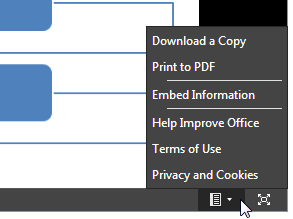
    Menu options for your embedded presentation
    Figure 4: Menu options for your embedded presentation

    Open in New Window

    This button opens the presentation in a new browser window.


People Also Ask:

Can I update an embedded PowerPoint after publishing it?

Yes, any changes saved to the original OneDrive or SharePoint file automatically update in the embedded version.

Can I embed selected slides instead of the full PowerPoint presentation?

No, you must create a new file with selected slides and then embed that presentation.

Can viewers interact with embedded PowerPoint slides?

Yes, embedded presentations are interactive, allowing viewers to click through slides directly on the website.

01 08 12 - File Types, File Menu, and Backstage View: Embed Presentations in PowerPoint (Glossary Page)

You May Also Like: The Importance of Behavioral Flexibility in Leadership | Indonesia Flags and Maps PowerPoint Templates


Popular Posts

Set Document Resolution in PowerPoint 2016 for Windows
Learn how to set document resolution in PowerPoint 2016 for Windows.

Creating Anchor Points for Connectors in PowerPoint 2010 for Windows
Learn how to create Anchor Points for connectors in PowerPoint 2010.

Working With Slide Numbers in PowerPoint 2016 for Windows
Learn how to add Slide Numbers on slides and Masters and more tricks on making them work to your will in PowerPoint 2016 for Windows.

Texture Fills for Slide Backgrounds in PowerPoint 2013 for Windows
Use texture fills for slide backgrounds in PowerPoint 2013 for Windows.


Handmade Slides: Pushpins for PowerPoint

These “pushpin” graphics are already placed in PowerPoint slides. Just copy them and paste within your slides to create a look that makes a picture, shape, or anything else appear as if it has been pushed onto a surface, board, or wall with a pin! These ready-made pushpins are already within PowerPoint slides, and have been provided in five colors. Just copy them and paste them on your slides.

Download these Pushpins for just $19.99


Microsoft and the Office logo are trademarks or registered trademarks of Microsoft Corporation in the United States and/or other countries.

Home | PowerPoint | Photoshop | PowerPoint Templates | PowerPoint Tutorials | Blog | Notes | Ezine | Media Kit | Feedback | Site Map | About Us | Contact Us

Link to Us | Privacy | Testimonials

PowerPoint Backgrounds | Christian PowerPoint Backgrounds | Business PowerPoint Presentation Templates

Plagiarism will be detected by Copyscape

©2000-2025, . All rights reserved.