
This is the print version of this page. All content is copyright Indezine.com 2000-2026.
Learn to use the Snap to Grid option in PowerPoint 365 for Windows. You can accurately position and move slide objects using this option.
Author: Geetesh Bajaj
Product/Version: PowerPoint 365 for Windows
OS: Microsoft Windows 10 and higher
Mastering alignment is one of the simplest ways to elevate the professionalism of your PowerPoint slides, and Snap to Grid is a feature designed precisely for that purpose. This guide explains how PowerPoint’s grid system works, why it matters, and how snapping can help you position shapes, pictures, and text with greater accuracy.
Why Snap to Grid Matters?
Working with Snap to Grid
Conclusion
Snap to Grid in PowerPoint is a feature that automatically aligns objects to an invisible grid, helping you position shapes, pictures, and text more precisely.
Simply displaying gridlines on your slides does not automatically improve your layouts. Think of gridlines as the lane markings on a highway. They are most useful when you actively use them to guide your movement and maintain alignment. If you are serious about positioning slide objects with greater precision, the first step is to explore the available Grid settings and understand how they affect the way gridlines behave.
Spending a few minutes experimenting with these settings can make a significant difference. It is much like adjusting the zoom and focus on a camera before taking an important photograph. Once you understand how the grid is configured, you can take full advantage of PowerPoint’s Snap to Grid feature.
This is where the real value of grids becomes apparent. As you move pictures, shapes, text boxes, and other slide objects, Snap to Grid helps them align more accurately, reducing the guesswork involved in positioning elements. The result is a slide that looks cleaner, more balanced, and more professional.
Architects, engineers, and graphic designers have relied on grids for centuries. From city street layouts to magazine pages and modern websites, grids provide the underlying structure that helps create order and consistency. PowerPoint’s grid system follows the same principle, bringing a little of that design discipline to your presentations.
Yes, the Gridlines, or even Guides are elements that only show up in Normal (Editing) view, and do not show up while presenting in Slide Show view.
Follow these steps to use the Snap to Grid feature in PowerPoint 365 for Windows:
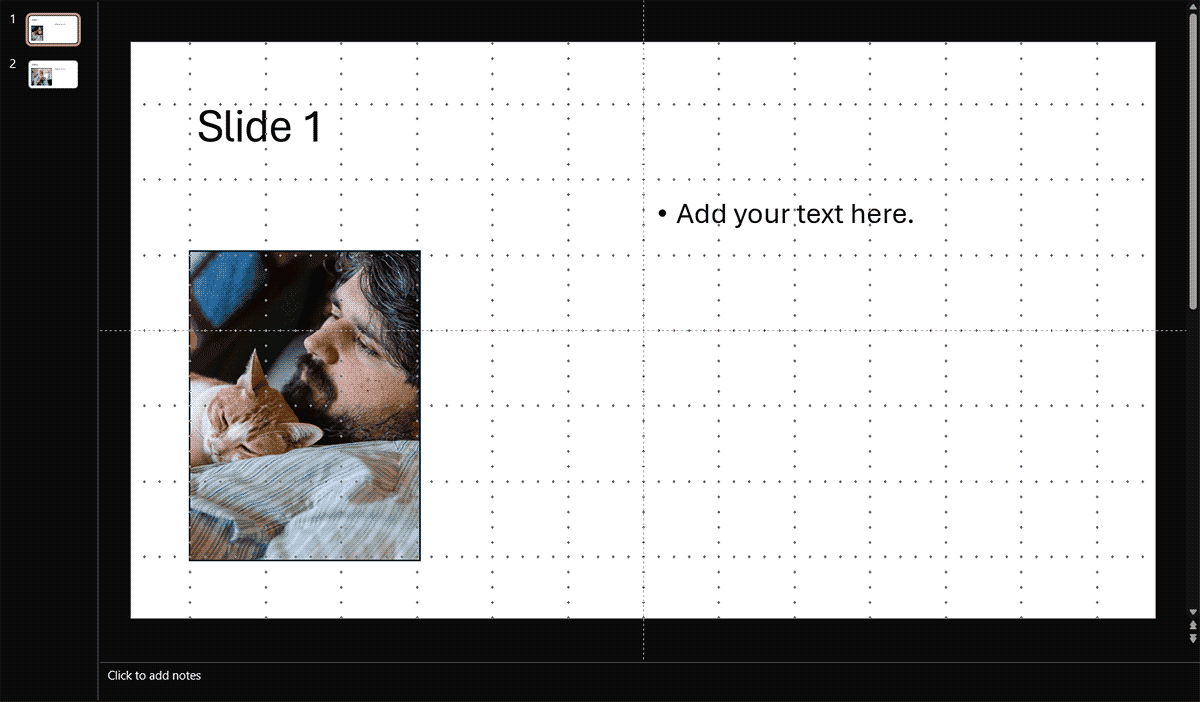
In PowerPoint, almost anything you can select—shapes, pictures, icons, charts, and text boxes—can be positioned using the same alignment and snapping features. That means the skills you learn with a simple rectangle can be applied to virtually every slide object you use.

Professional presentation designers frequently use alignment tools to maintain visual consistency across an entire slide deck. Audiences may not consciously notice this precision, but they often perceive the presentation as being more organized and professionally designed.
We were able to position the bottom-left corners of both rectangles in exactly the same location because we moved the shapes close to the appropriate gridlines. Once the shapes came within range, PowerPoint's Snap to Grid feature automatically aligned them to the grid intersection, ensuring precise placement.
Without Snap to Grid enabled, achieving the same level of accuracy would be much more difficult. You would need to rely entirely on visual judgment and steady mouse movements, making it easier for small alignment differences to creep into your slides.
Many modern design and engineering applications use some form of snapping technology. Whether you're designing a website, creating a building blueprint, or arranging objects on a PowerPoint slide, snapping tools help transform "almost aligned" into "perfectly aligned" with very little effort.
Disable it when creating free-form, organic, or artistic layouts.
Snap to Grid automatically aligns objects to an invisible grid while moving or resizing them.
Snapping restricts free movement, which can feel limiting for fine adjustments.
01 09 12 - Working with Slides: Working with Snap to Grid in PowerPoint (Glossary Page)
Working with Snap to Grid in PowerPoint 2016 for Windows
Working with Snap to Grid in PowerPoint 2013 for Windows
Working with Snap to Grid in PowerPoint 2010 for Windows
You May Also Like: How to Find Your Market in PowerPoint | Presentation Management is Better Content Management


Microsoft and the Office logo are trademarks or registered trademarks of Microsoft Corporation in the United States and/or other countries.
